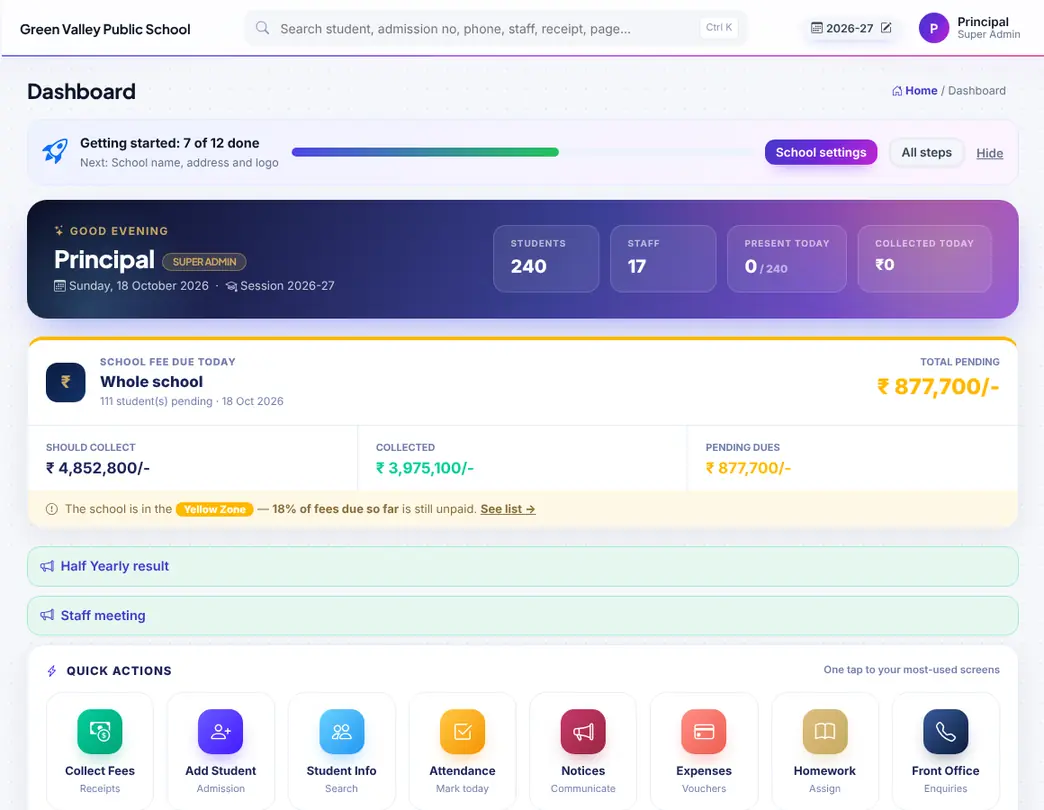
Dashboard
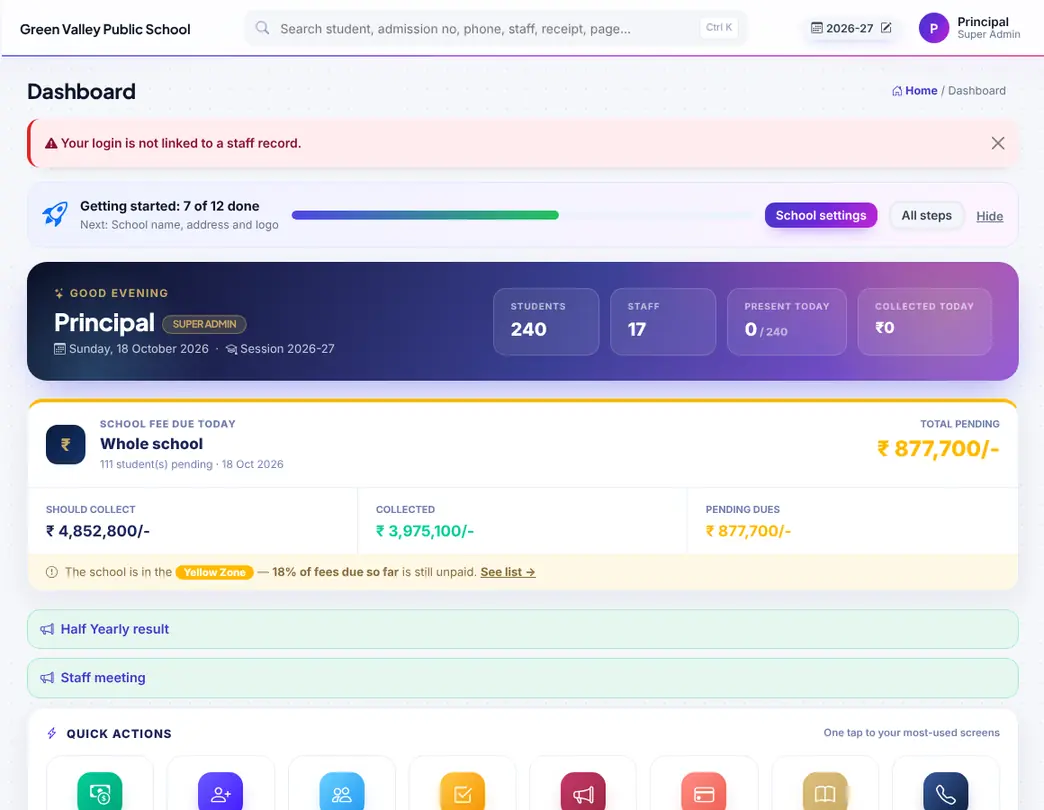
DashboardThe first page after sign-in. The Super Admin sees the whole school: students, staff, present today, collected today, fee dues by zone, charts and quick actions. Every other login sees "My dashboard" with only their own work.
A picture of every page in Skoolnix with what it is for, and step-by-step help for the jobs you do every day — attendance, admission, fees, marks and report cards, timetable and the parent app. The pictures come from a demo school; names and numbers are made up.
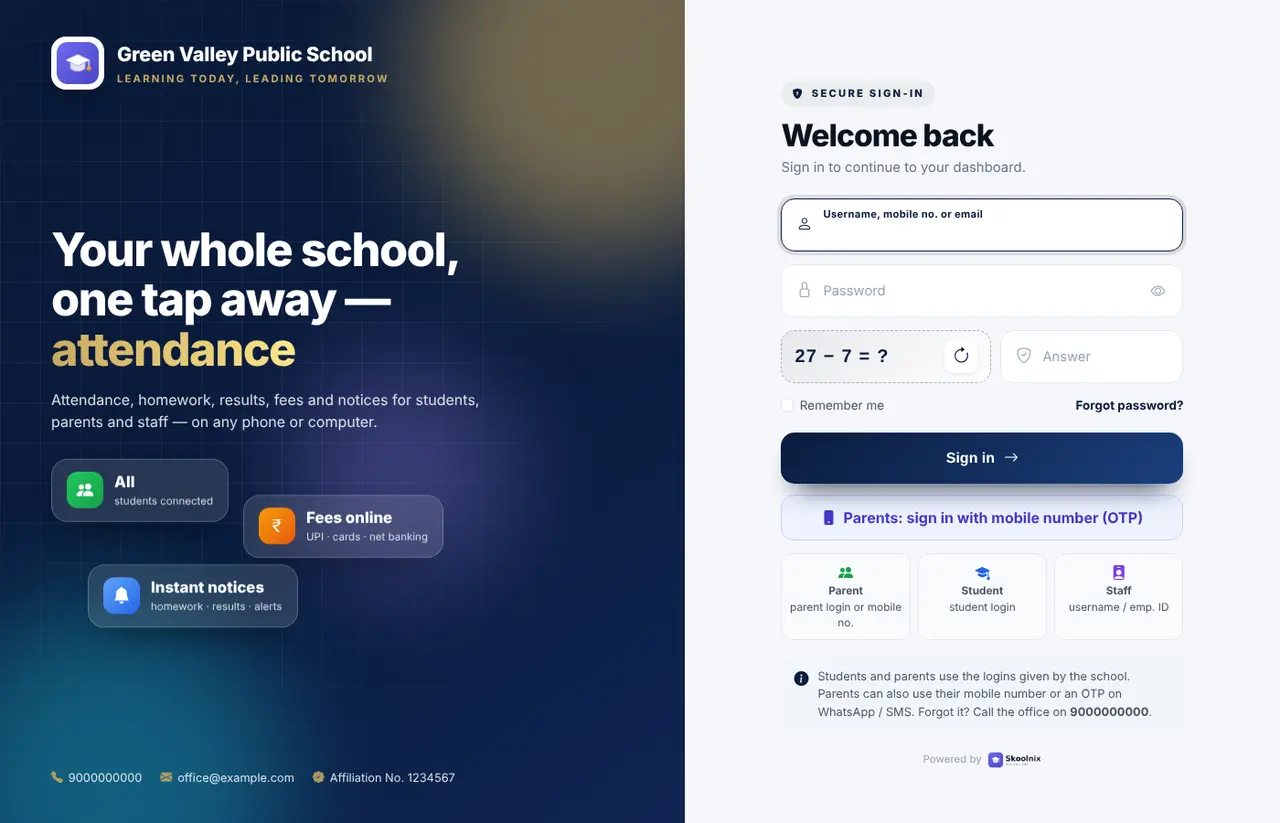
Open your school's Skoolnix address. Staff sign in with username (or employee ID / mobile) and password; parents with their mobile number and password or an OTP on WhatsApp / SMS; students with their own login. A small sum (captcha) keeps robots out, and two-step verification can be switched on.
Every login opens on a dashboard made for that person. The Super Admin sees the whole school; teachers, accountants and other staff see only their own work. Coordinators also get a Coordinator panel.
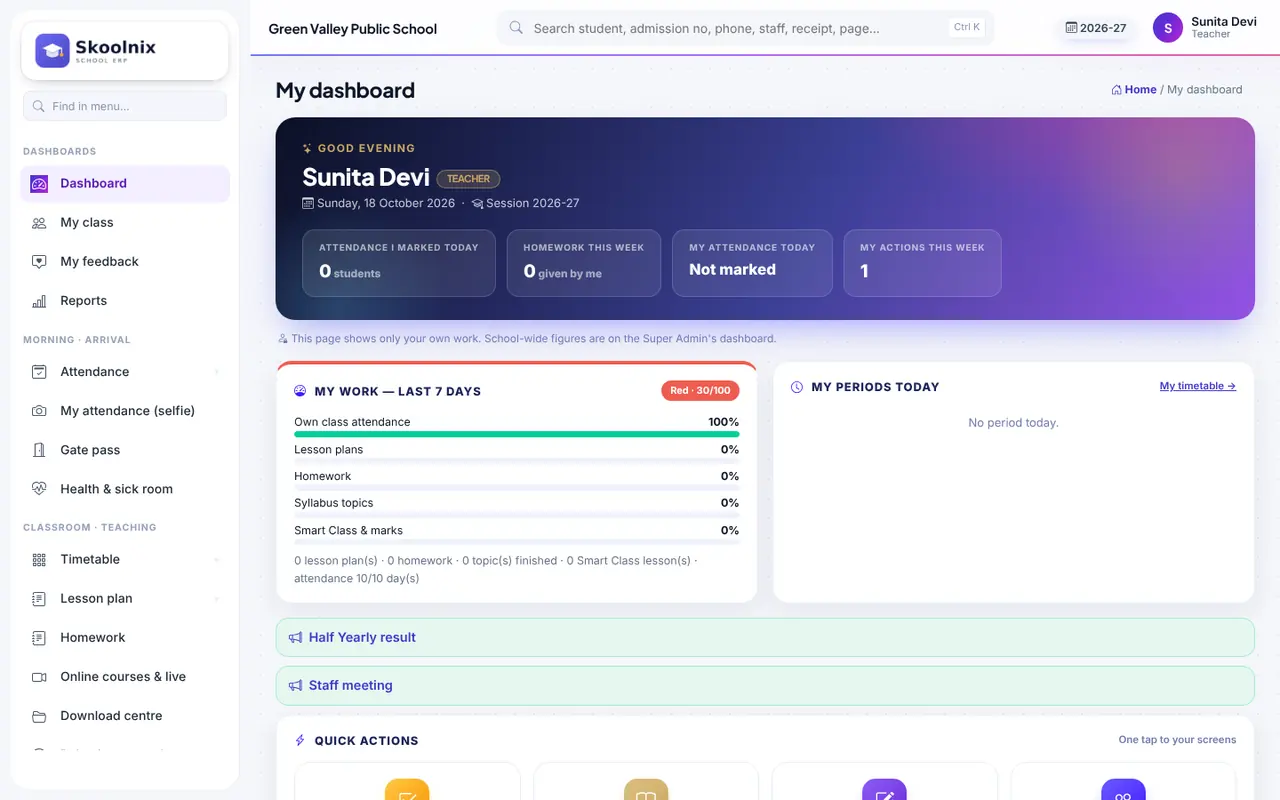
The first page after sign-in. The Super Admin sees the whole school: students, staff, present today, collected today, fee dues by zone, charts and quick actions. Every other login sees "My dashboard" with only their own work.
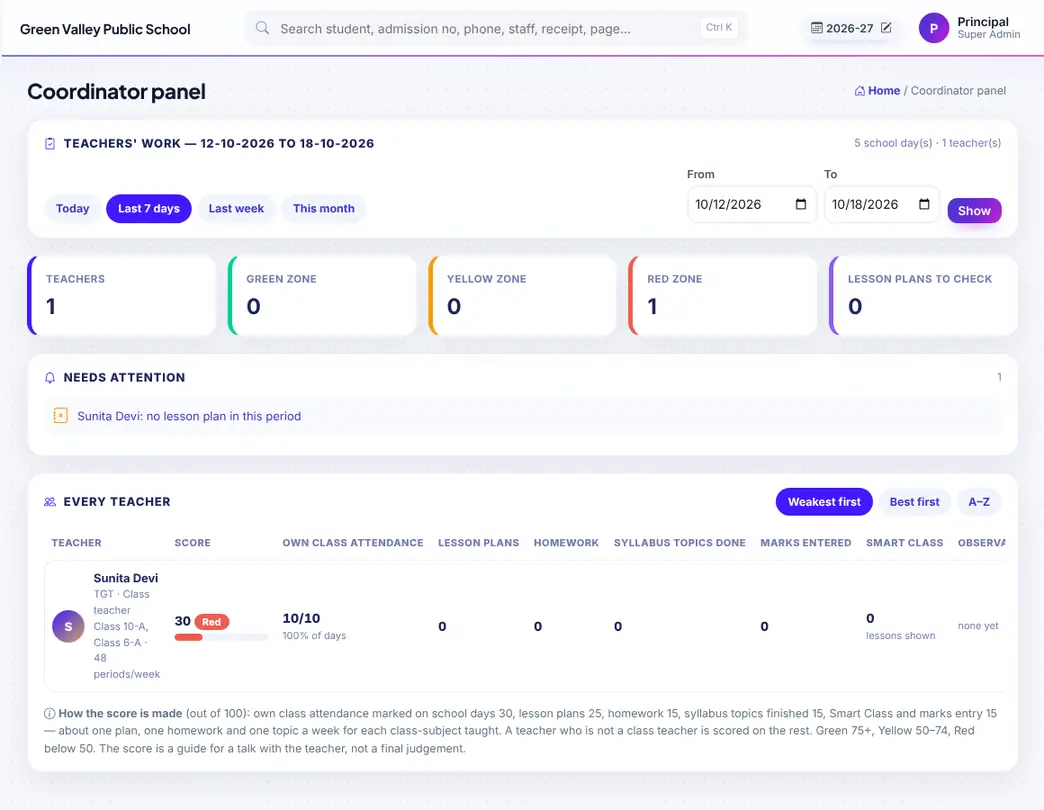
Every teacher's work for a day, week or month — attendance marked, lesson plans, homework, syllabus topics, marks entered, Smart Class use — with a score and a green / yellow / red zone.

Lesson plans written by teachers that are waiting for a check. Mark each OK or Needs change with a note; the teacher sees it on their dashboard.

Every report of the school in one place, grouped by category (fees, students, attendance, exams, timetable, staff…) with a search box.
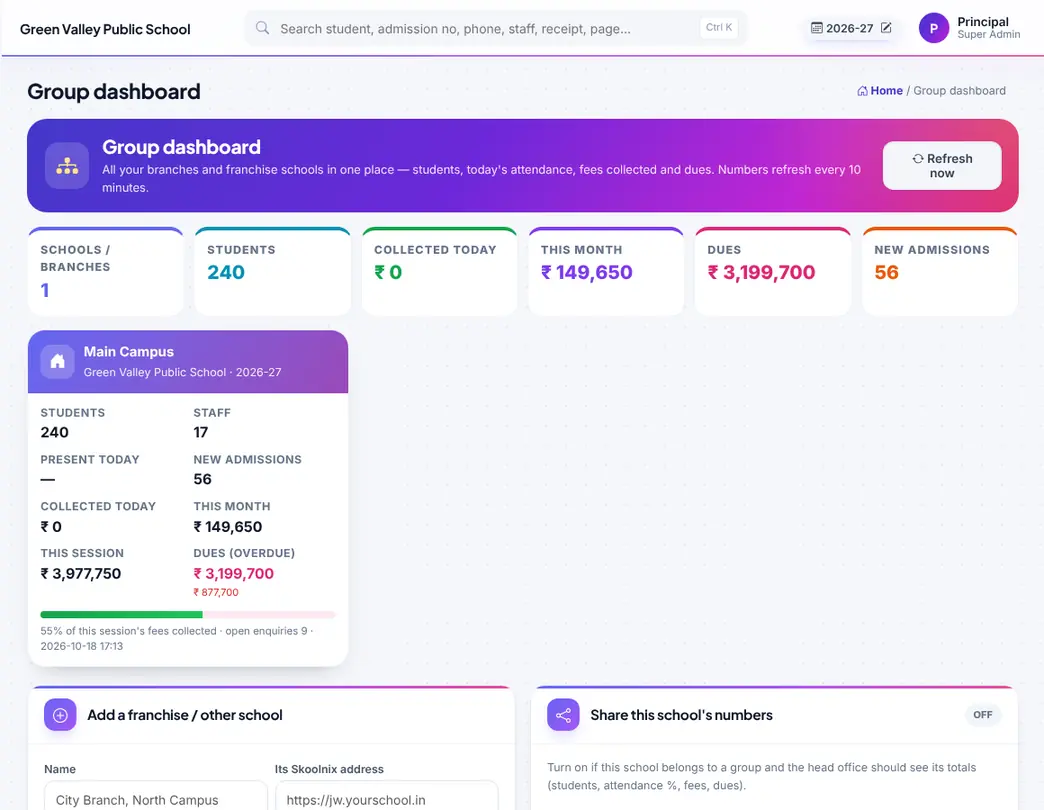
All branches or franchise schools in one view: students, attendance %, fees today / month / session, dues and new admissions.
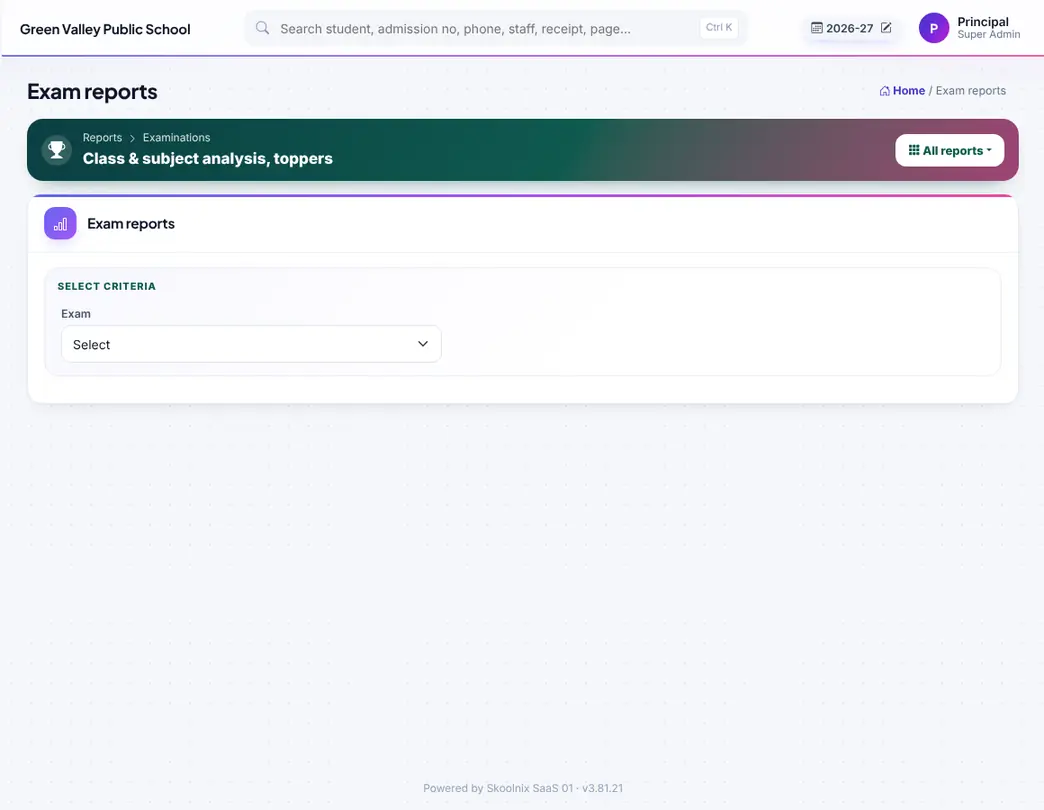
Class and subject analysis, toppers, Excel.
Student attendance by class, QR and biometric attendance, staff attendance with automatic substitution, monthly registers and gate passes.


Choose class, section and date; everyone is Present by default — tap A, L, H or V for the others and press Save. Parents of absent students get one message a day (if switched on).

Scan the QR on the student or staff ID card with a phone camera or USB scanner, or type the admission no / employee code. Present or Late is set by the time.
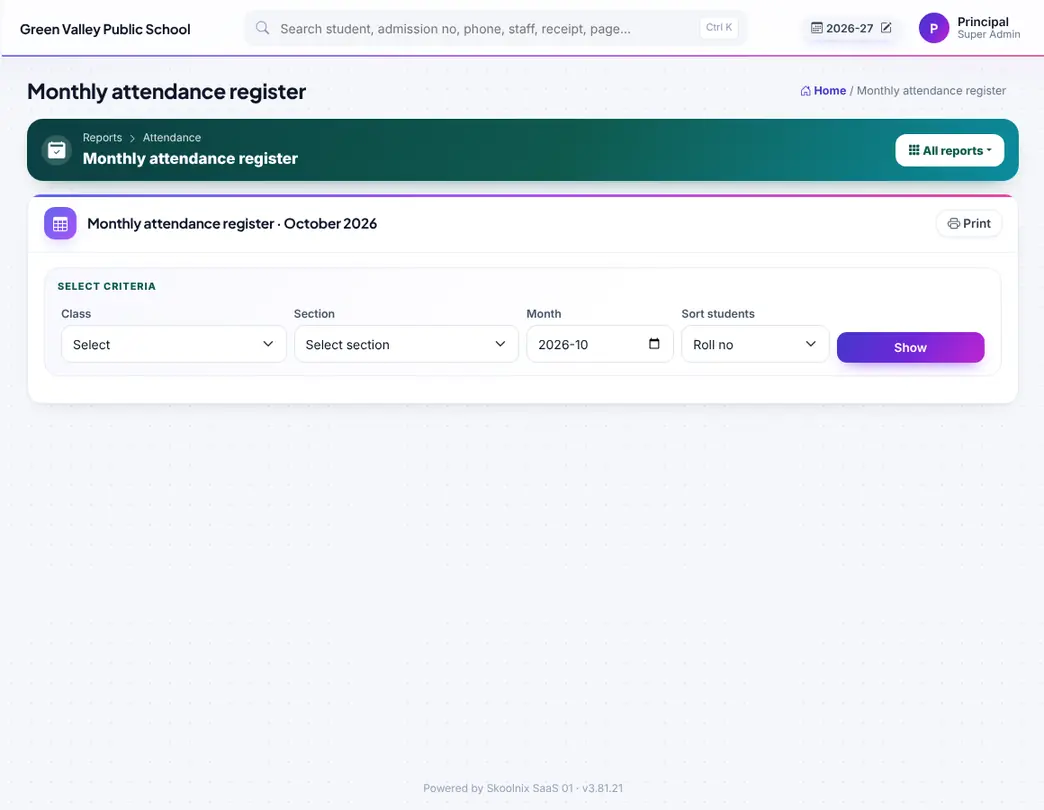
Monthly attendance register of a class-section with totals and percentage; Excel and print.
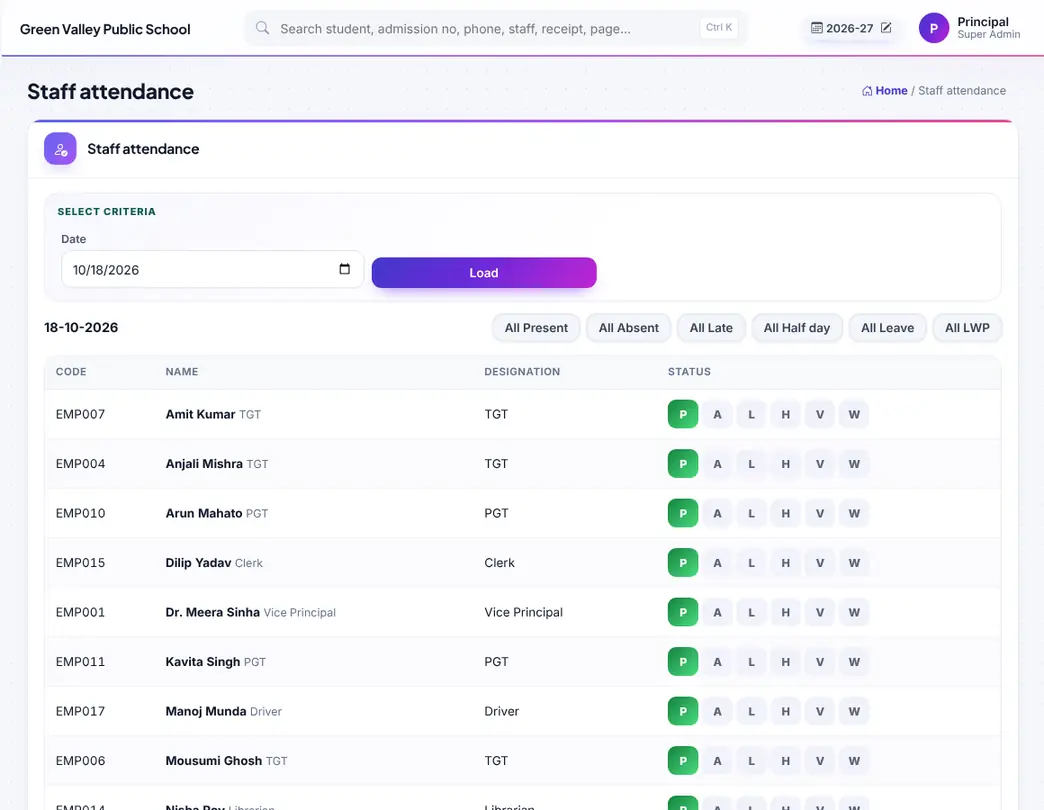
Mark staff attendance for a day (Present, Absent, Late, Half day, Leave, LWP). Saving it starts automatic substitution for absent teachers.
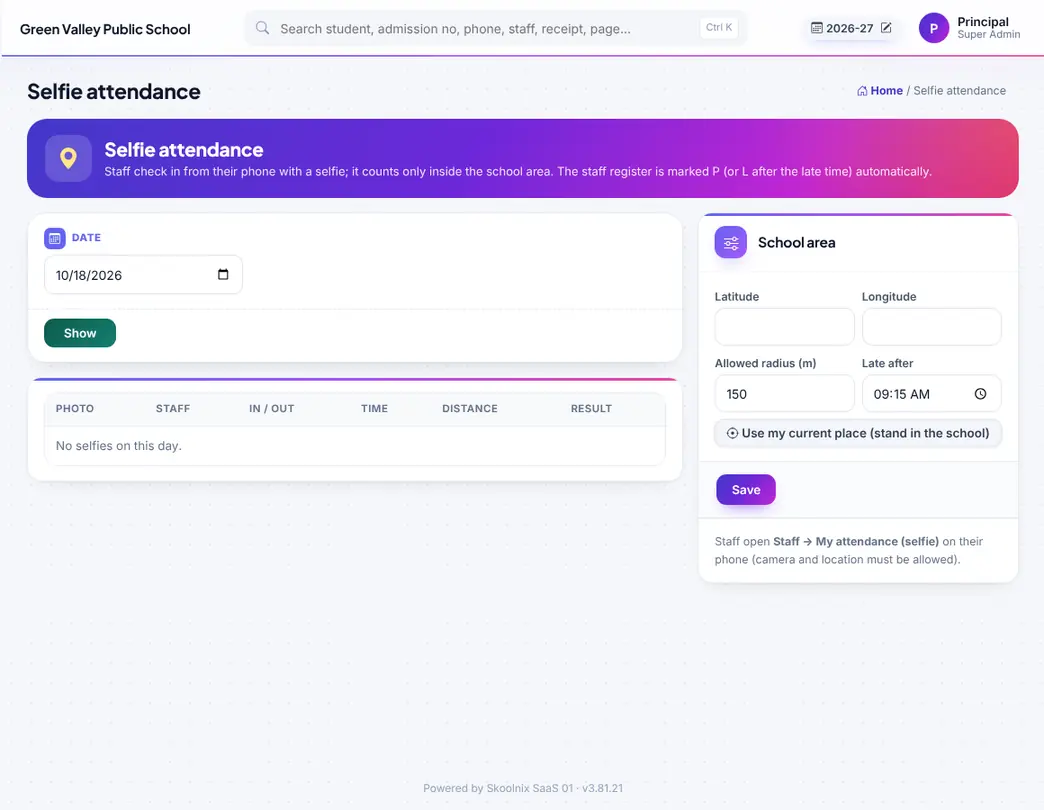
Selfie attendance of staff with photo, time and place, for the office to check.

Monthly staff attendance register with Present, Absent, Late, Leave and LWP columns.

Add ZKTeco / eSSL / Realtime biometric devices. Punches arrive by cloud push; User ID = employee code or admission no.

Subject teachers mark attendance for their own period; subject-wise % report with below-75% in red.

A staff member's own selfie attendance for today and their history.
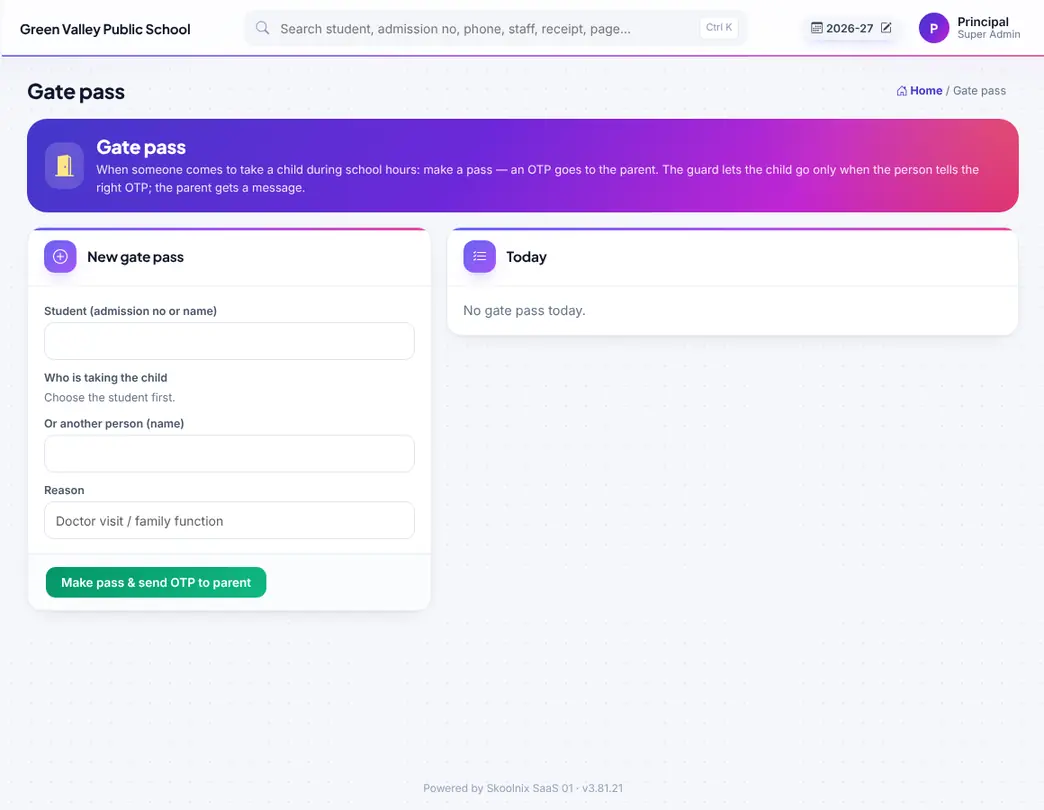
Gate pass for a student leaving early: who collected the child, time and reason; print or send to parents.
Routes, stops, vehicles and live GPS tracking. Parents see the bus, their stop and the arrival time in the app.
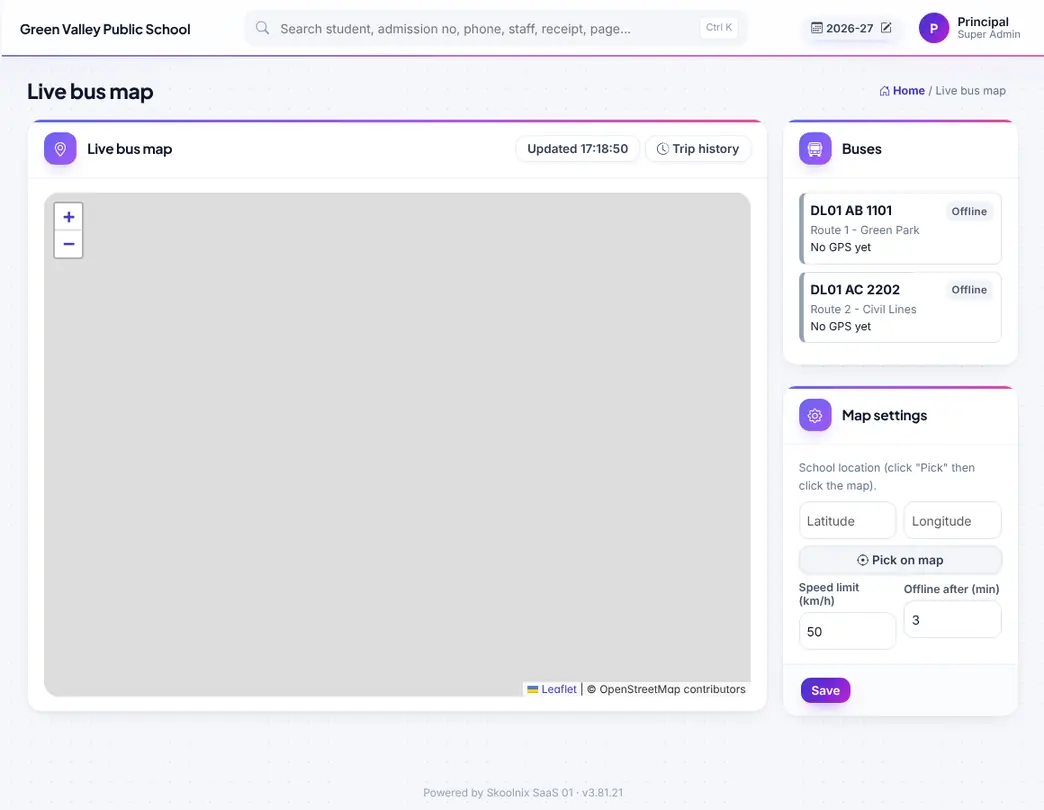
All buses live on the map from the driver phone link or a GPS tracker — speed, online / offline and today's trail.

Routes and pickup points with fares and drop times; pin stops on the map.

Trip history of a bus with play-back, distance, top speed and over-speed count.

Vehicles with driver, seats and expiry reminders for insurance, fitness, permit and PUC.
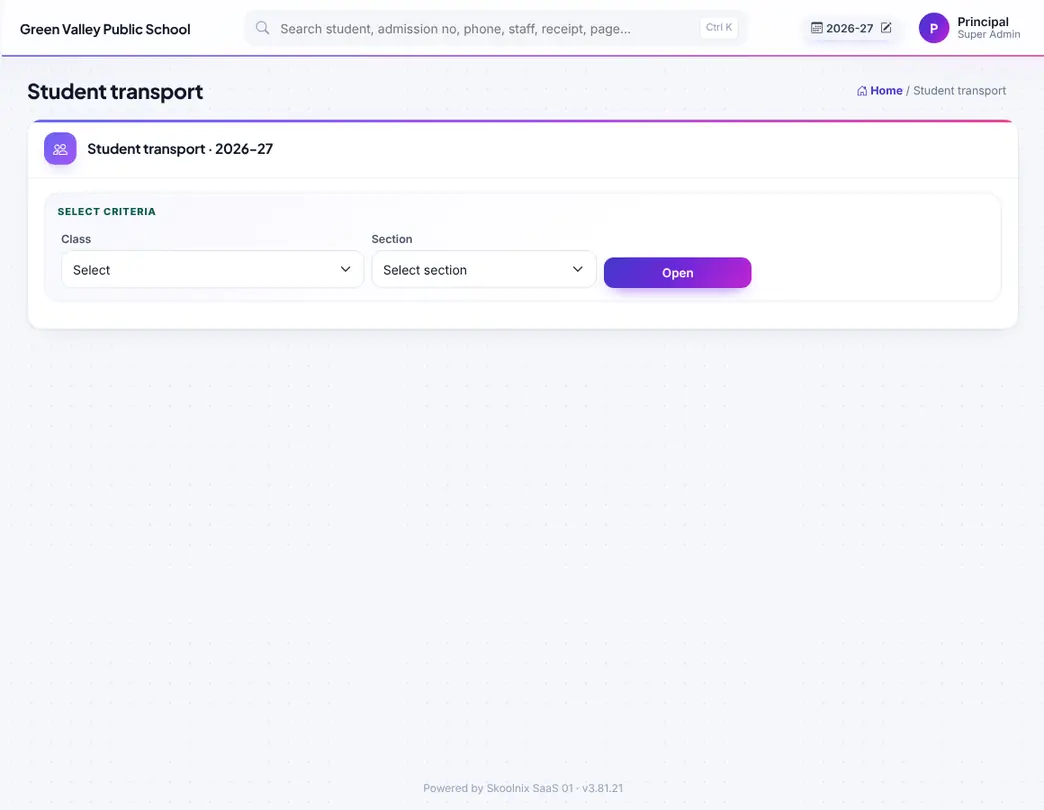
Which students use which route and stop, with guardian phone; add or remove transport.
Build a clash-free timetable automatically, adjust it by hand, cover absent teachers automatically and print colourful timetables and reports.


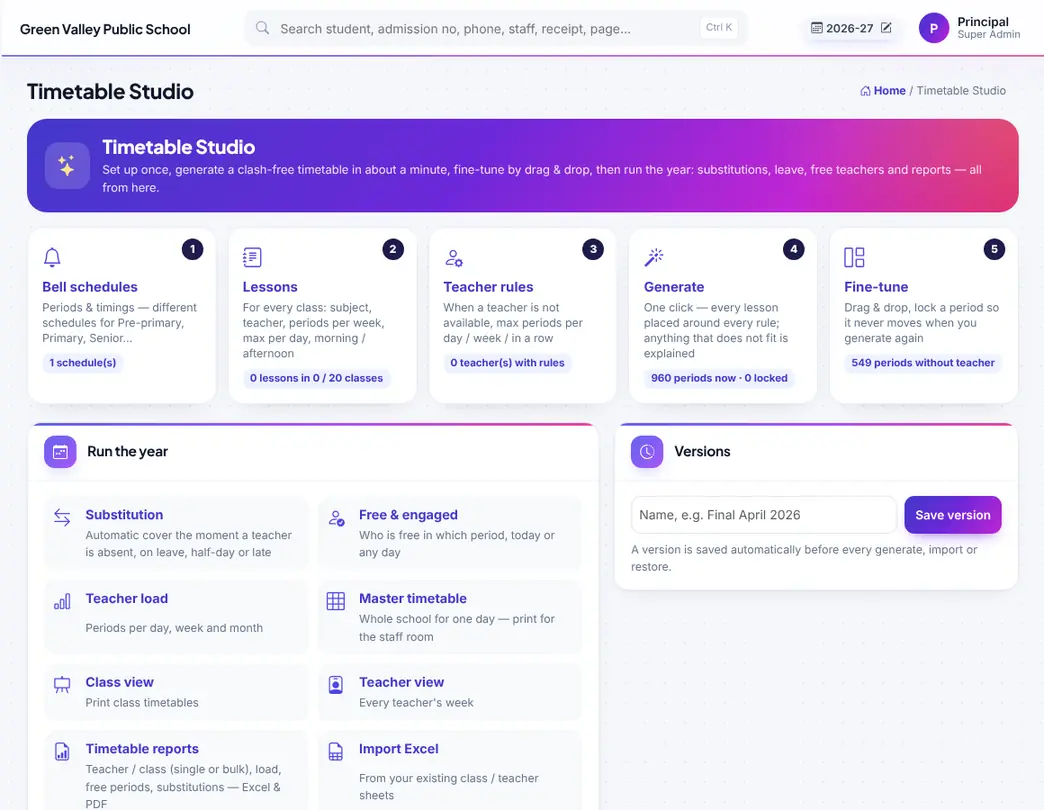
Start here for the timetable: bell schedules, lessons, rules, generate, versions and links to every timetable tool.
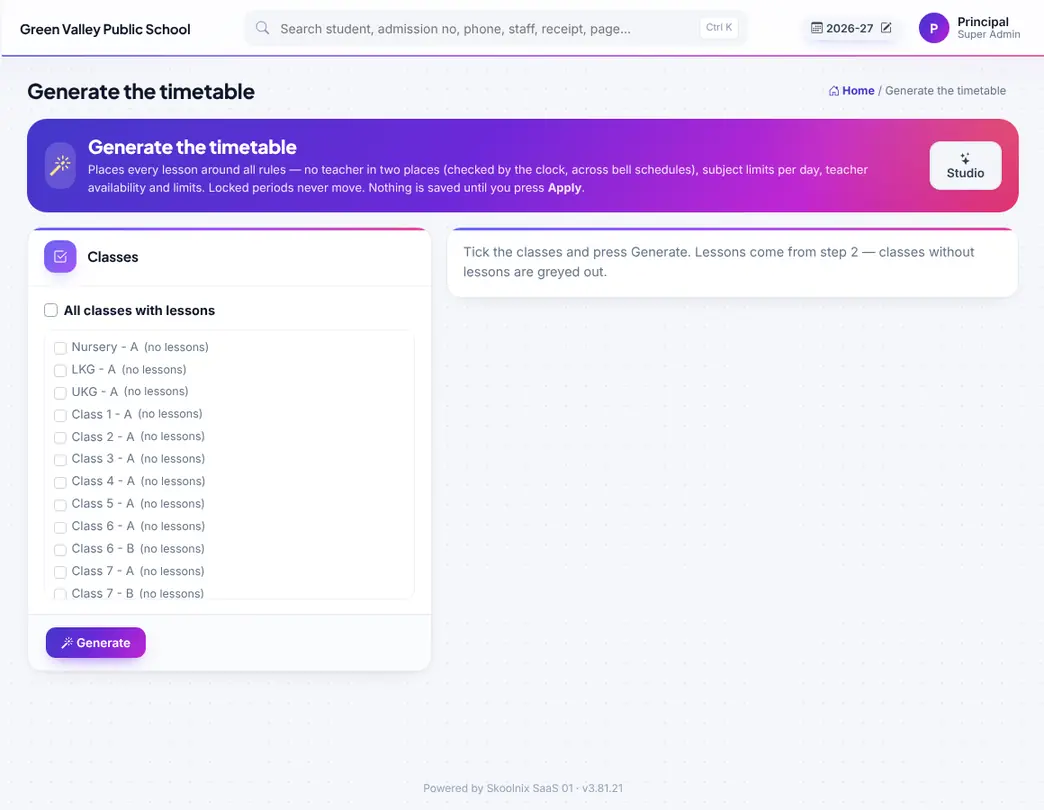
Tick the classes and press Generate: every period is placed with no teacher or class clash. The result lists anything that could not be placed and why. Press Apply to save.

Drag and drop periods by hand; lock periods that must not move.
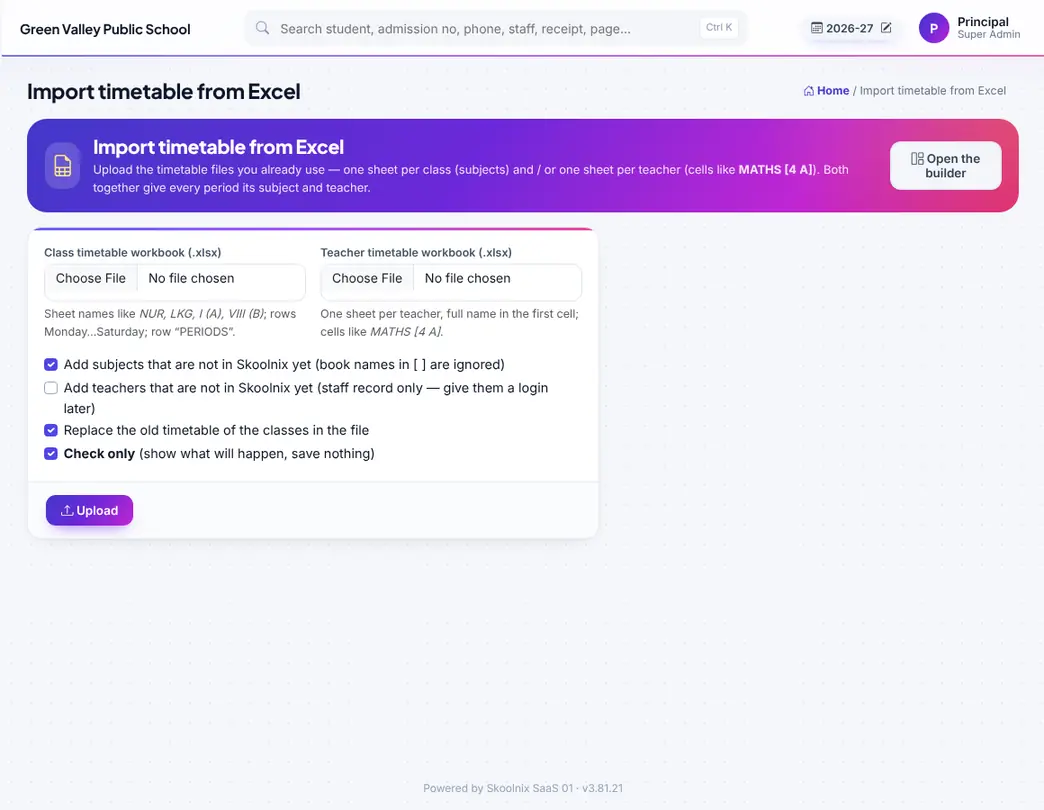
Bring your existing class or teacher timetable from Excel.
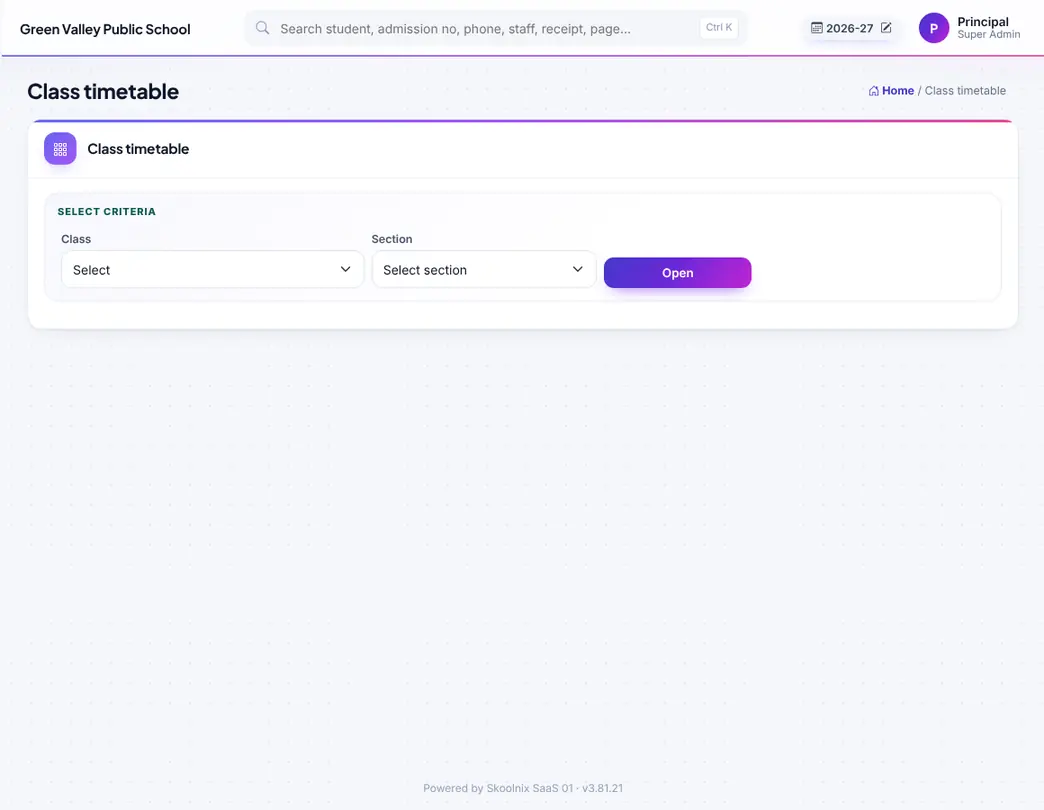
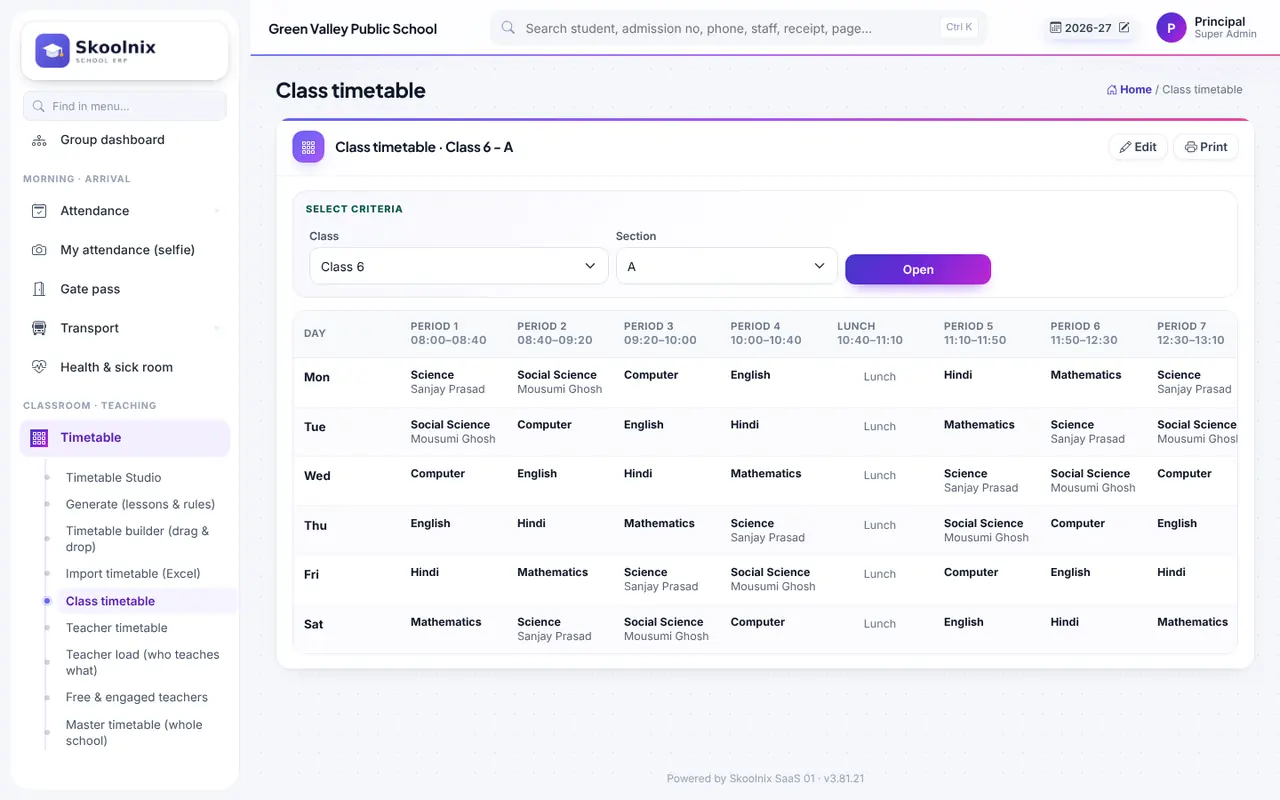
The timetable of one class-section — view, print or edit.

The week of one teacher; a teacher sees only their own.

Periods per day, week and month for every teacher.
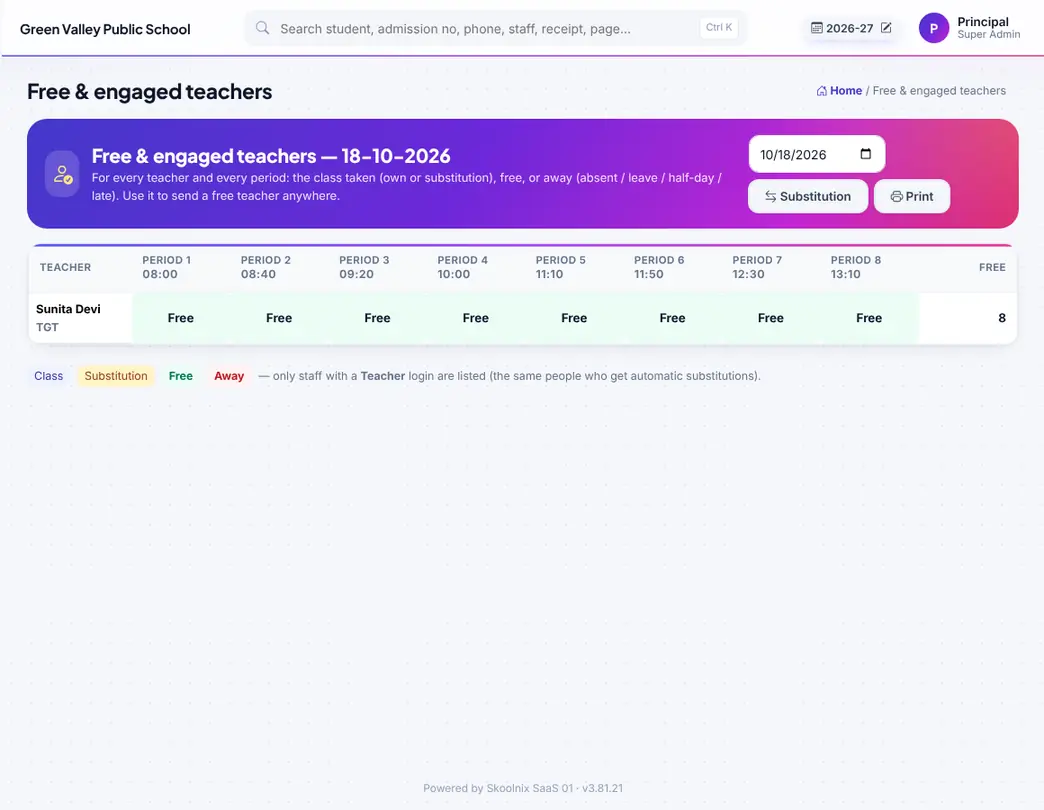
Which teachers are free or engaged in each period of any day, including substitutions.
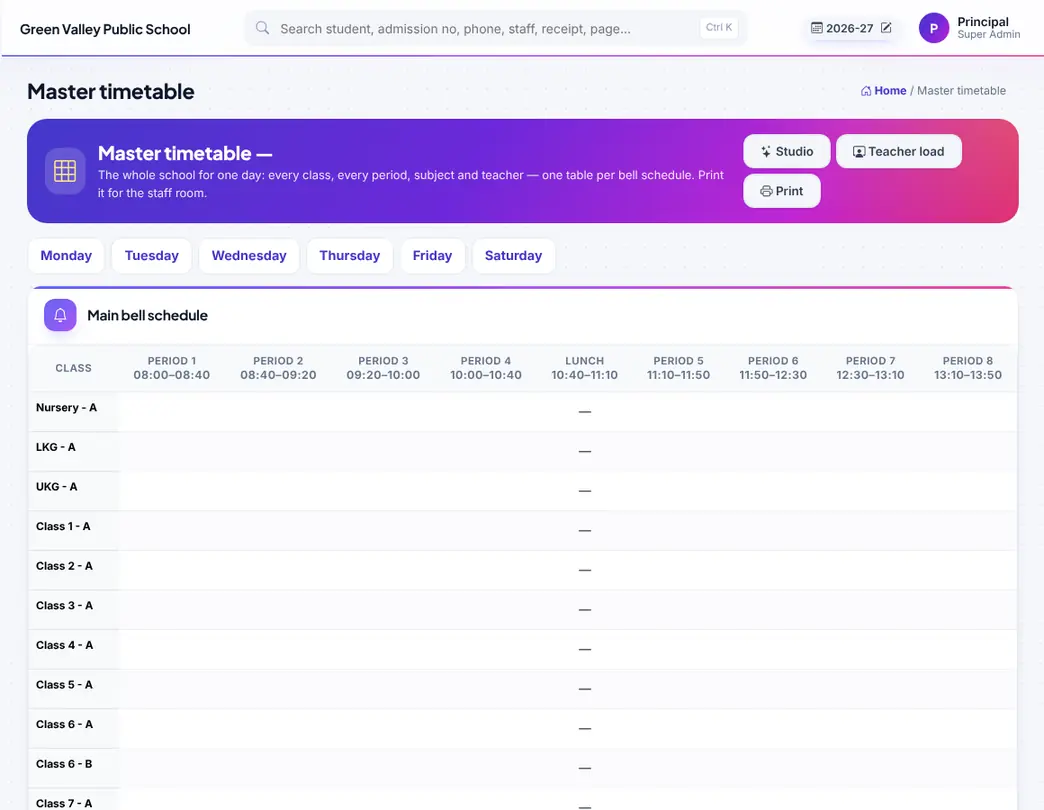
Whole school on one page for one day — print for the staff room.
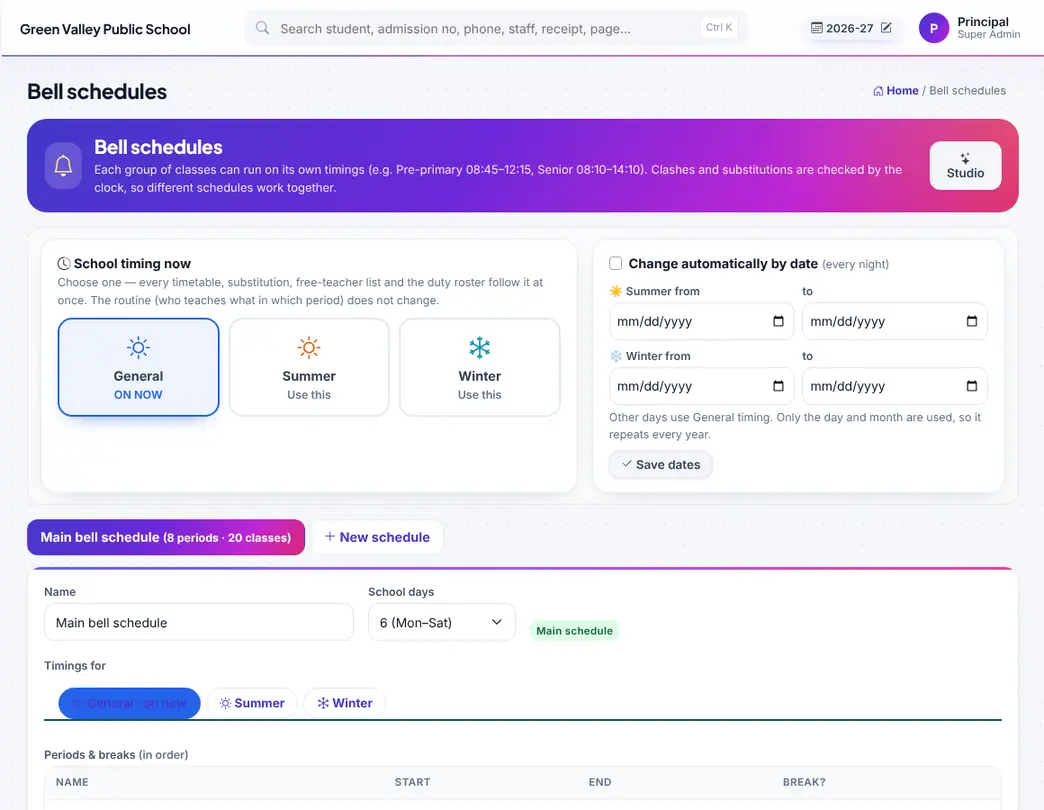
Bell schedules (period times) — for example one for Nursery–2 and one for Class 3–10 — with General / Summer / Winter timings by date.

Absent and on-leave teachers' periods for a date with free teachers suggested (same subject first, least busy). Tick who may take substitutions and press Give all open periods automatically.
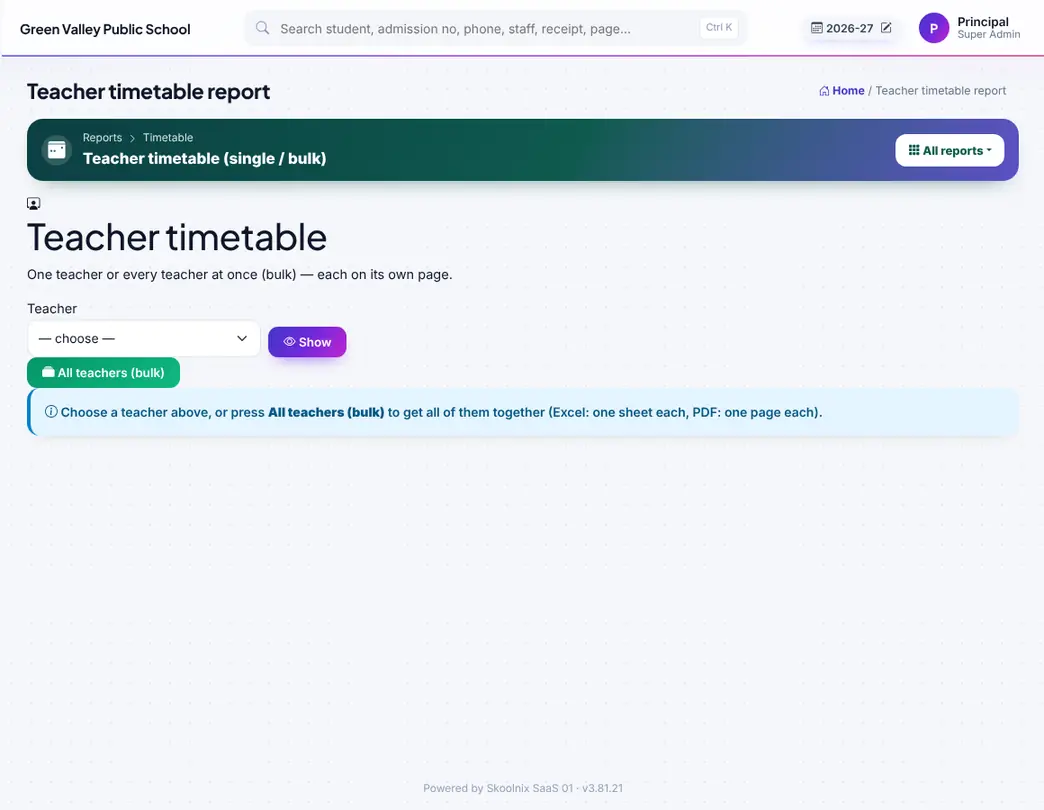
Colourful timetable of one teacher, or all teachers together (bulk) — each on its own page. Excel (one sheet per teacher) and PDF.
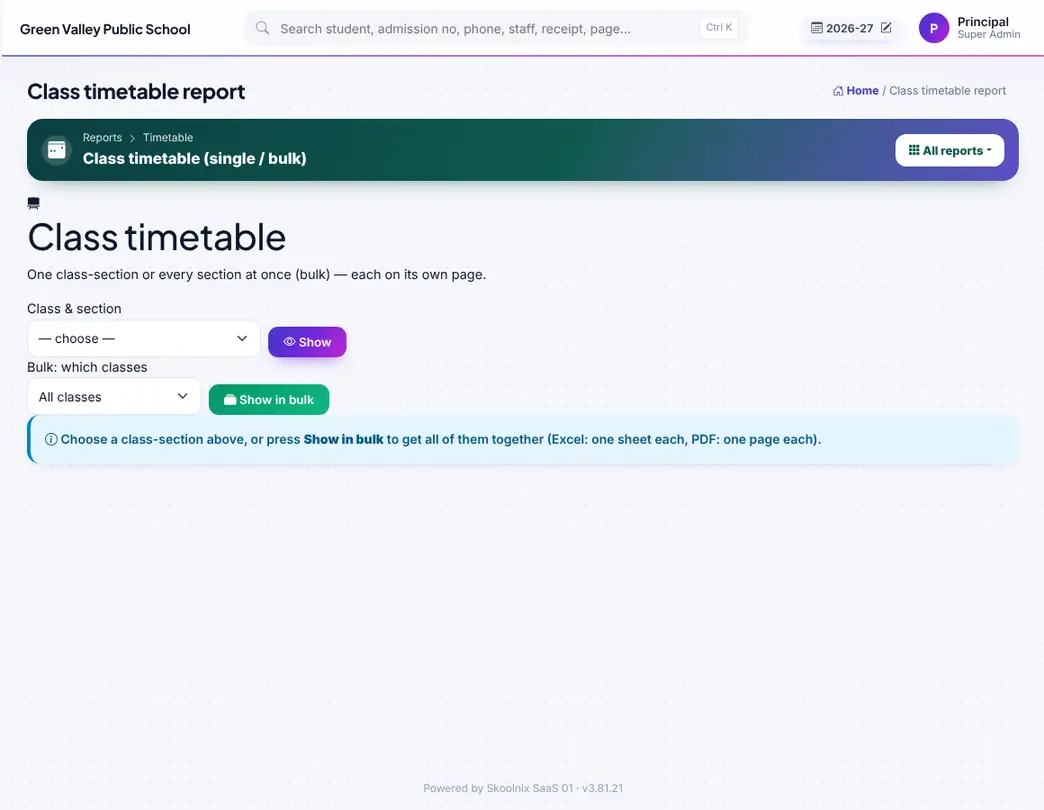
Colourful timetable of one class-section, all sections of a class, or the whole school. Excel and PDF.

Teacher load: periods per day and week, free periods, load % in colour, classes, subjects and substitutions this month.
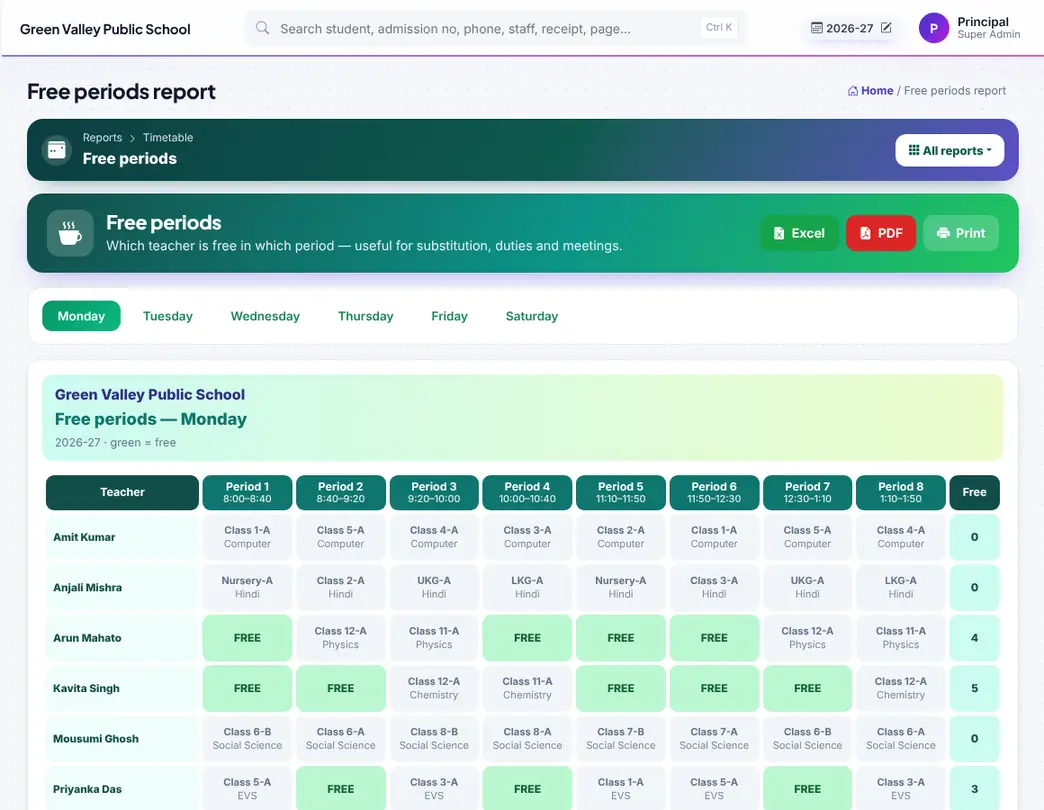
Free periods of a chosen day — green = free — with the number of free teachers per period and a week summary.

All substitutions between two dates: absent teacher, substitute, periods not given, and a teacher-wise summary.
Syllabus with topics done, lesson plans, homework and online courses.

Lessons and topics for every class and subject; teachers write lesson plans and mark topics done. An automatic lesson plan can be made for a topic or a whole chapter.

How much of the syllabus each section has finished, with progress bars; parents see it too.

Give homework to a class and subject with a due date and files; parents see it in the app and you can check submissions.
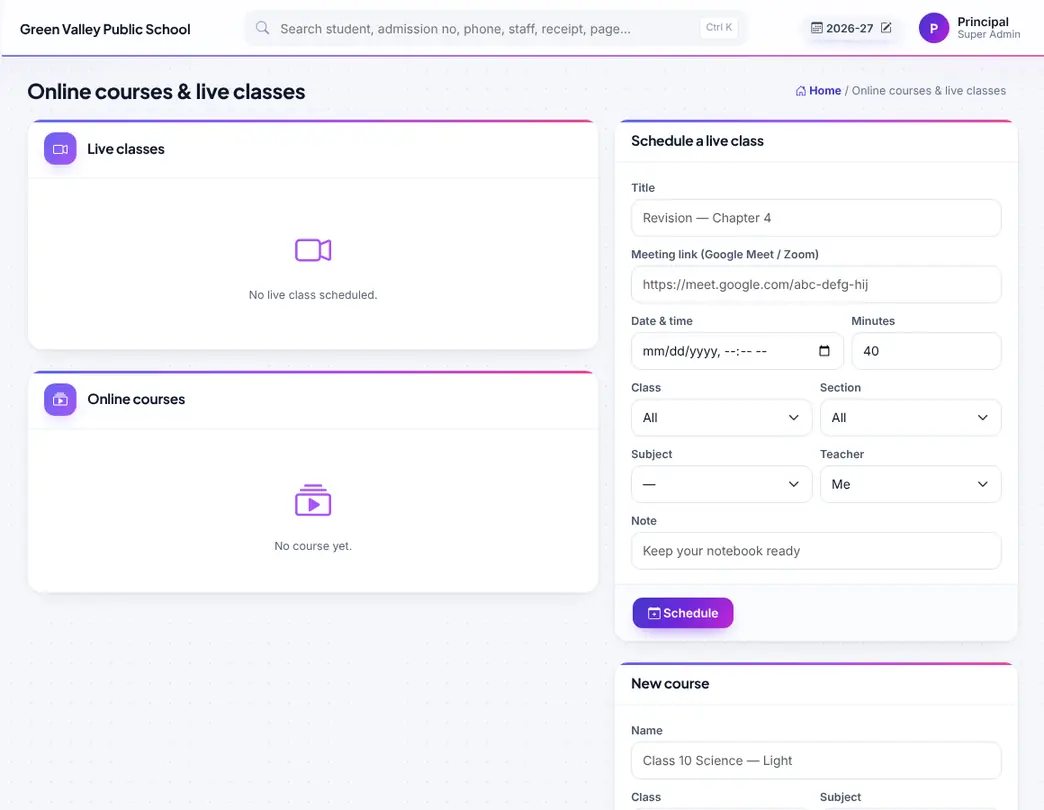
Online courses (video, text, file and link lessons) and live classes with a Google Meet / Zoom link and a Join button.
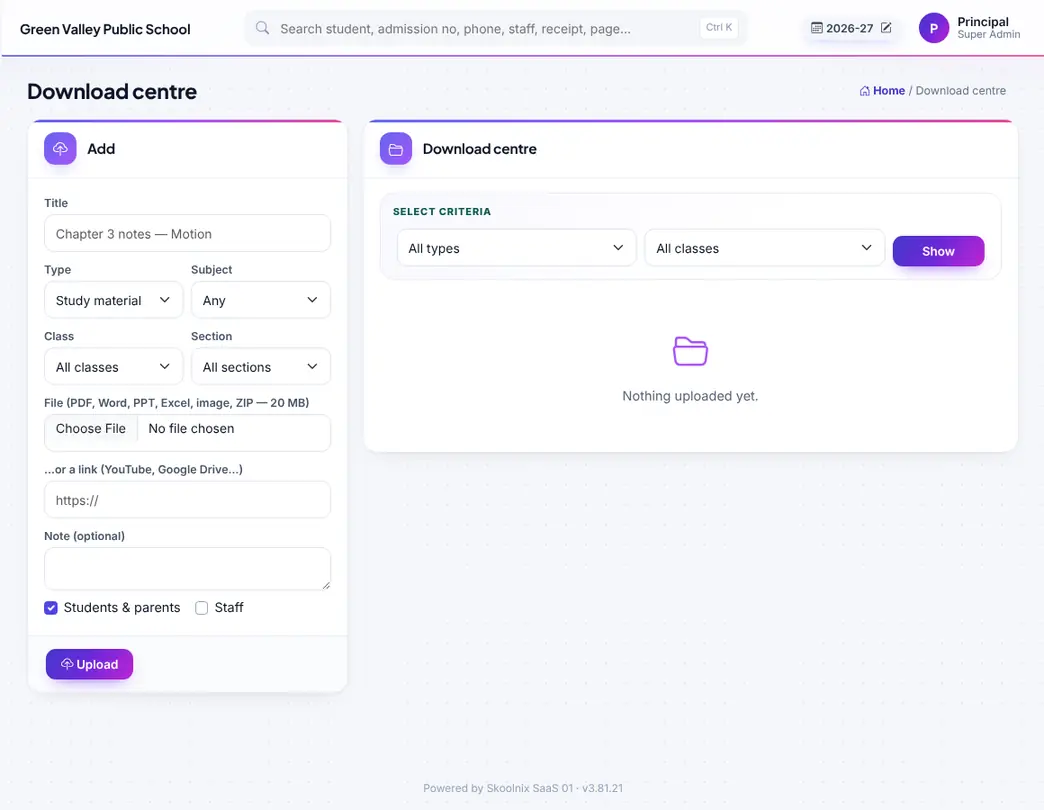
Study material, assignments, syllabus and circulars for a class, section, subject or staff; parents download in the portal.
Ready-made lessons for Class 1–10 and practicals for Class 1–12 with notes, smart-board slides, voice lessons, questions and diagrams; a dictionary; and Spoken English lessons with live batches.


Ready-made lessons: choose class → subject → chapter for notes with read-aloud, smart-board slides, Play lesson, questions, practice, glossary, mind map, diagrams and lesson plan.
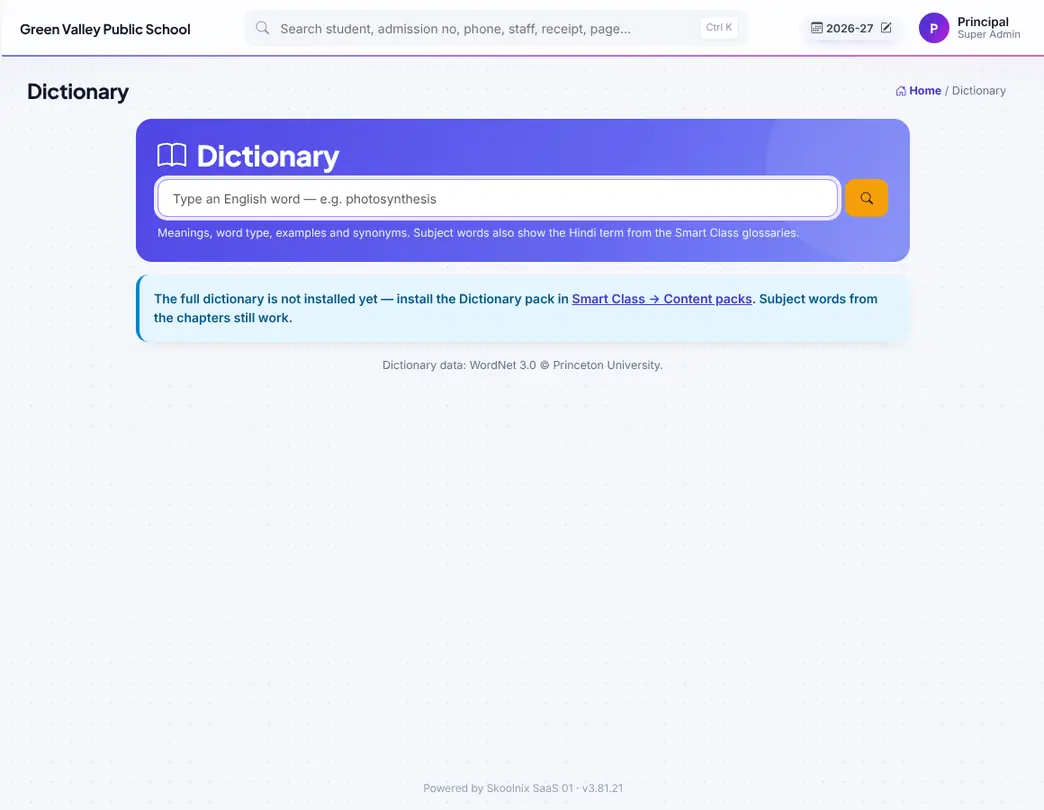
English dictionary of about 155,000 words with meanings, examples and Listen, plus subject words with Hindi.

Super Admin installs or updates the content packs (Install all), maps classes, and chooses who can see Smart Class and Spoken English.

Which teachers and students use Smart Class: lessons opened, played and practised.

4 levels × 20 Spoken English lessons and live batches with a Meet / Zoom link, days and time.

Voice recordings sent by students — listen, give stars and reply.
Behaviour points, incident types and moderated parent–teacher messages.
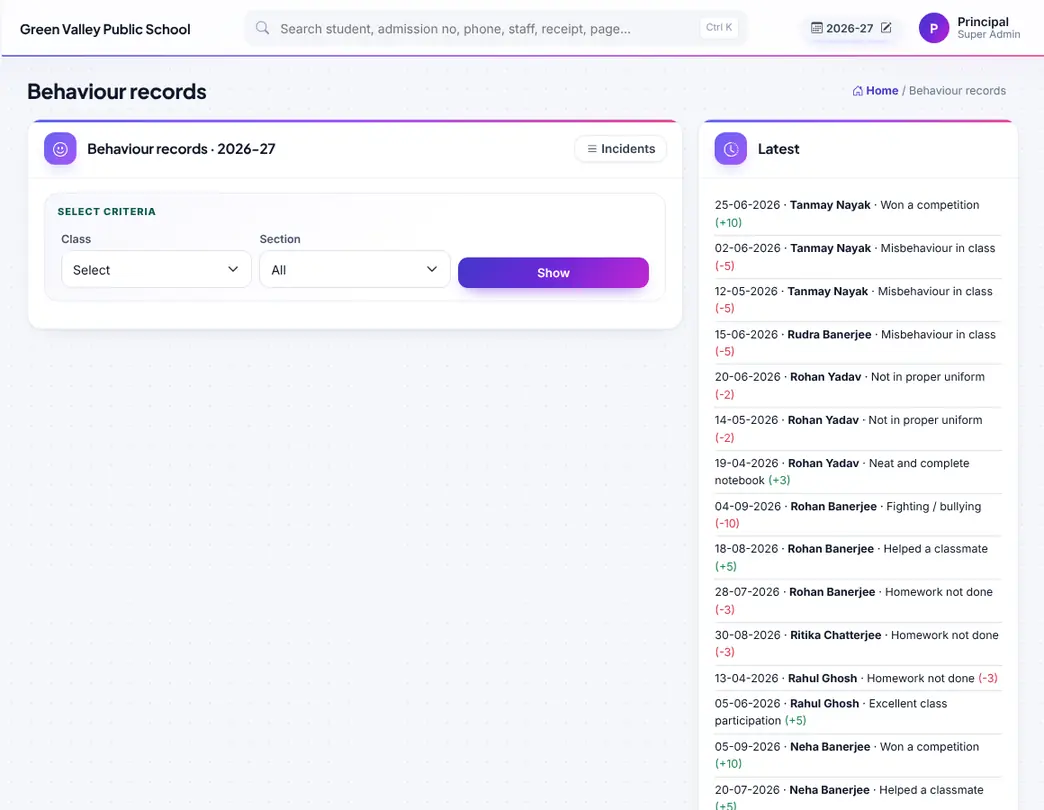
Record an incident with + or − points for one or many students at once.
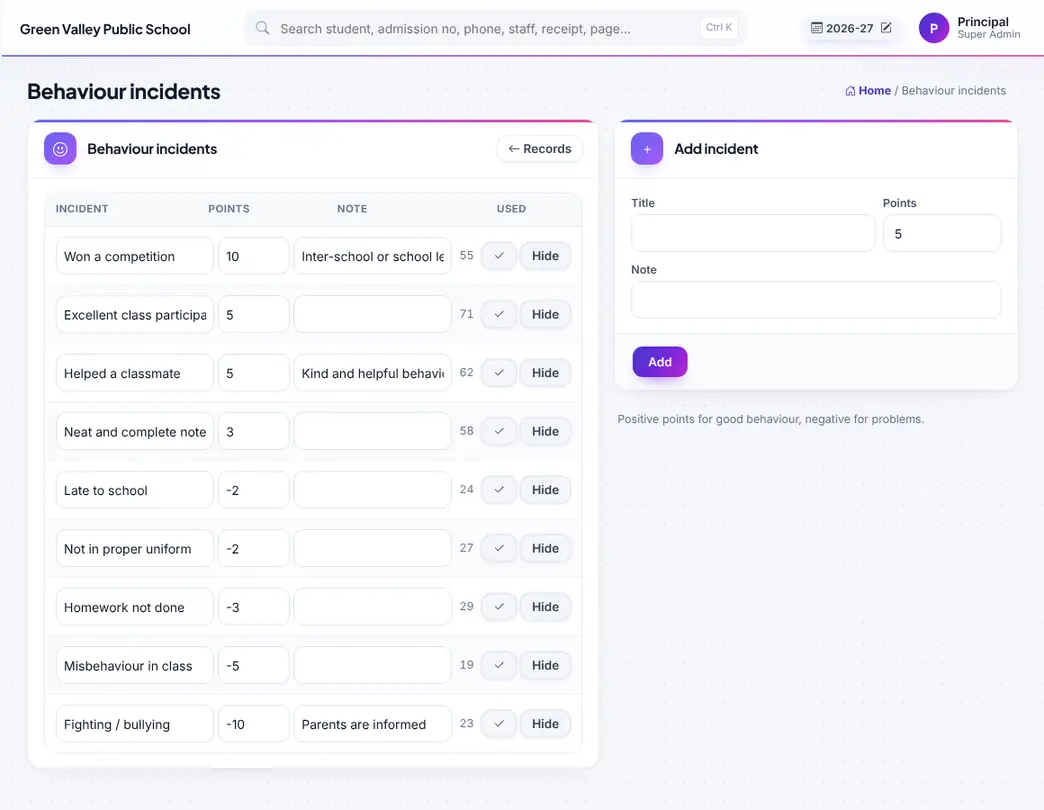
The list of incident types and their points.
Admission enquiries and the CRM pipeline, visitors, calls, postal register and complaints.

Admission enquiry pipeline: New → Contacted → Campus visit → Test → Form & fees → Admitted / Lost, with follow-ups and one-tap admission.

Admission enquiries with source, class, follow-up date and notes.

Visitor book: name, phone, purpose, person met, in and out time.
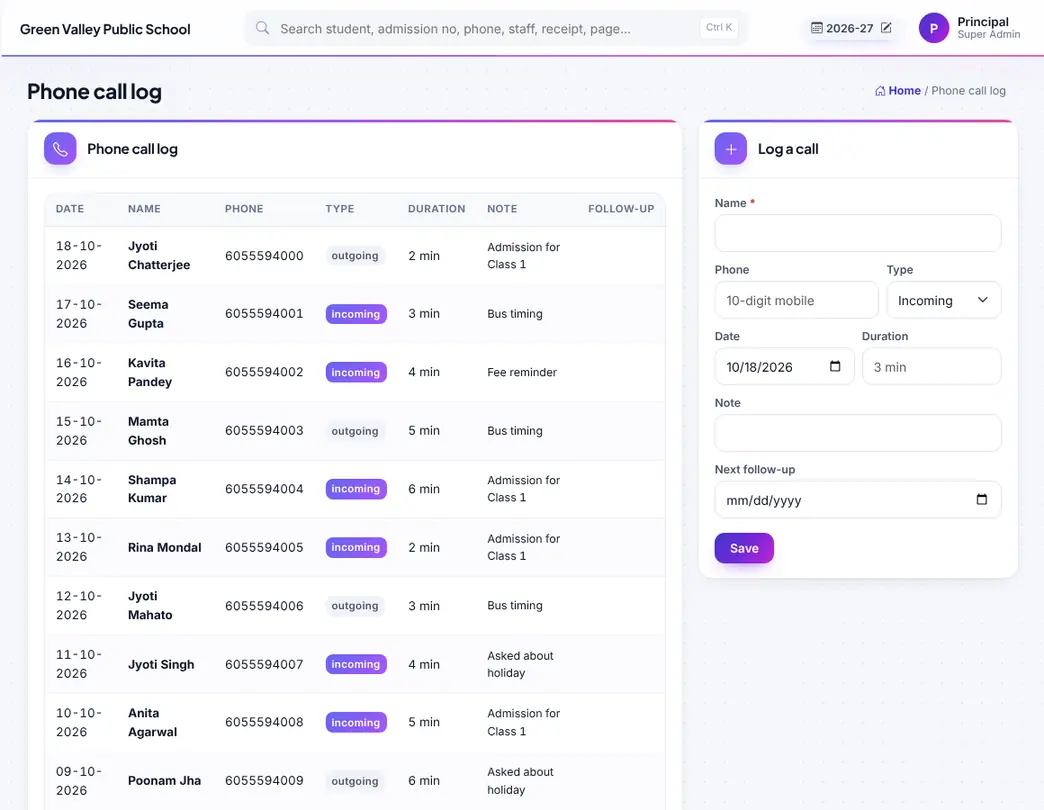
Incoming and outgoing phone calls with follow-ups.

Postal dispatch and receive register.

Complaints from parents or others, who is handling them and the action taken.

Lists used by the front office: purposes, sources, complaint types.
Admission, the student list and profile, family search, online admissions, imports, photos, CV and setup lists.


Health and sick-room visits: complaint, care given, parent informed, and the student's health record.

All students with class picker and keyword search (name, admission no, phone, PEN, APAAR, Aadhaar); open a student for the full profile.

Find a family by parent mobile or name; see all brothers and sisters, link or unlink them as siblings.

Students who need attention: low attendance, falling marks, fee dues and behaviour, in one list.

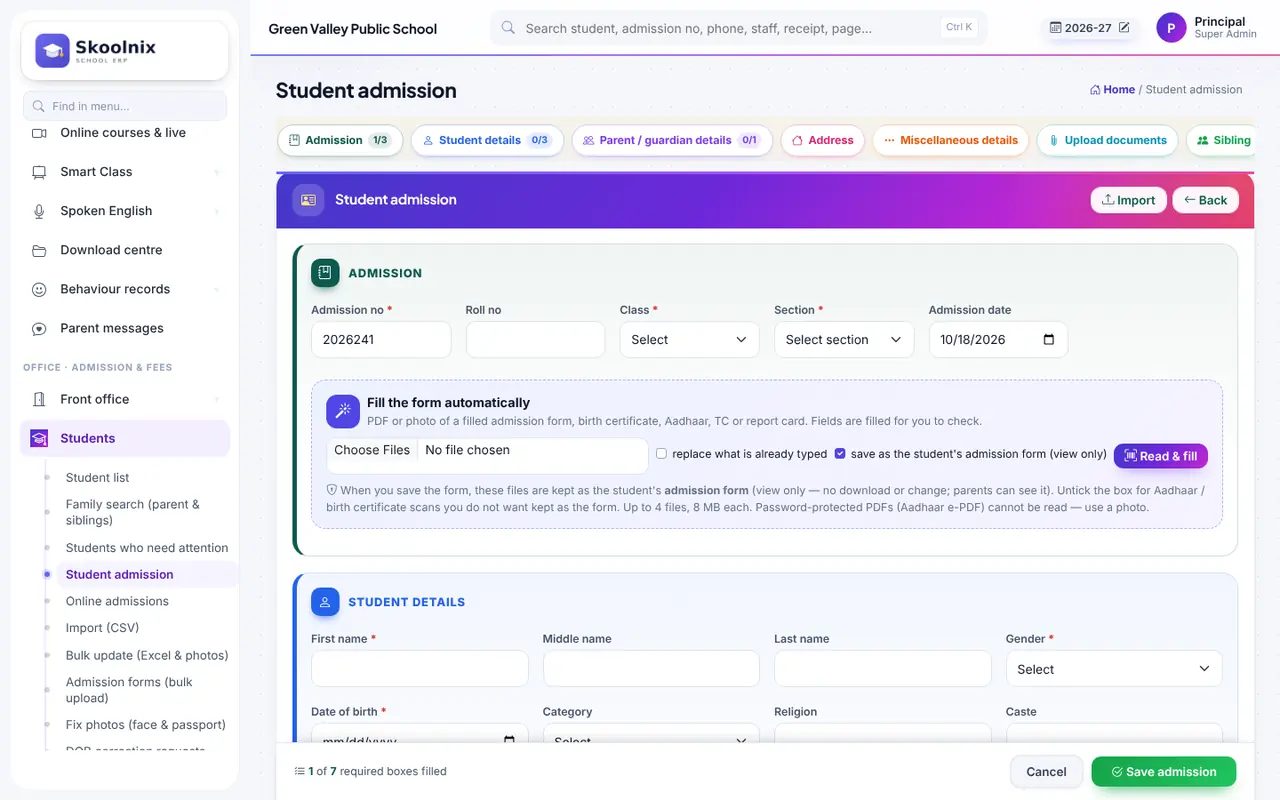
The admission form in coloured sections: student, parents, address, documents, Aadhaar, PEN / APAAR, fee groups, transport. Read & fill can fill it from a scanned form.

Applications from the website (mobile OTP); review and admit with one click.

Bring many students from a CSV / Excel file.

Change a column for many students at once from Excel, and upload many photos together.
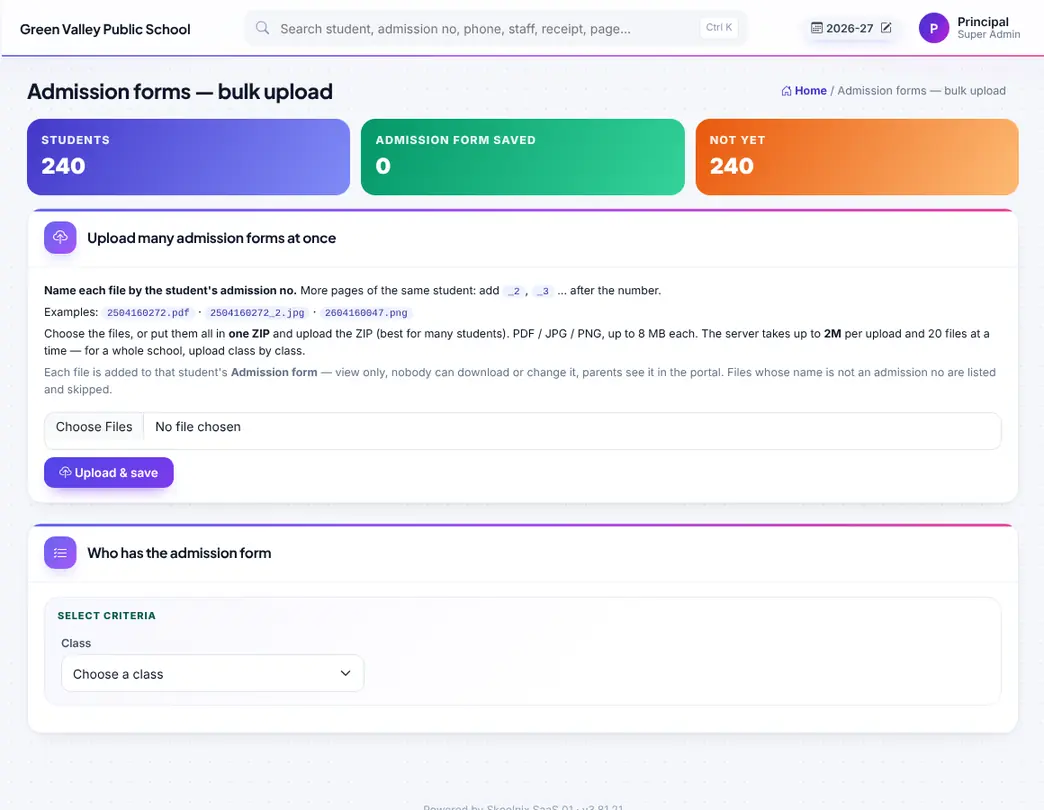
Upload scanned admission forms of many students at once, named by admission no; each opens view-only on the student's profile.

Make white-background passport copies of all student, parent and staff photos; set the face by hand where needed.

Date-of-birth correction requests from parents (CBSE format with affidavit); verify and forward.
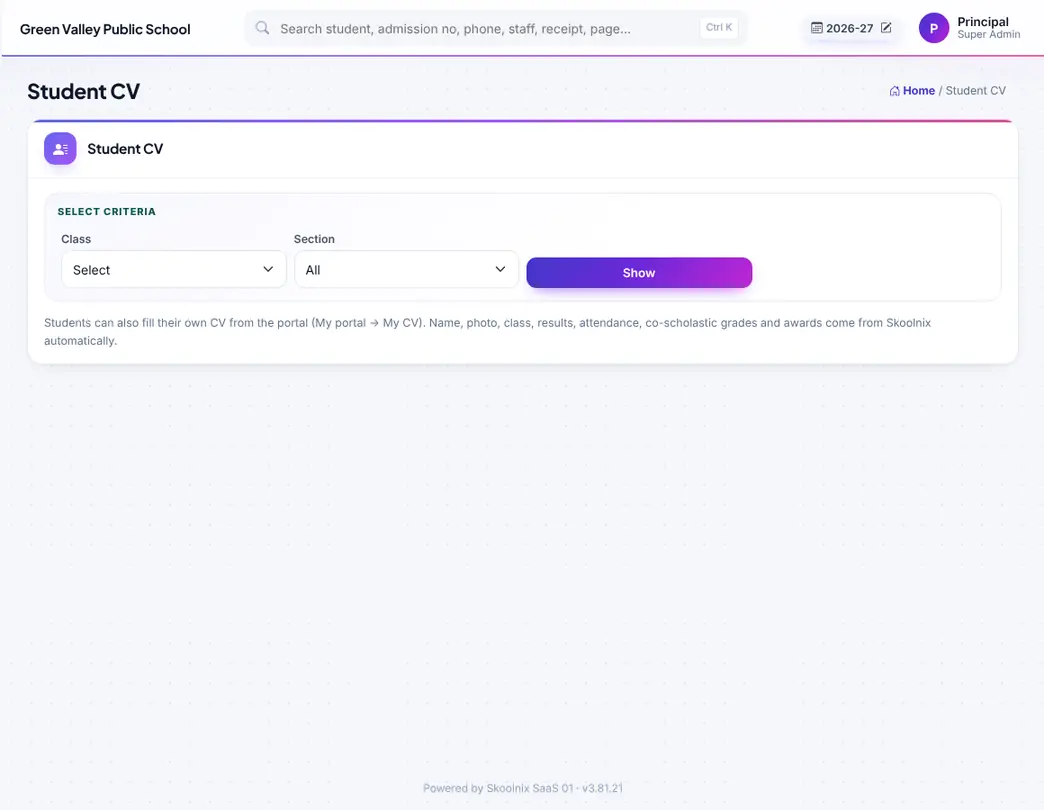
One-page student CV with results, attendance, activities and awards; print a whole section.

Students who left or were disabled, with reason and date; enable again if needed.
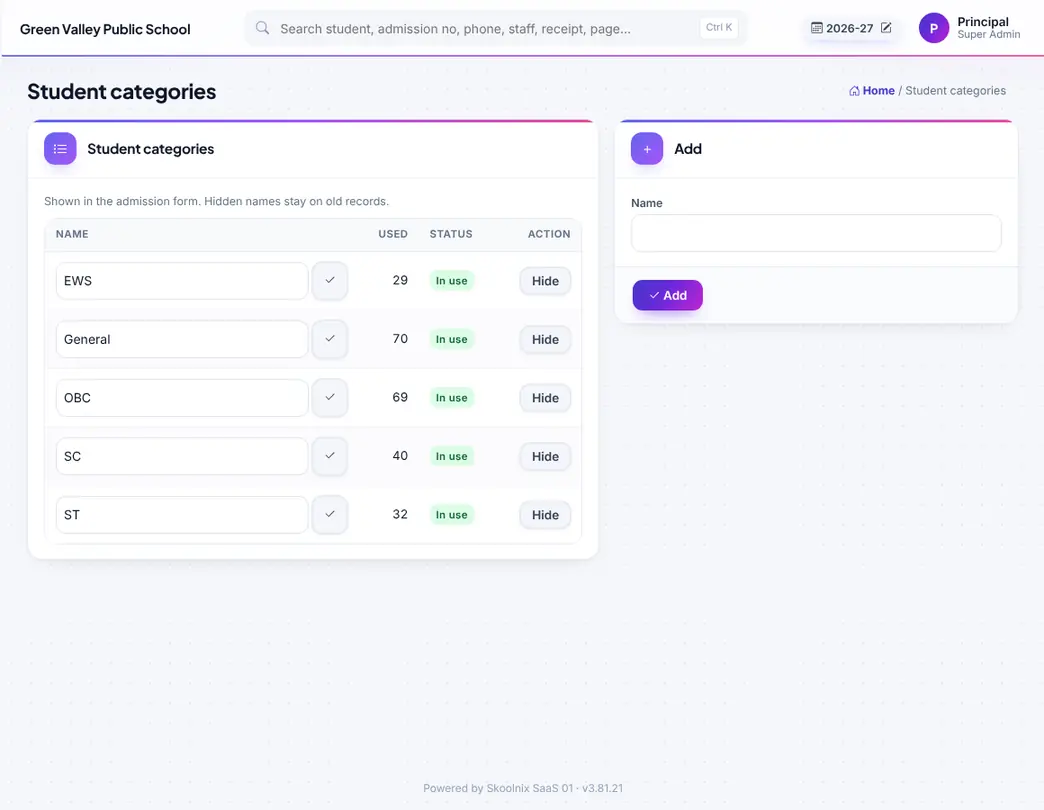
Student categories (General, OBC, SC, ST…).

School houses with colours.
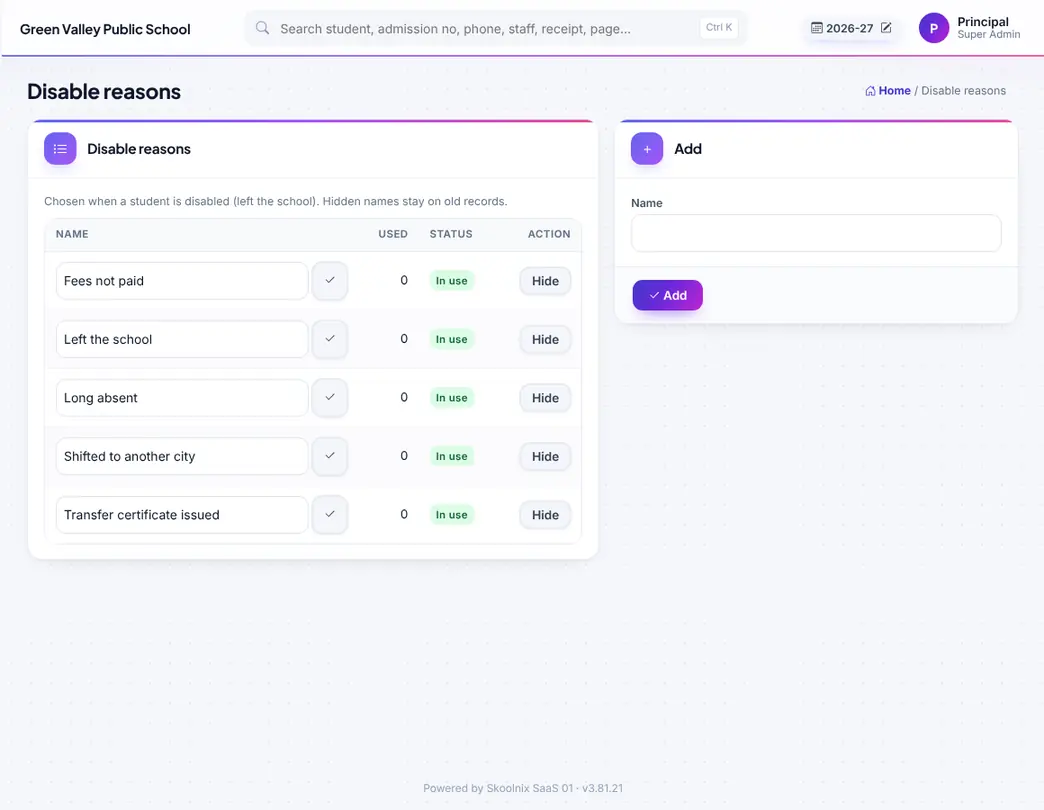
Reasons used when a student is disabled.

Delete wrongly added students in bulk (blocked when receipts, payments or certificates exist).
Collect fees at the counter, see who has not paid, check online payments and send reminders.
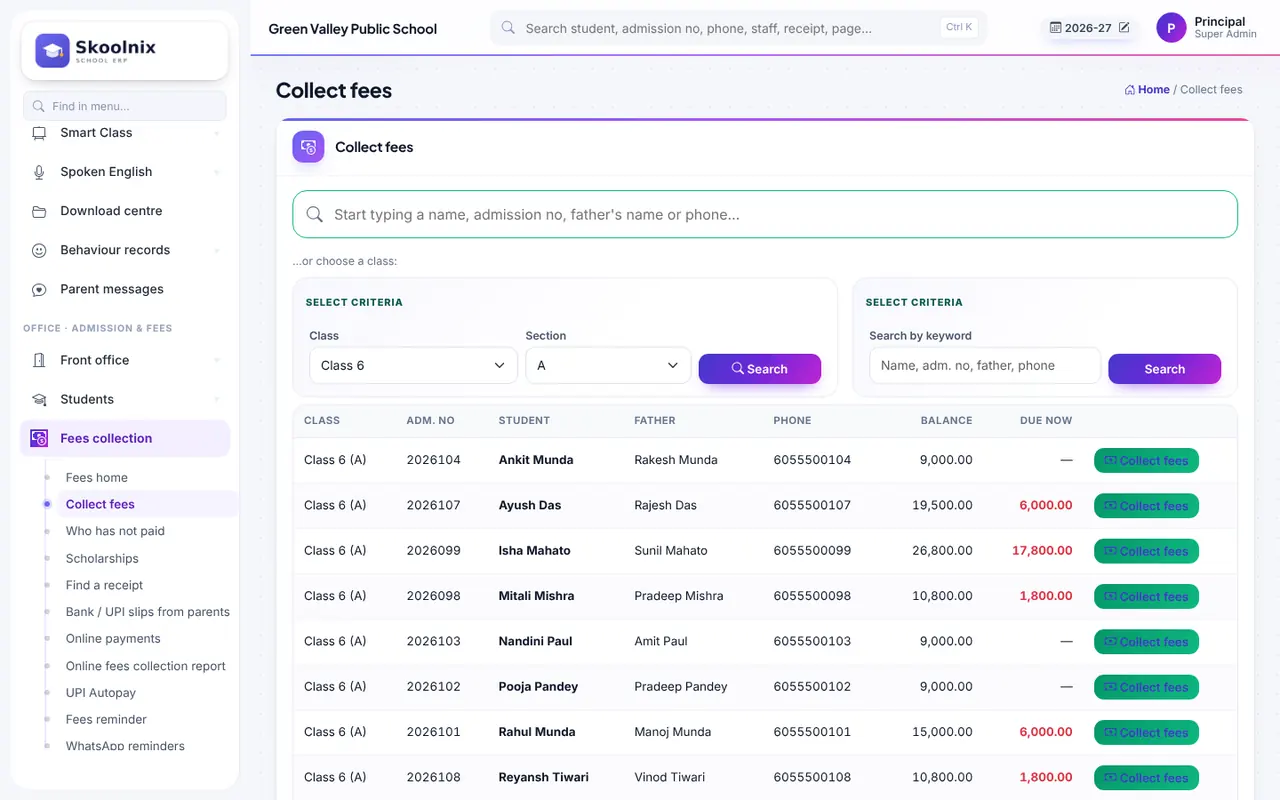

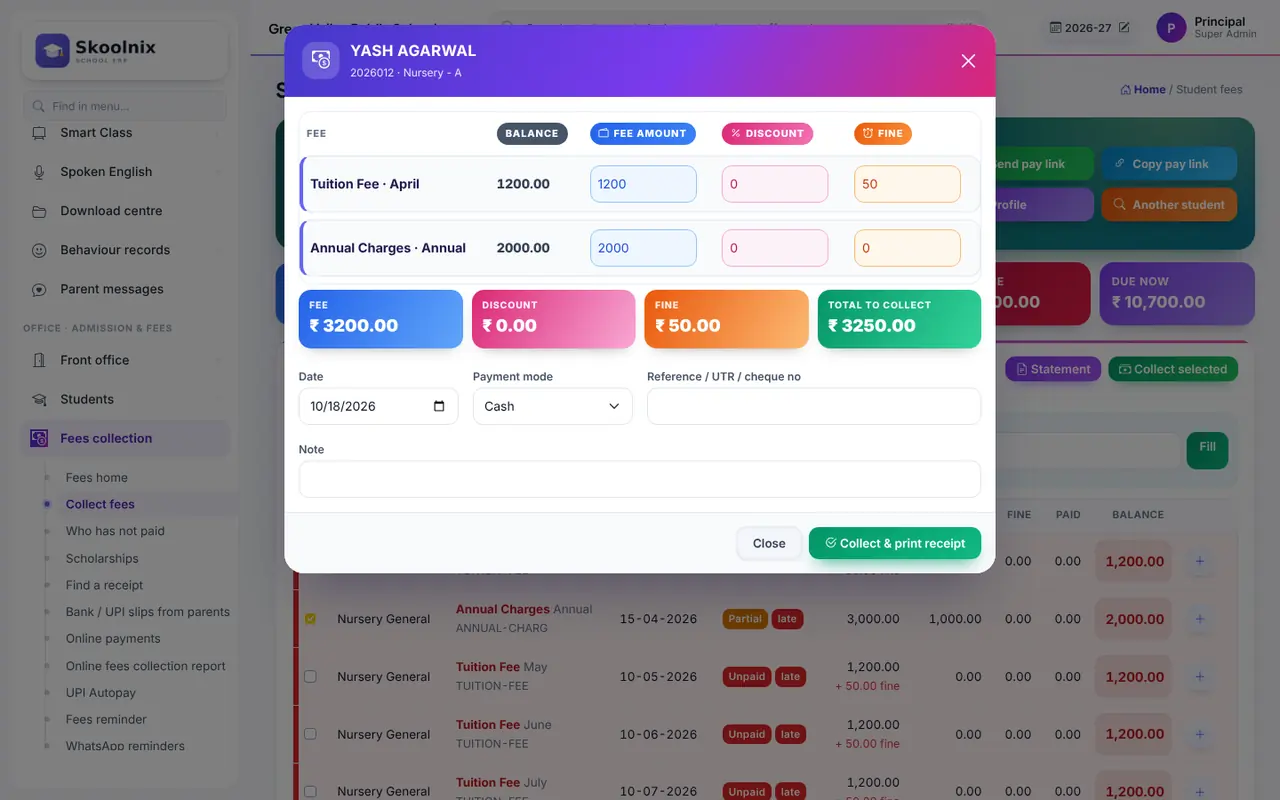

Fees at a glance: collected today and this month, dues by class and zone, quick links.

Find a student by name, admission no or phone (or by class) and open the fee page to collect.

Who has not paid: dues by class, month or fee type, with phone numbers and a reminder button.
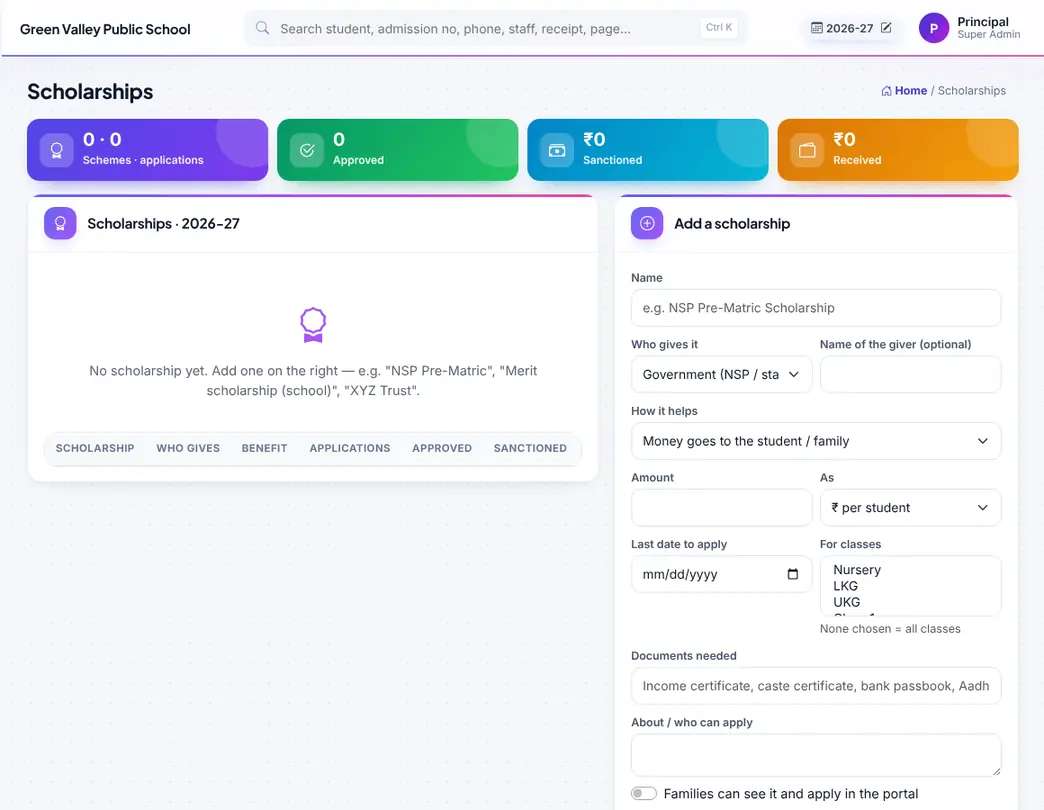
Government, trust and school scholarships — applications, sanctioned and received amounts, concession on fees.

Find a receipt by number, student or date; reprint or cancel with a reason.

Bank / UPI payment slips sent by parents from the portal — approve or reject.

Online payment attempts: paid, failed or not finished; every one re-checked with the gateway.

Online collection report: gateway-wise and day-wise, with transaction id and failed payments.

UPI Autopay mandates, debits and cancellations.

Automatic reminders before and after the due date by WhatsApp or SMS.
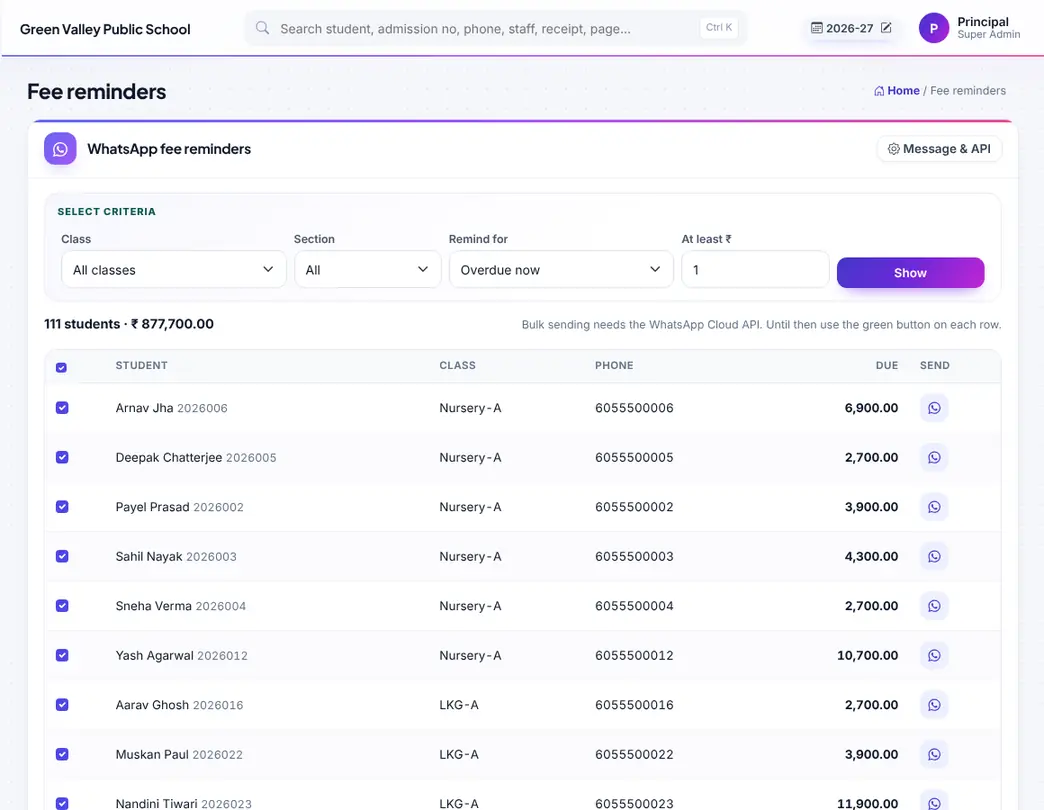
Send WhatsApp fee reminders now to a class or to all with dues.

Students whose parent portal is locked for pending fees; allow or hold one student.
Fee types, groups, amounts, assignment to students and discounts — or make the whole plan on one page.
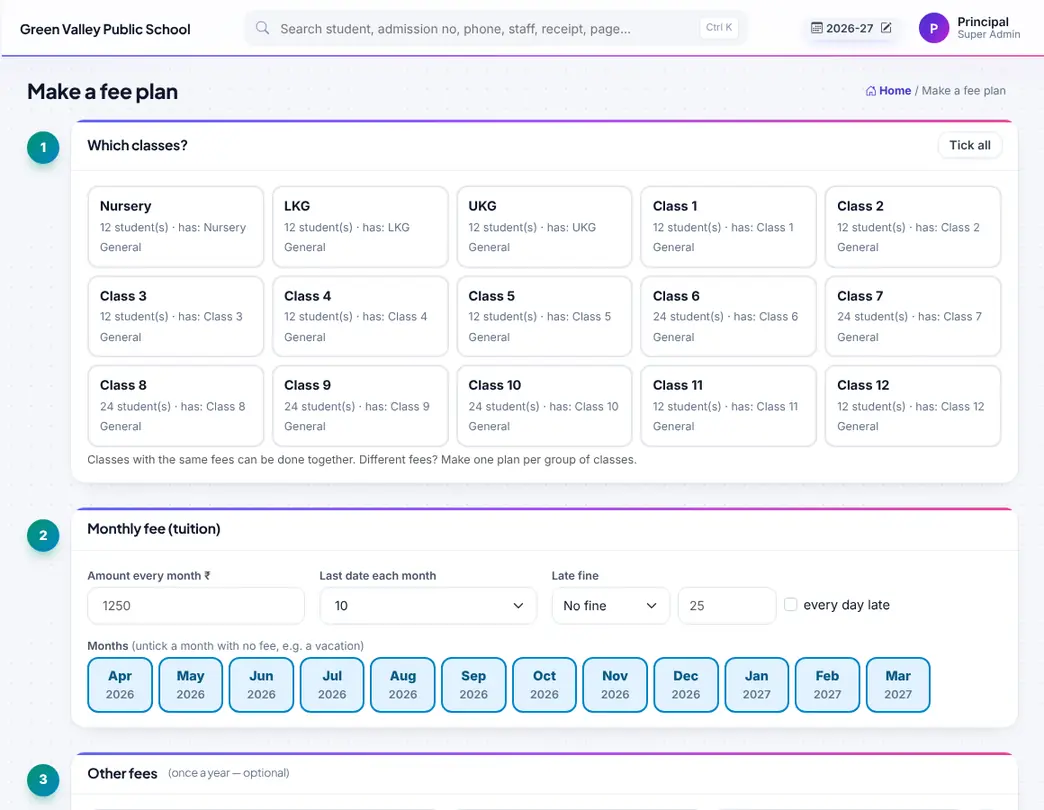
Make a fee plan the easy way: classes, fee types, amounts and months on one page.

Fee amounts of every class and fee type with due dates and fine.

Fee groups (for example "Class 5 General").

Fee types (tuition, annual, transport…).
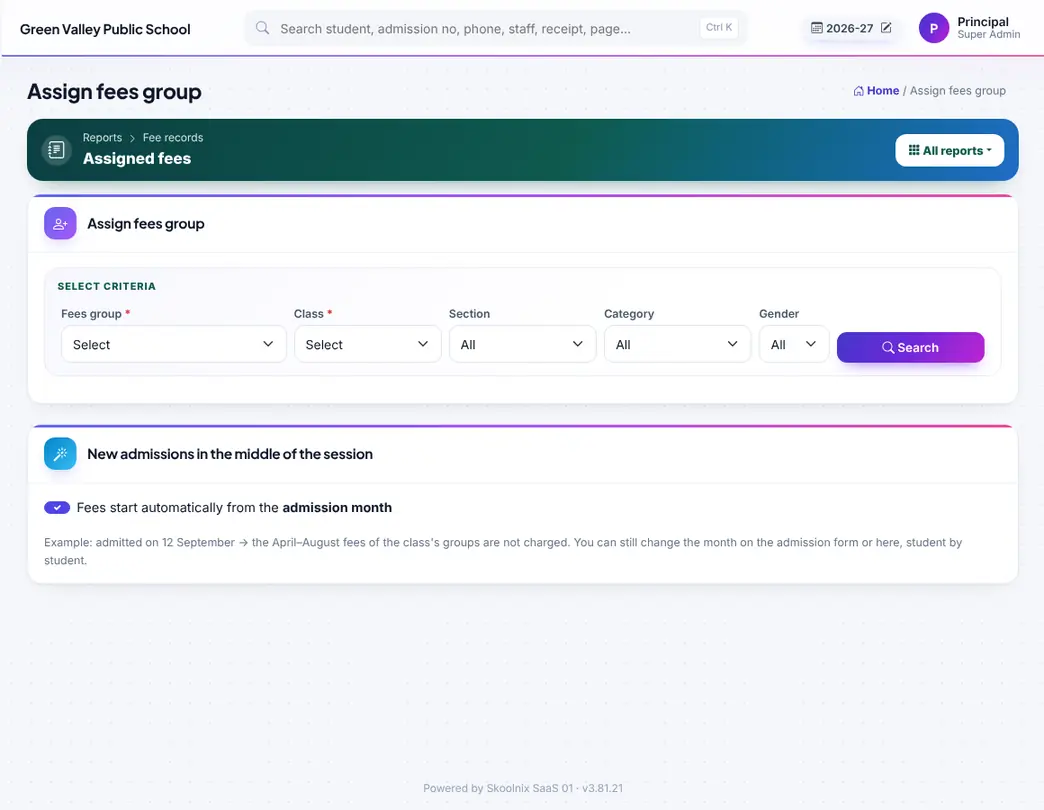
Assign fee groups to students (BPL students are skipped automatically).

Discount types and concessions.
Other income and expenses, double-entry accounts, financial audit, Tally export and the school shop.
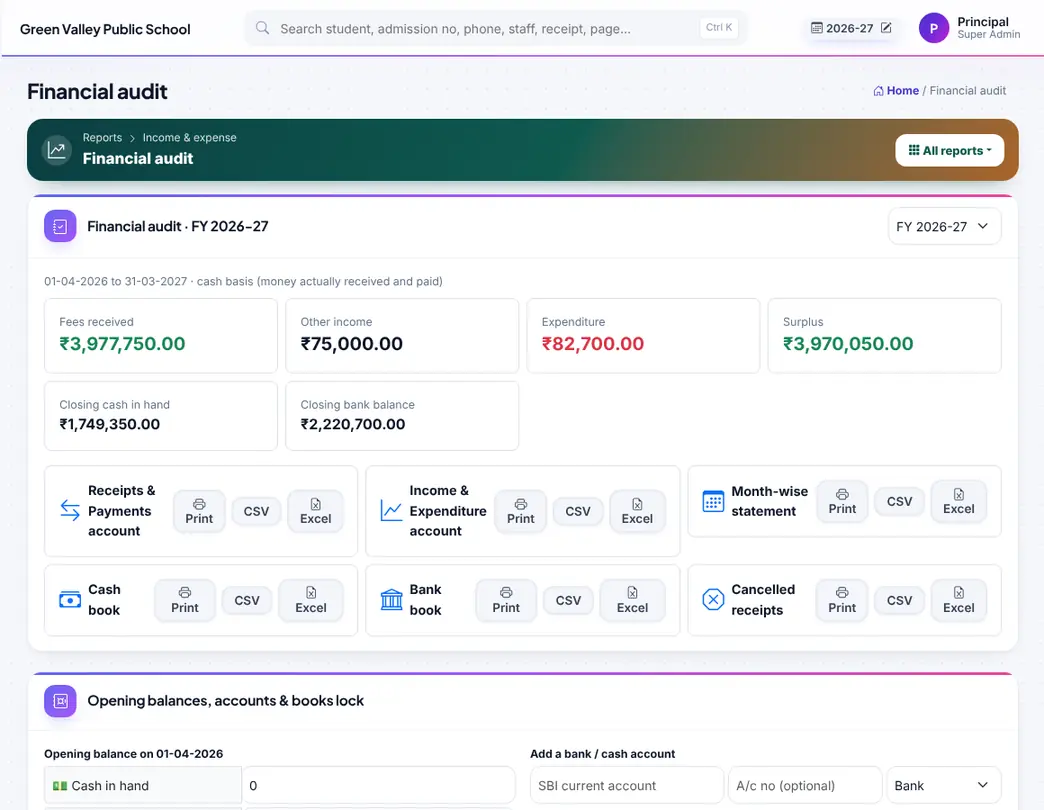
Financial year view: Receipts & Payments, Income & Expenditure, month-wise statement, cash book and bank book; close the books up to a date.
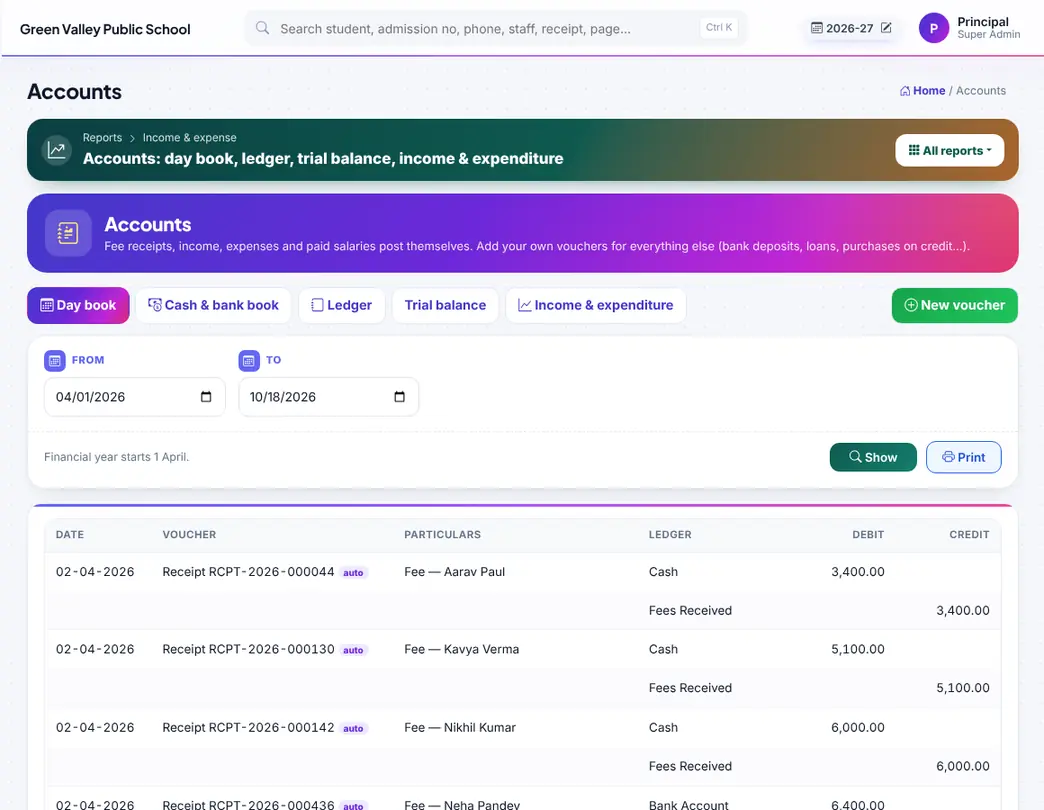
Double-entry books: day book, ledgers, trial balance; fees, income, expense and salary are posted by themselves.

Shop and canteen counter (POS) with student wallet payment.
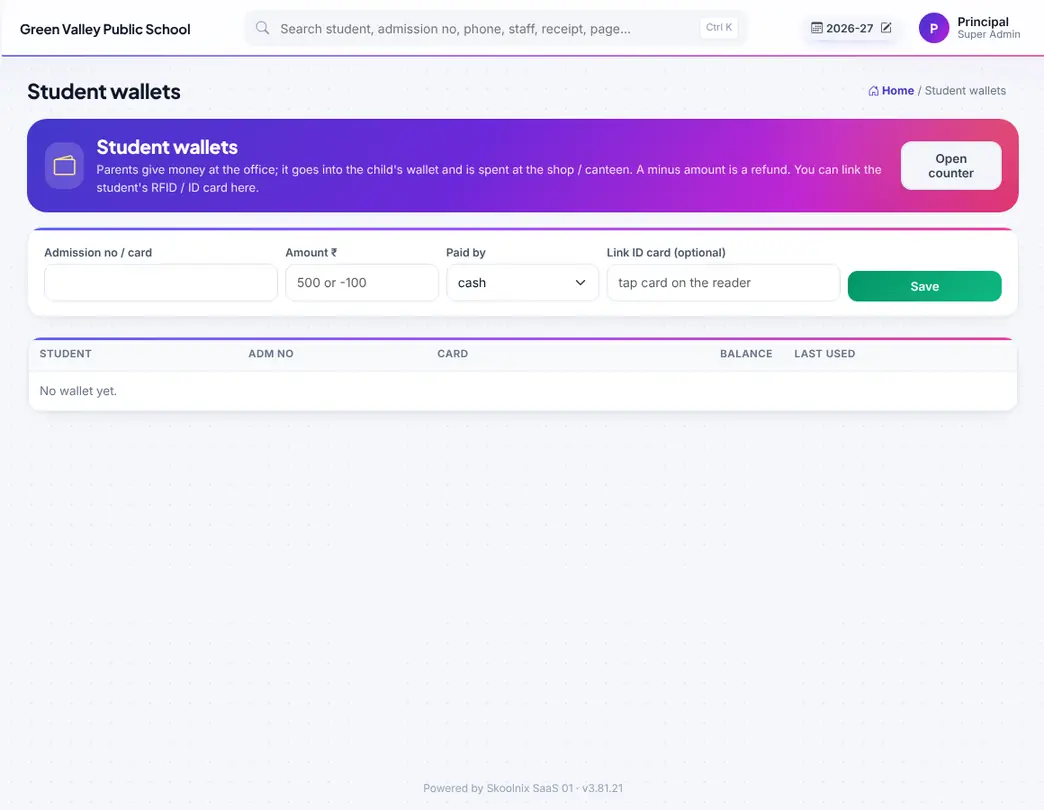
Student wallets: top up, spend and history.

Fee receipts, income and expenses as Tally vouchers (XML).

Other income (besides fees) with head, mode and bill.

Expenses with head, mode and bill.
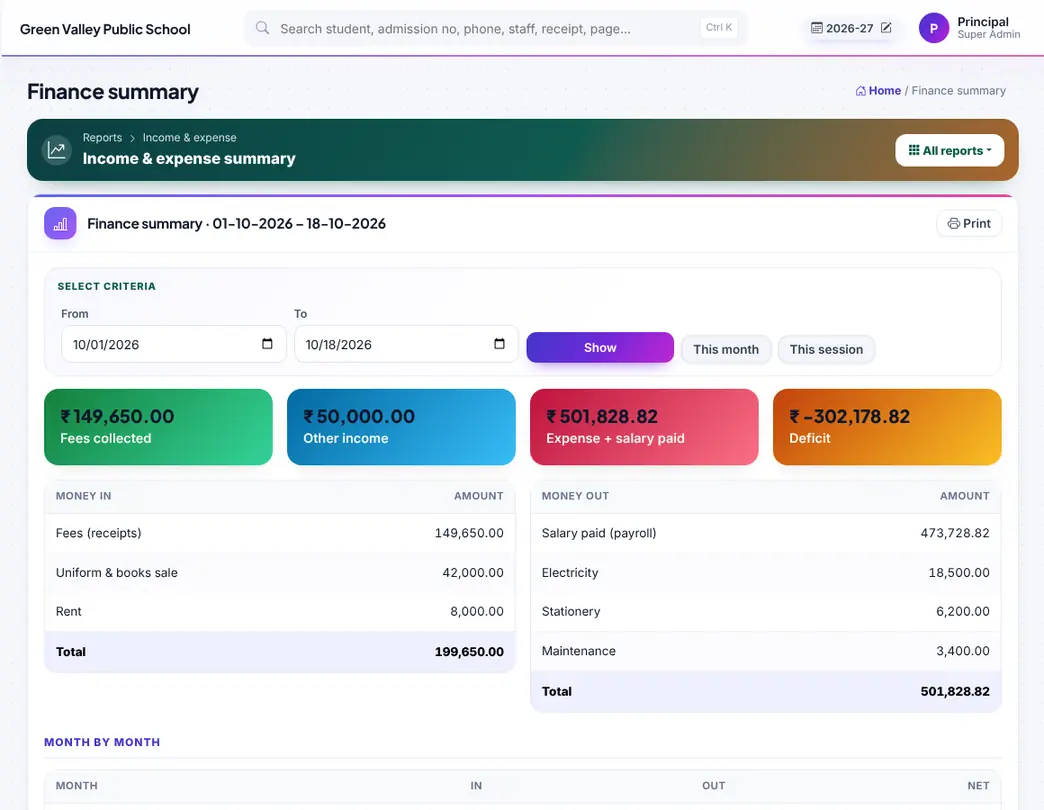
Head-wise income and expense between dates.

Income and expense heads.
TC and other certificates with QR verification, award certificates, requests from parents and ID cards for students, parents and staff.


Issue TC (CBSE proforma), bonafide, character, date of birth and fee-paid (80C) certificates; every one has a QR to verify.

TCs for a whole class at once, or fill them in Excel.
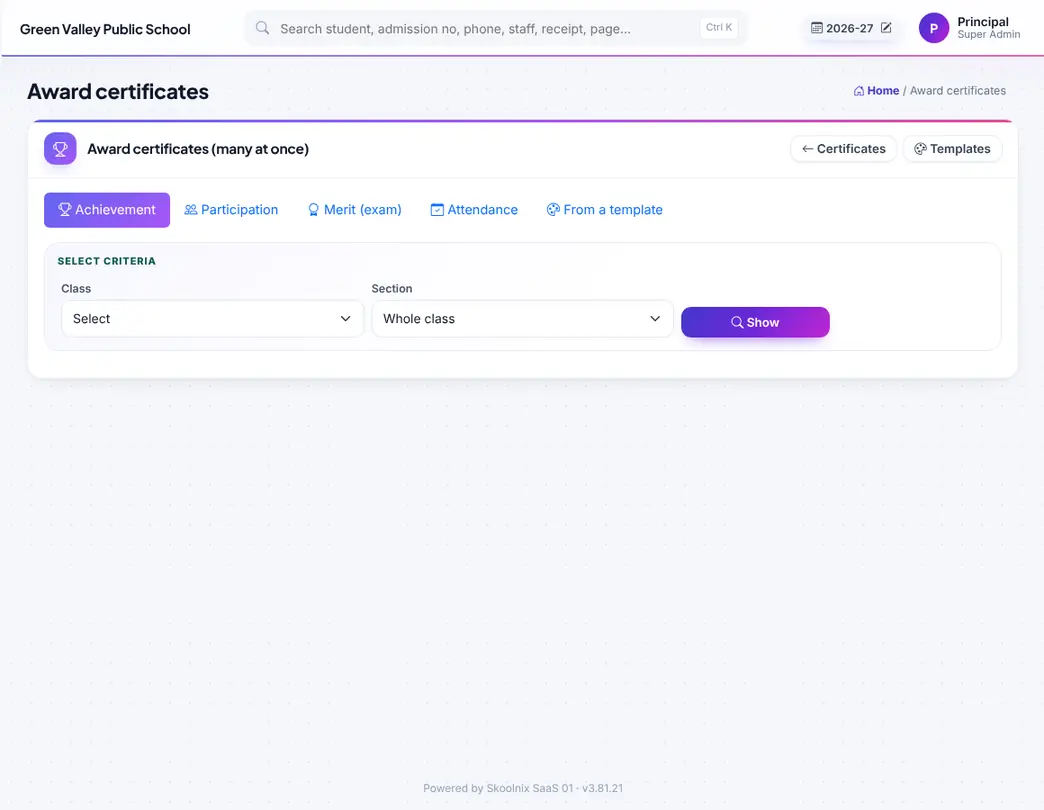
Award, merit, participation and attendance certificates in bulk (A4 landscape).
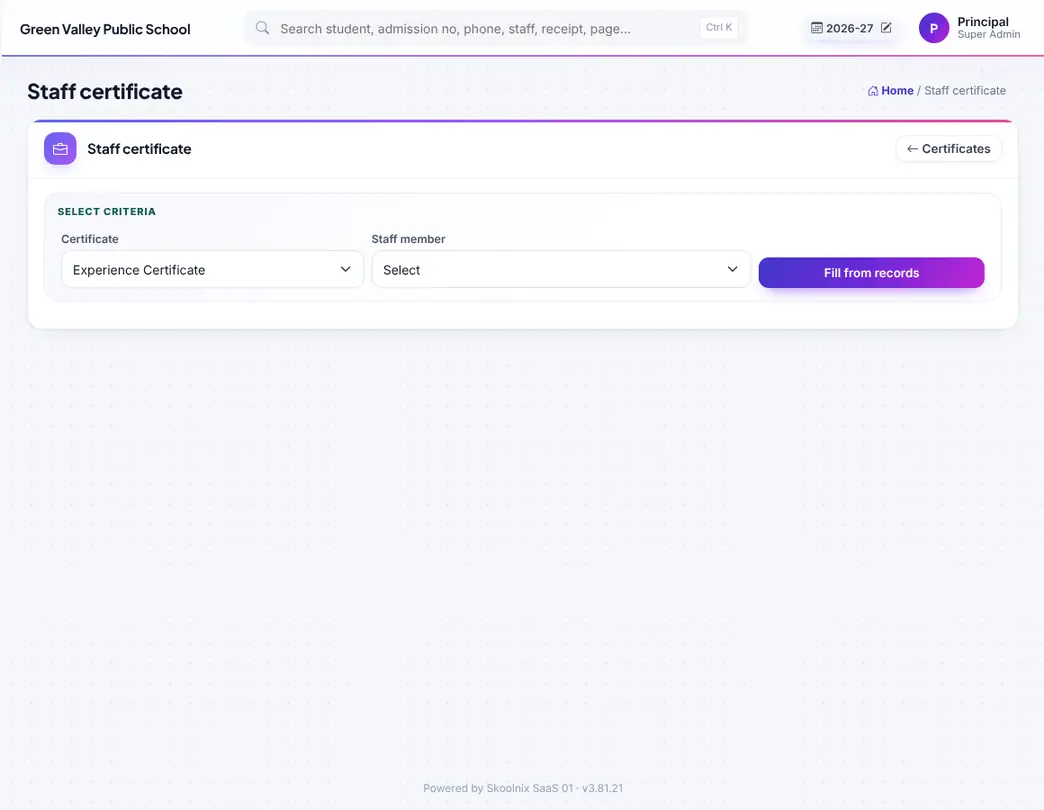
Experience and service certificates for staff.
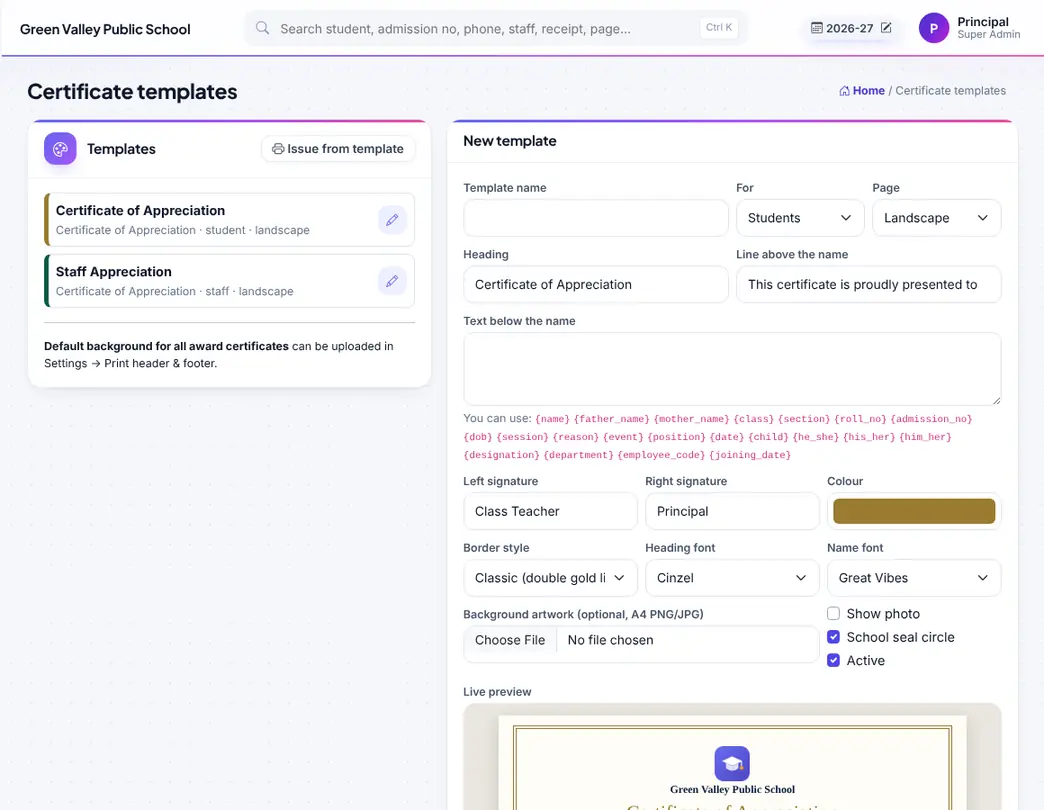
Design your own certificates: text with {name} {class}…, border, fonts, colours, background and photo.

Certificate requests from parents; the fee is added to their fees, then issue and mark Ready / Delivered.
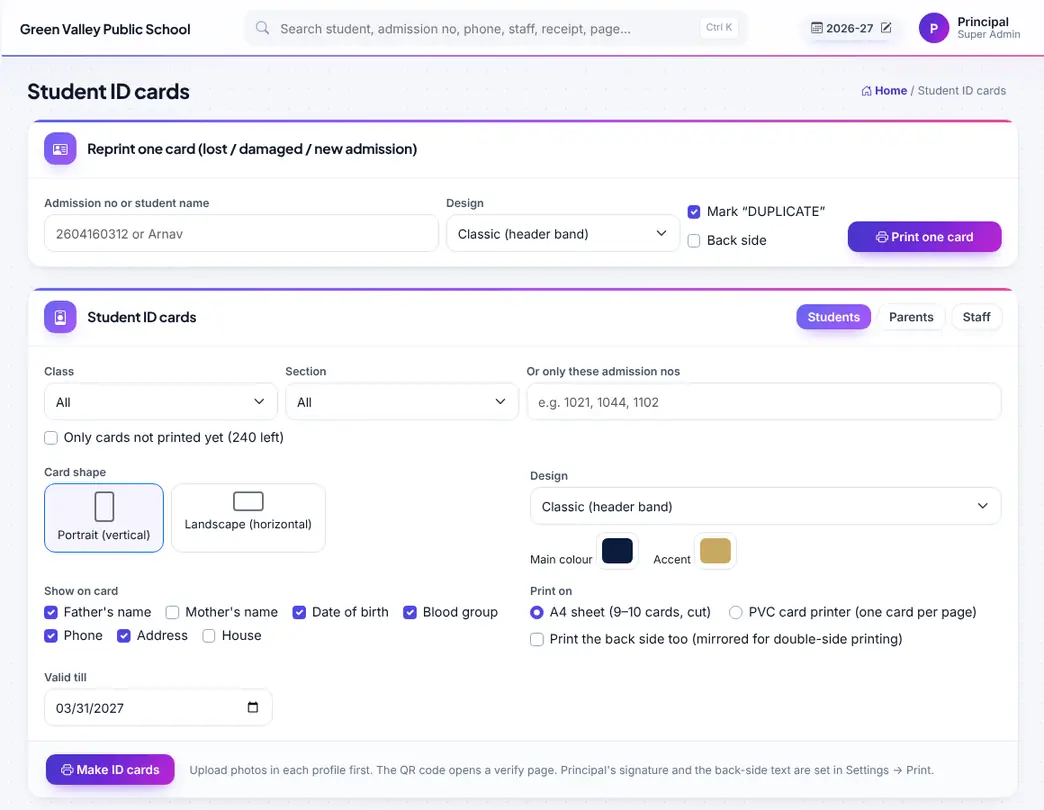
Student ID cards: choose class, design (7 designs), portrait / landscape, colours and back side, then print on A4 or a PVC card printer.

Parent ID cards with father, mother and ward photos.

Staff ID cards — they look different from student cards (own colours, STAFF tag, designation).
Notices, calendar, staff files, handbook, duty roster and parent–teacher meetings.

Notice board for staff, students, parents or one class; parents get an app notification.
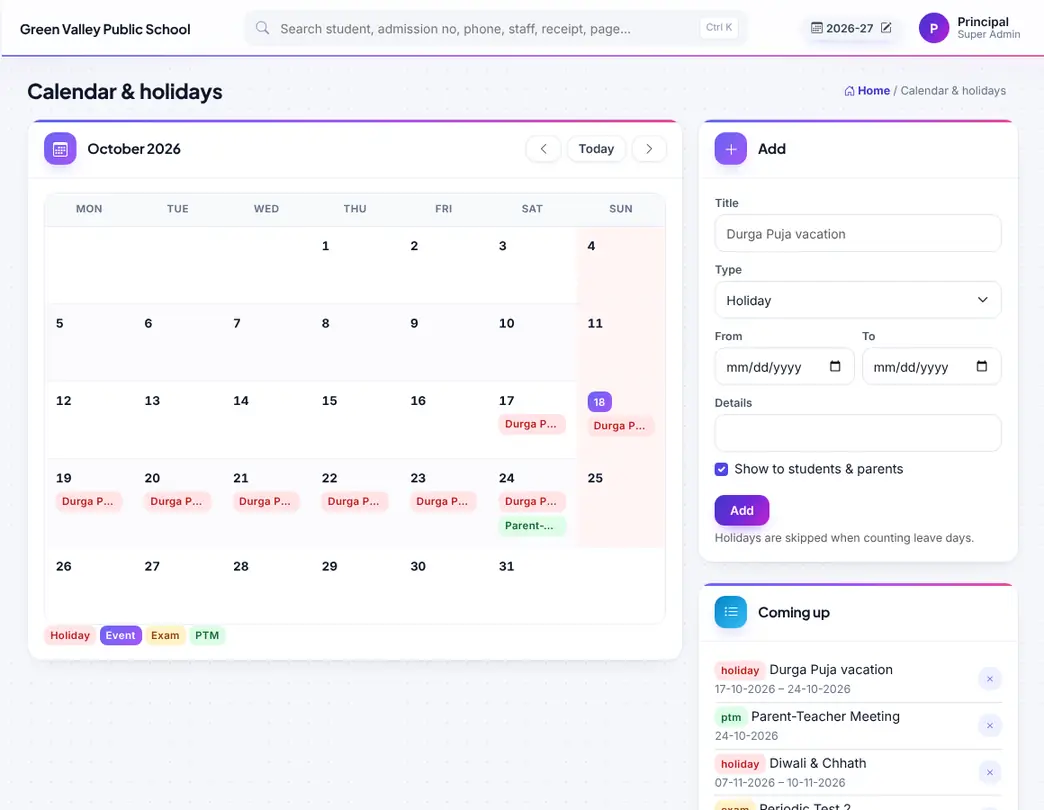
School calendar with holidays and events; parents see it in the portal.

Files only for staff (circulars, forms).
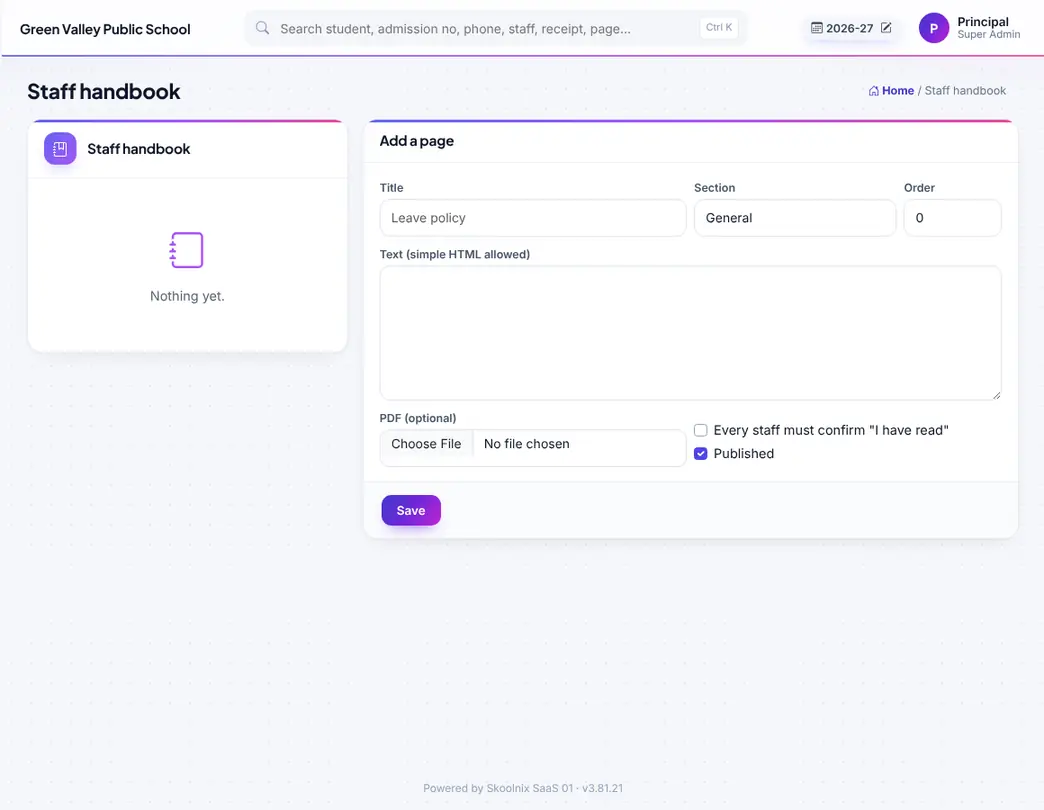
Staff handbook and policies with "I have read"; staff are asked again when a policy changes.

Duties of staff for the week (gate, bus, assembly…), repeat daily and print.

A staff member's own duties, including substitution periods.
Ask the store for items; see the status of your requests.
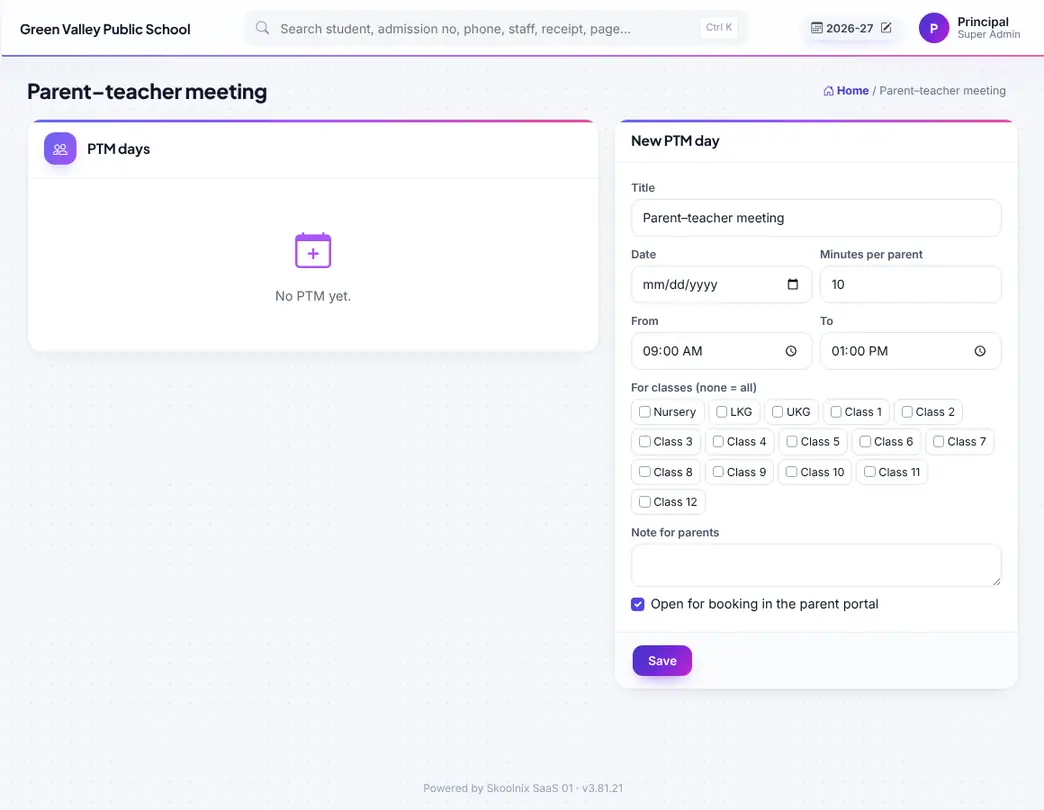
Parent–teacher meeting days with time slots; parents book in the portal, teachers mark met / missed with notes.
SMS, email, WhatsApp and app notifications — sent by hand or automatically.

Messages between parents and teachers, moderated by the school; no calls to teachers after school hours.
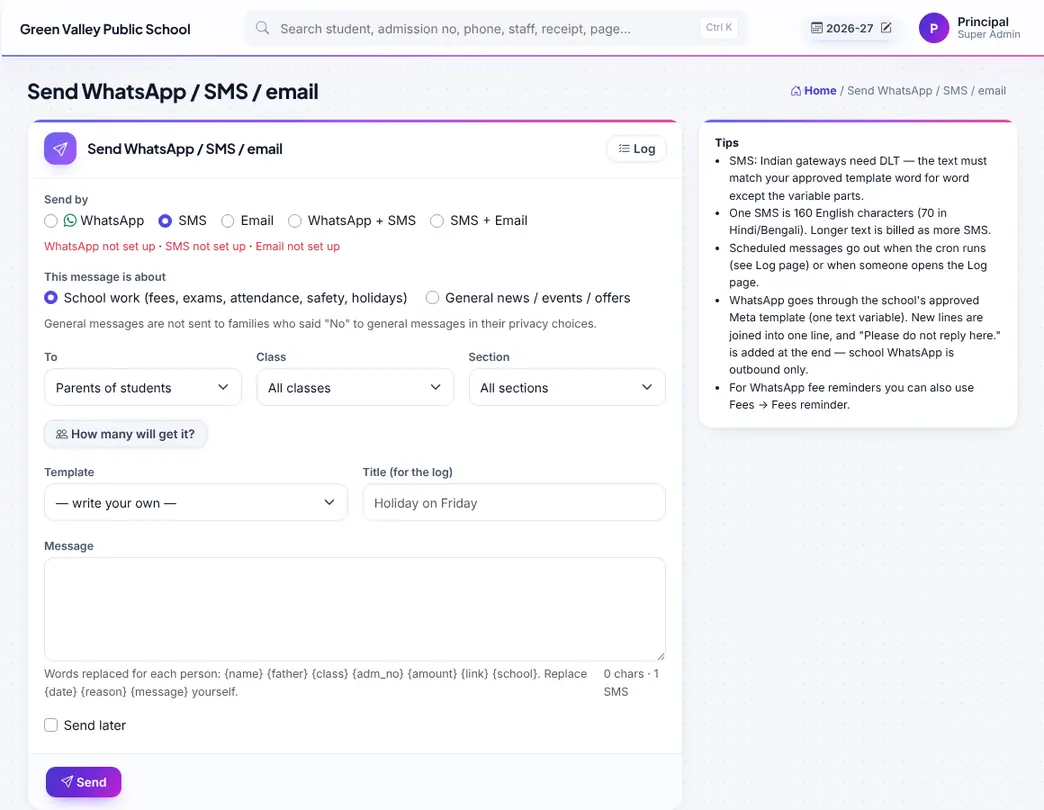
Send SMS / email to parents (all, class, section, fee defaulters), staff or typed numbers, now or later.

Send an app notification to parents, students or staff.

12 automatic messages (admission, fee received, absent, homework, result…) with Email / SMS / WhatsApp / App switches and your own text.
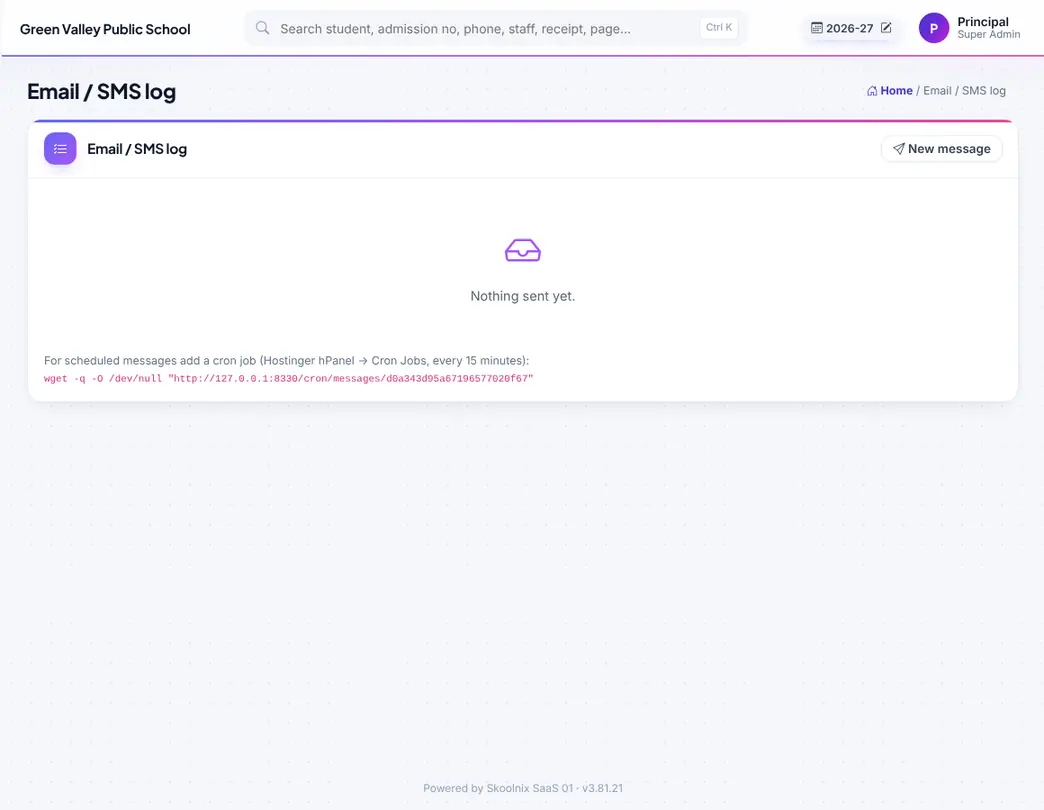
Every email and SMS sent, with status.
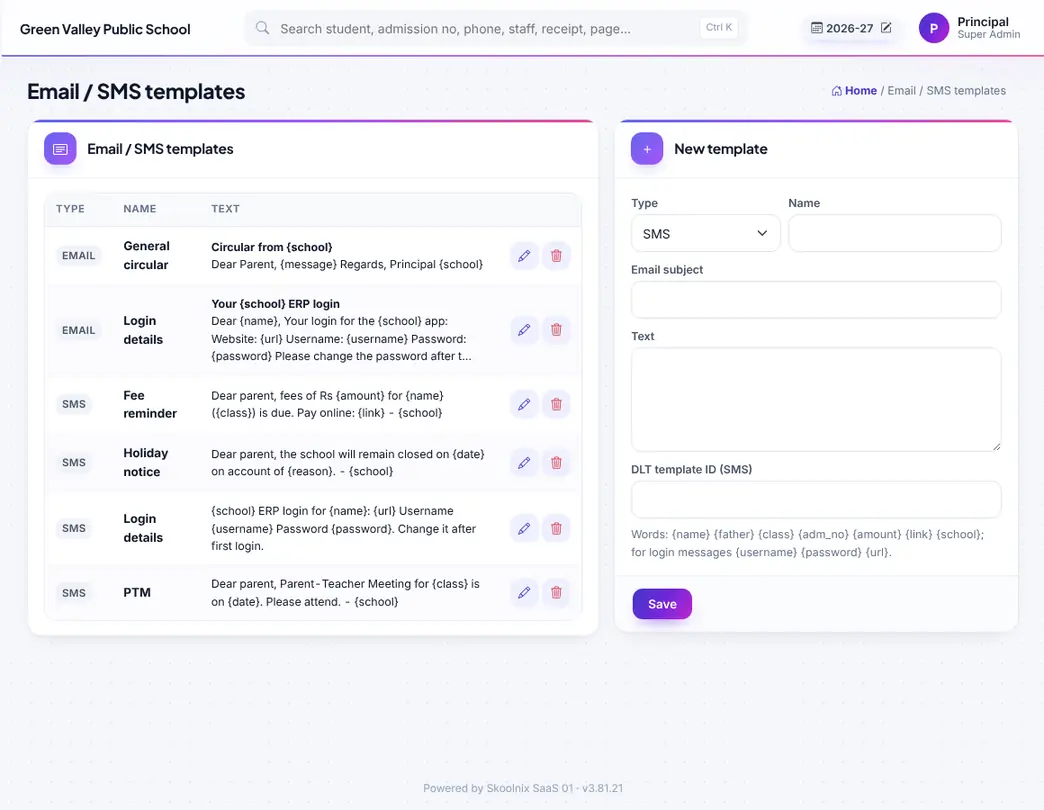
Saved message templates (SMS with DLT id, email with subject).

Send login details to students, parents and staff.

The older quick SMS page.

Draft a notice or circular with the smart tools, then edit and send.
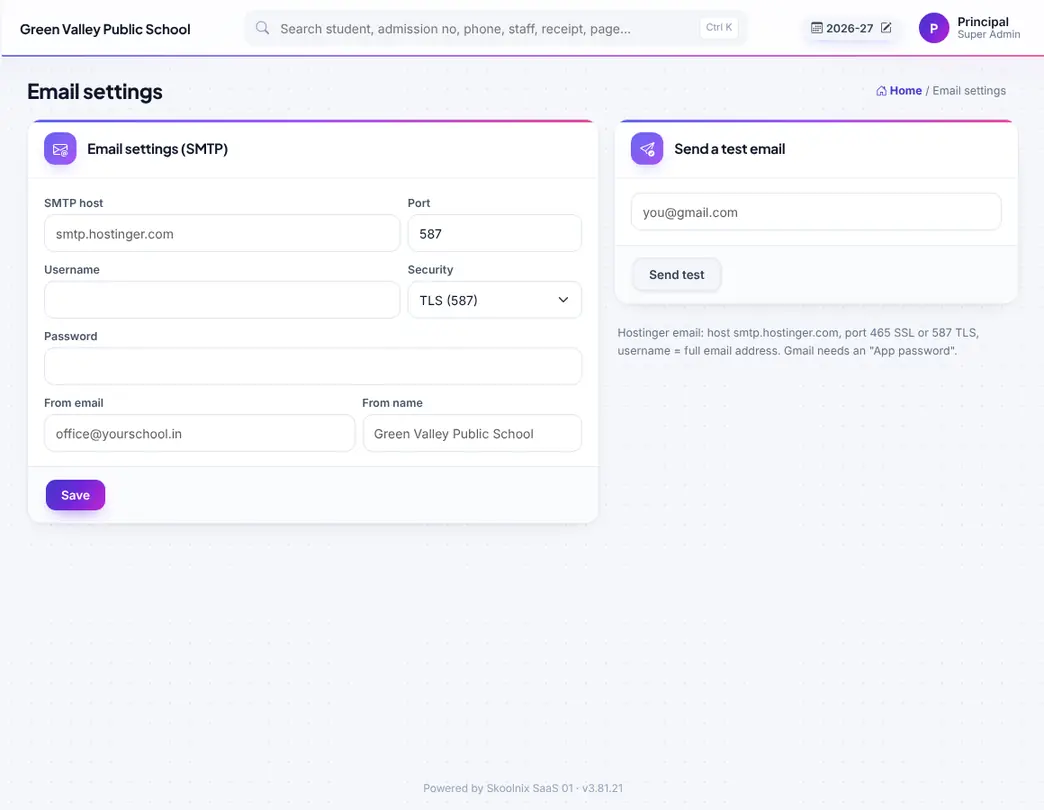
Email (SMTP) settings with a test email.
Exams, marks entry, results, report cards, admit cards, seating, CBSE registration and board results.


Create exams: term, assessment, grade set, class-sections, subjects, schedule; publish results to parents.

Upload a typed, handwritten photo, PDF or Word question paper and get a school-branded paper with answer key (PDF / Word / Excel).

Marks entry: choose exam → class-section → subject, type marks for each part (AB for absent), Enter moves down; or download the Excel, fill and upload.
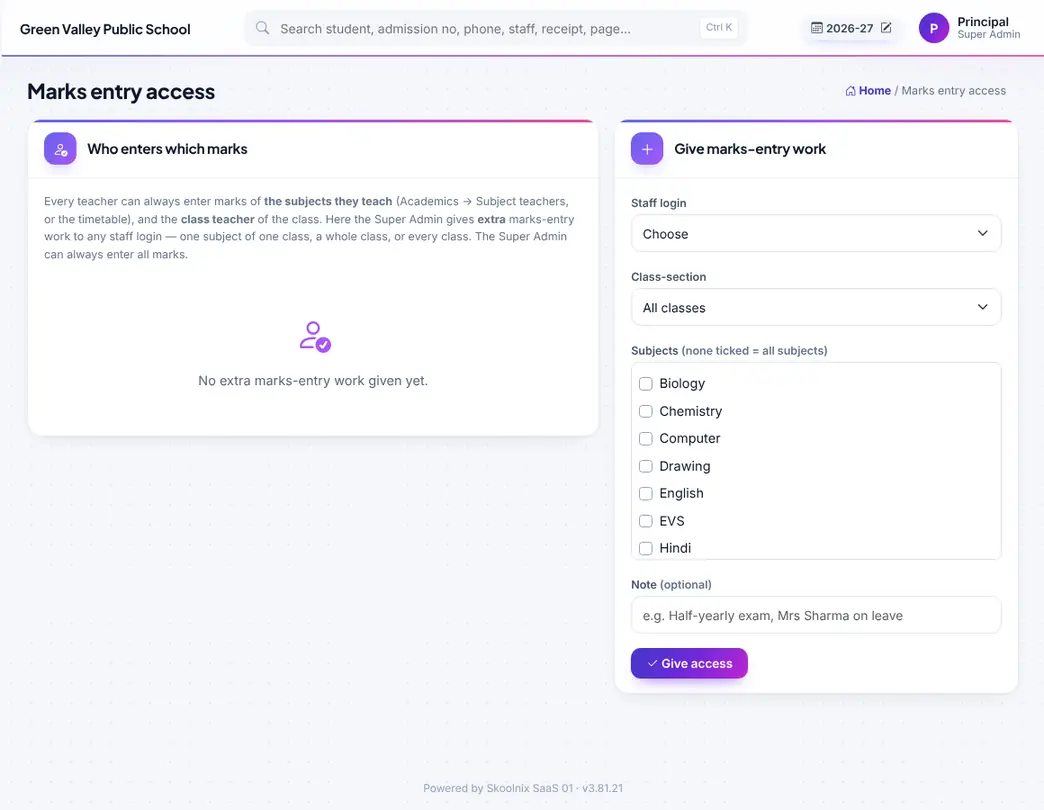
Give marks-entry work to any login: one subject, one class or everything.

Holistic progress card (NEP 2020): teachers fill each child's card; children and parents add their part.

Set up the progress card areas and levels once.

Class teacher enters attendance and remarks for each student for the exam.
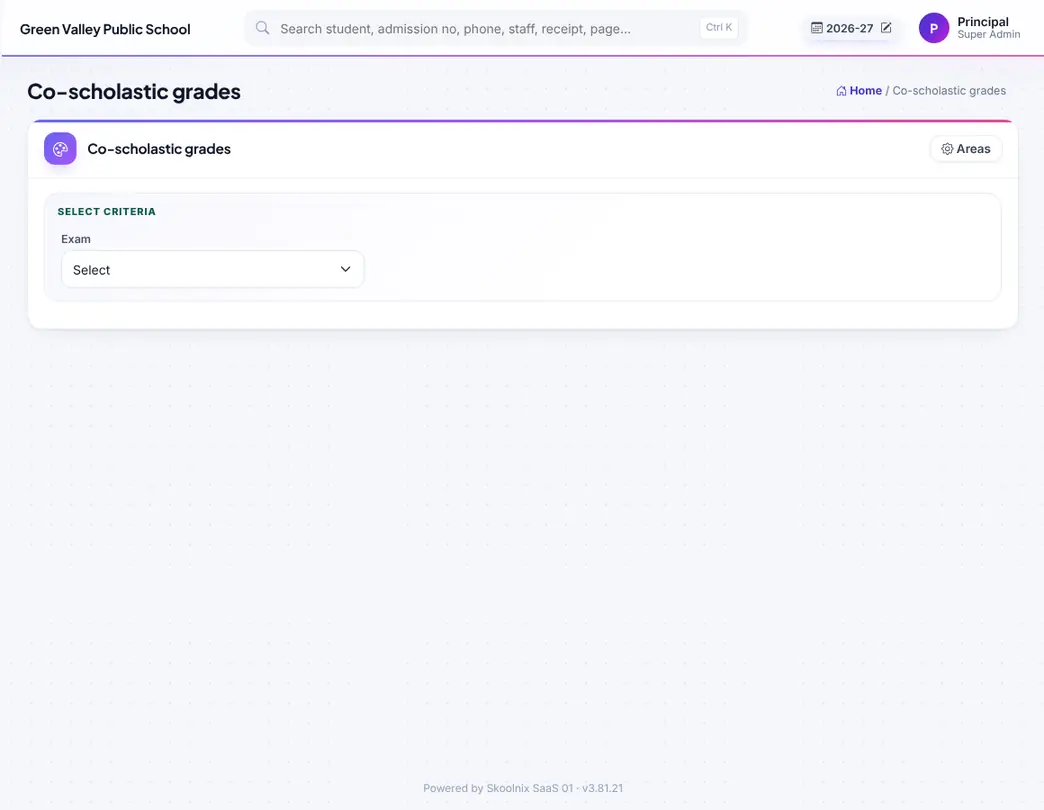
Co-scholastic grades (work education, art, health & PE, discipline…).

Automatic report-card remarks from the marks; edit before saving.
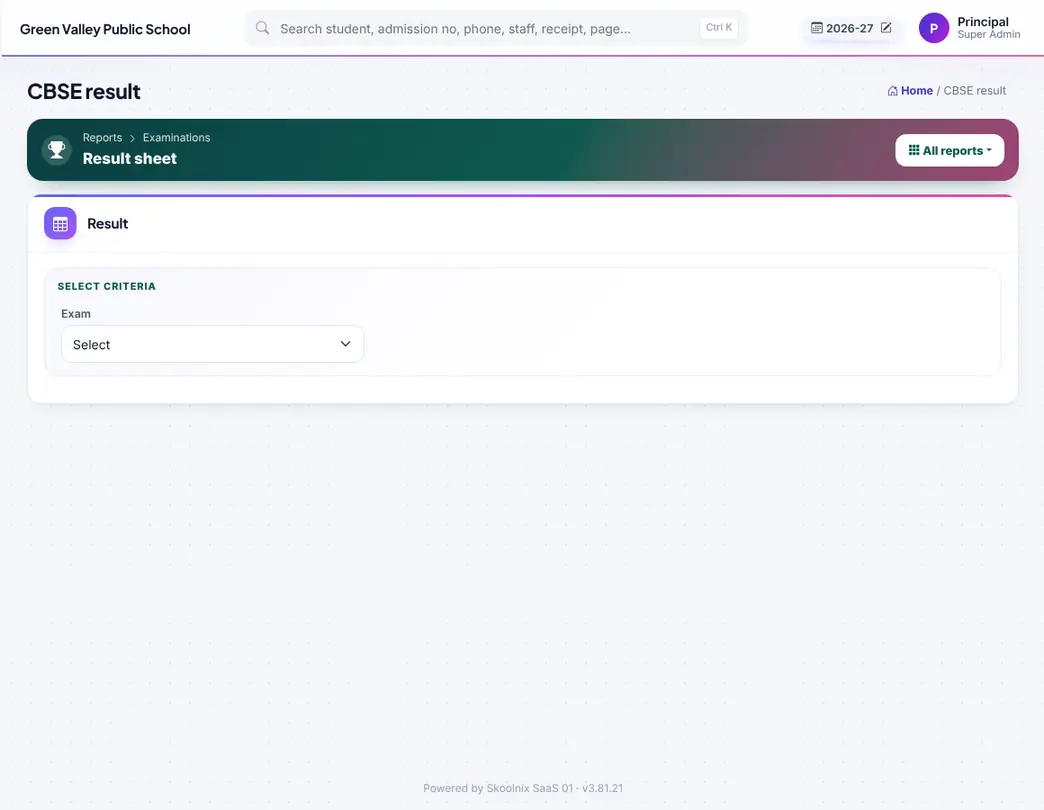
Result of a class: total, %, grade, rank and Pass / Compartment.
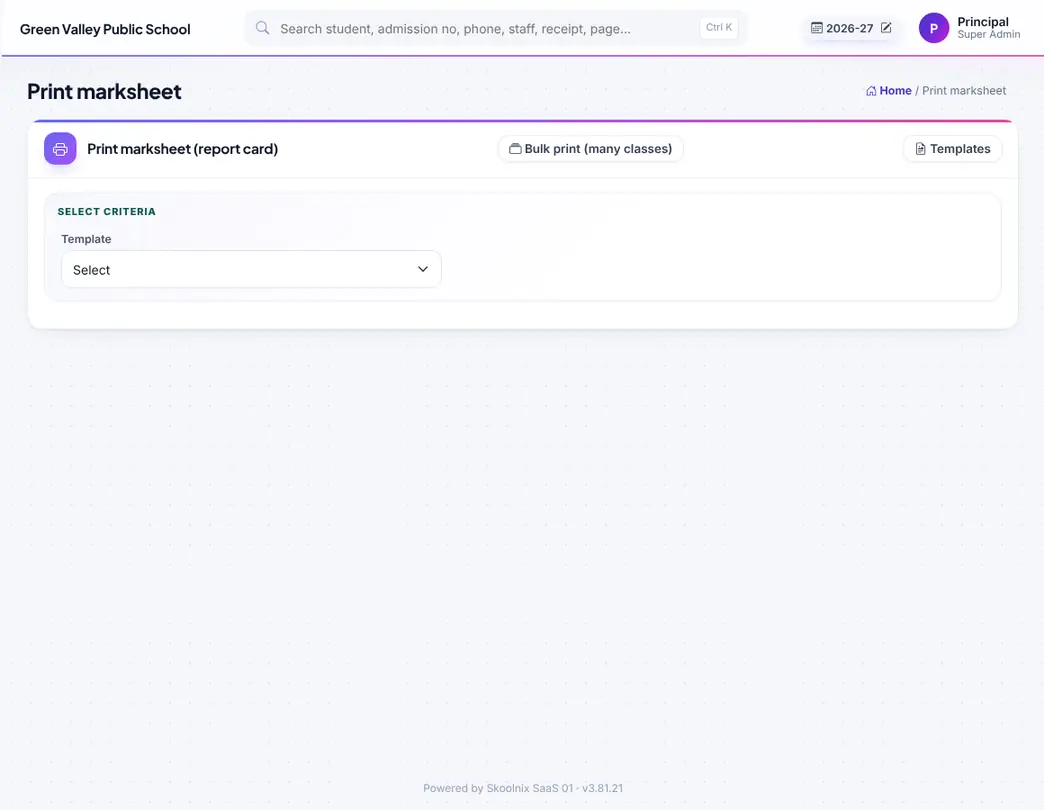
Print report cards: choose the template and class-section, print one student or all; publish to the parent portal.
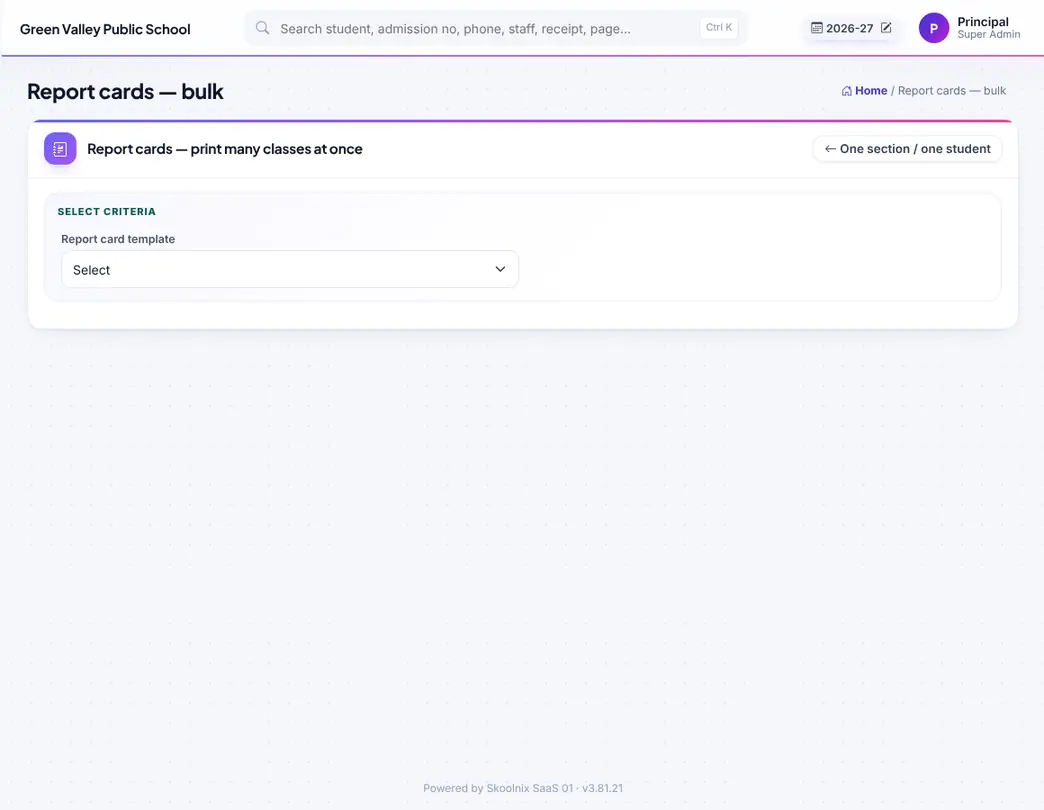
Report cards for many class-sections at once (everyone, fees cleared or fees pending).

Admit cards with photo, schedule and instructions.

Admit cards for many class-sections, 1 or 2 per A4.

Exam seating plan: rooms with benches, mixed classes, room charts and seat slips.
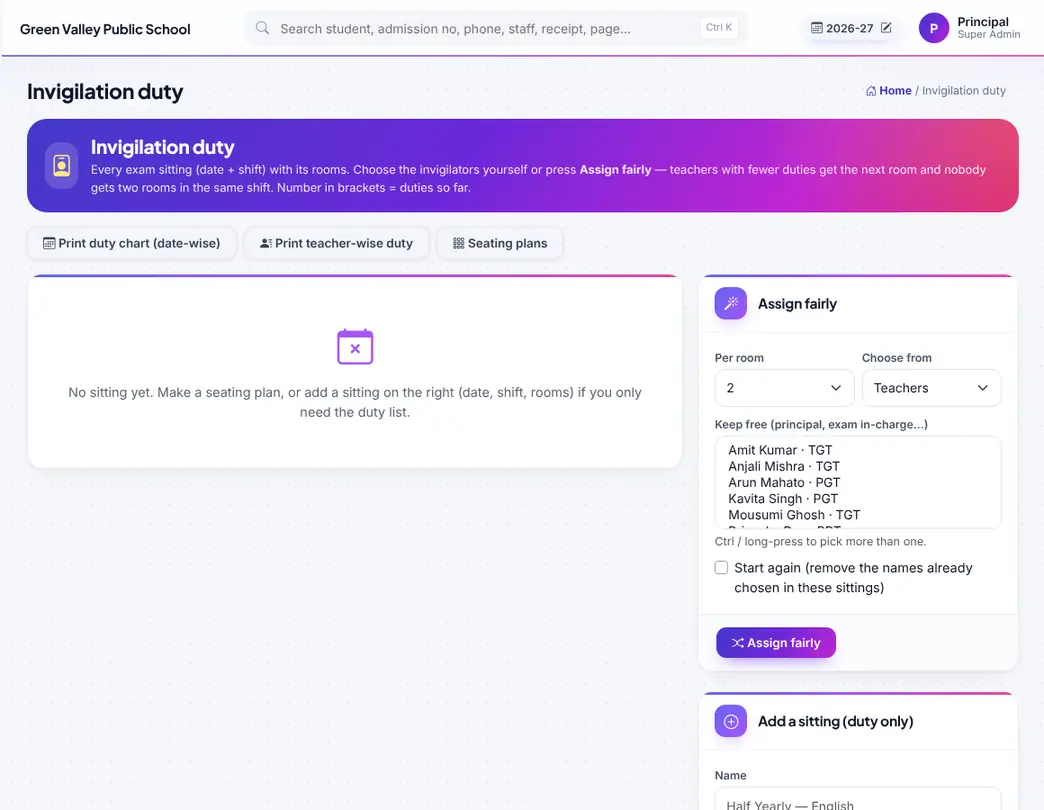
Invigilation duty with fair automatic assignment and duty charts.

Report-card templates: join exams with weightage (e.g. Term 1 50% + Term 2 50%), choose what to show, signatures.

Terms of the session.
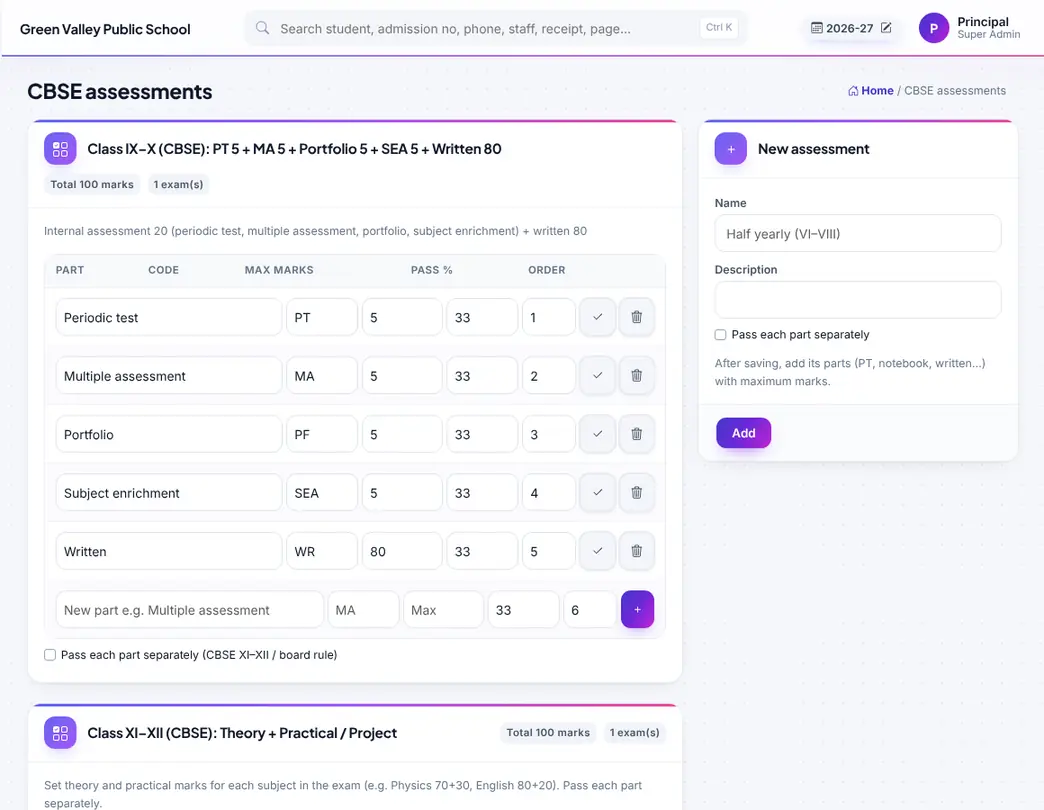
Assessments and their parts (PT, notebook, enrichment, written; theory / practical) with max marks.

Grade sets (CBSE 8-point A1–E, primary scale…).

Co-scholastic areas.

Class setup: every class as a tab — subjects with periods a week, class teacher and subject teachers; also by Excel. The timetable follows.

Class XI–XII: tick each student's stream and electives; report cards and admit cards use only the student's subjects.

CBSE registration (IX / XI) and LOC (X / XII) data check and export in CBSE style.
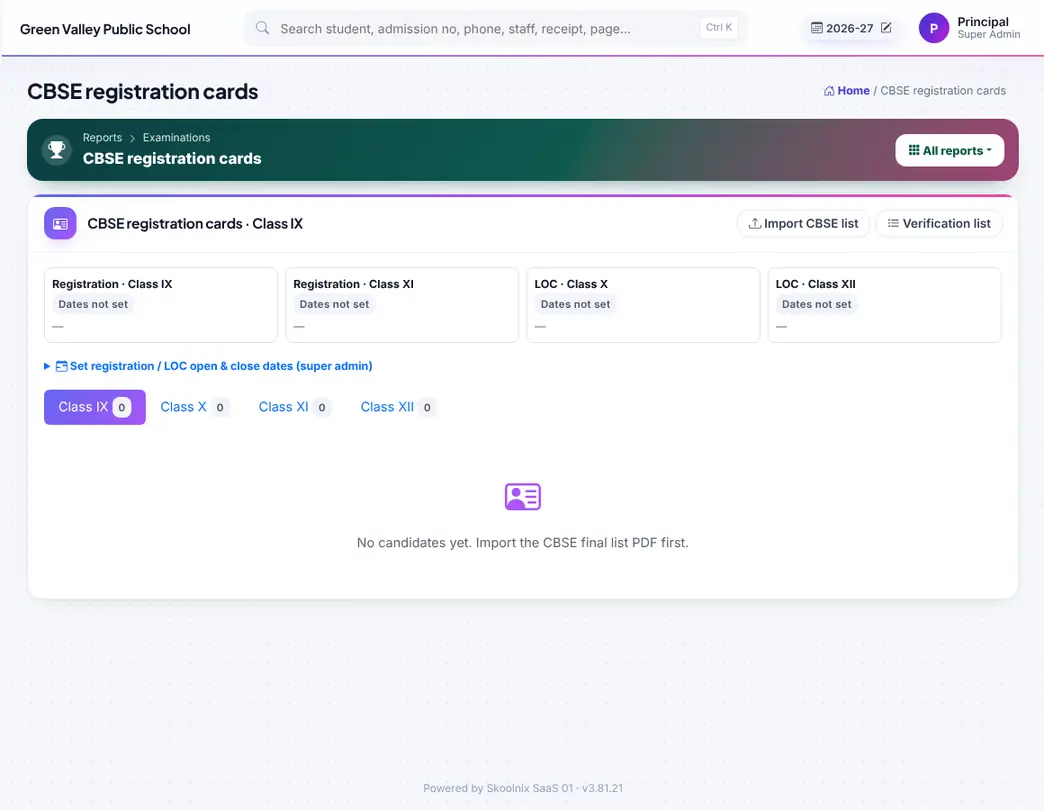
Import the CBSE final list / LOC PDF from cbseit.in and print registration cards with photo.

Verification list in the CBSE layout for students to check before registration.
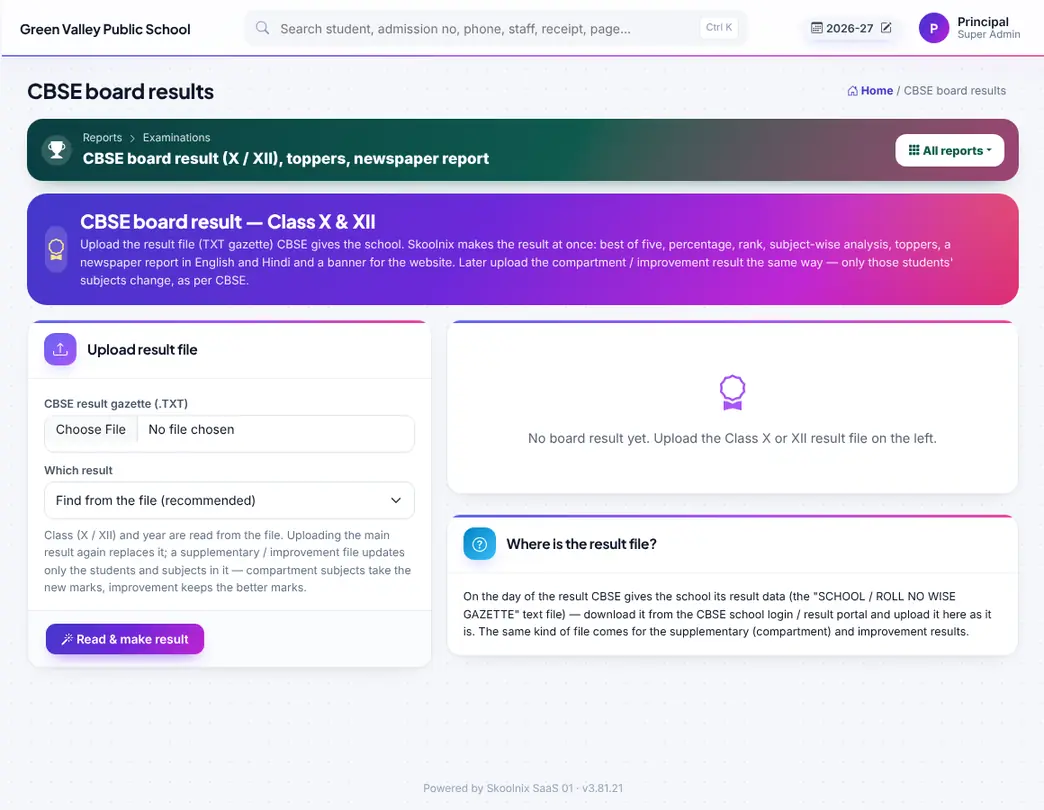
CBSE board result X / XII from the gazette: best five, ranks, toppers with photos, newspaper report and result cards.
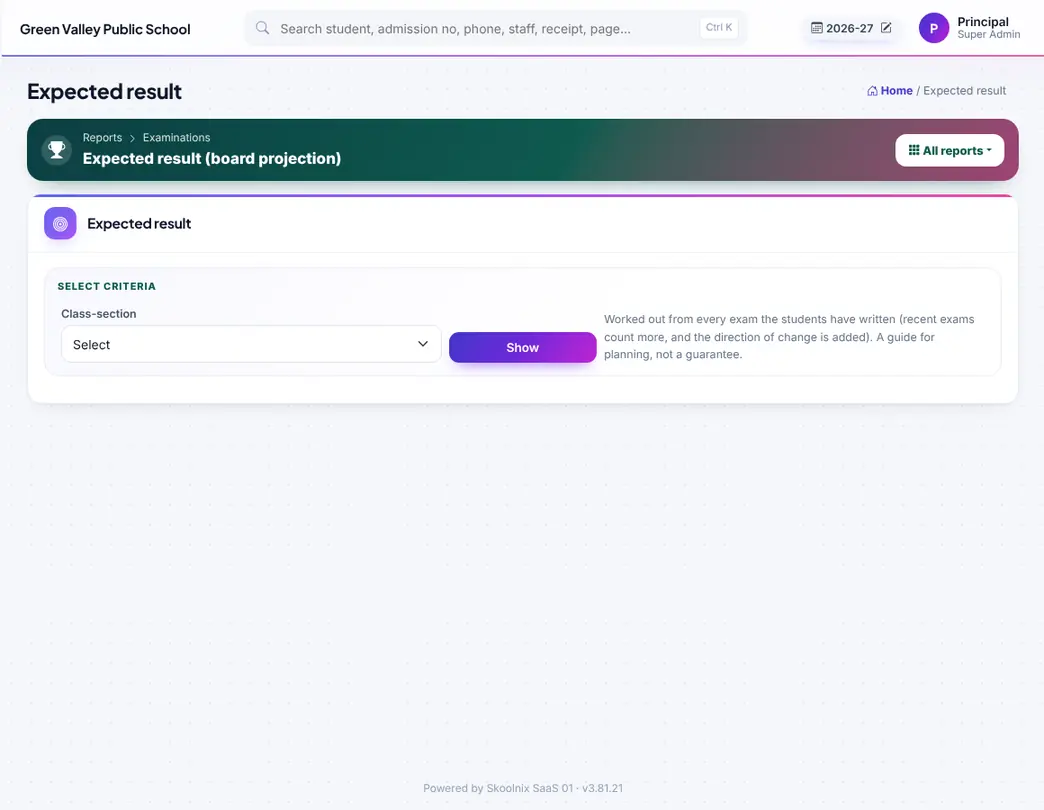
Expected board result per subject from past exams, with at-risk subjects.
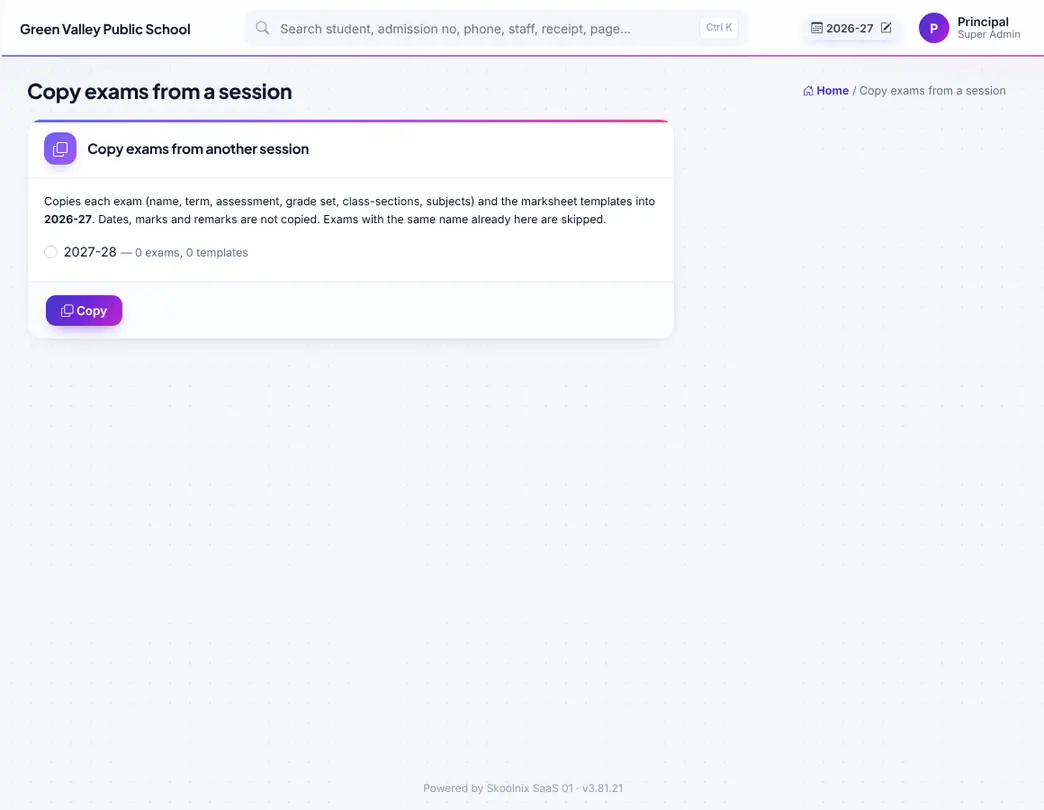
Copy exams, assessments and templates to the next session.
Online tests, question bank and the question paper maker.
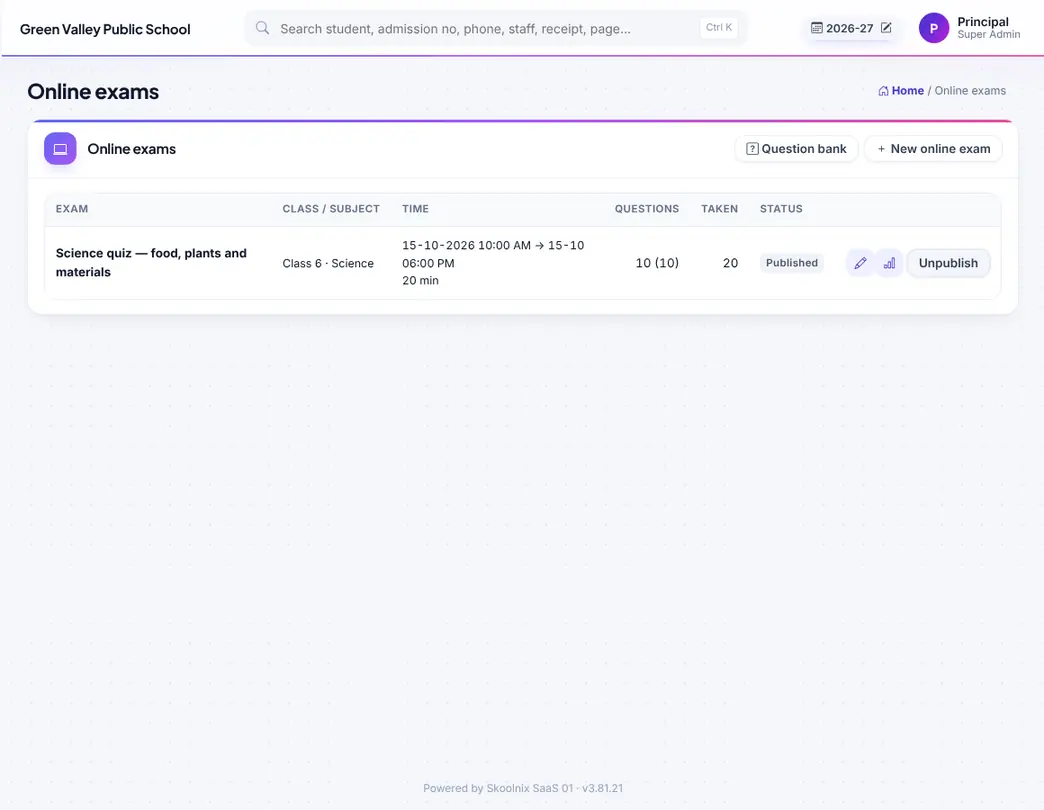
Online tests with time window, timer, shuffle and auto marking; students take them in the portal.

Question bank by class, subject, chapter and level; import from CSV or add from Smart Class.
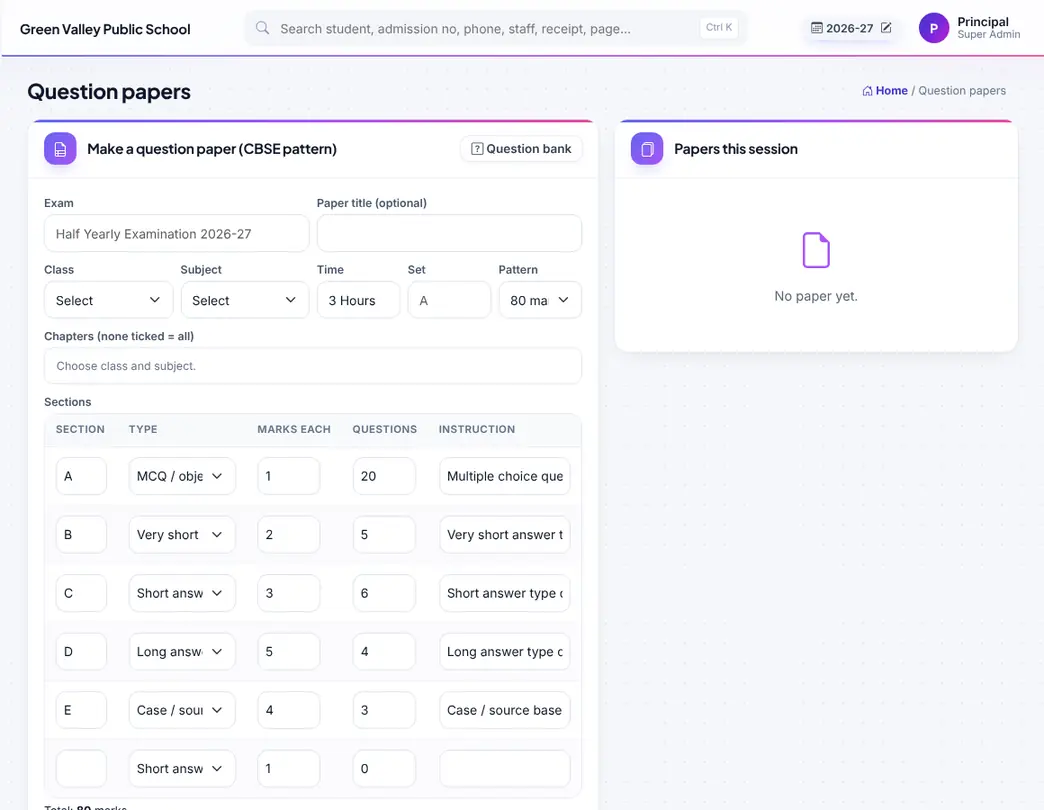
Question paper maker in CBSE pattern (sections A–E), with answer key and set codes.
Staff records, leave, ratings, salary setup and monthly payroll with PF, ESI and TDS.

All staff with photo, designation, phone and status; open for the full profile, leave box and documents.
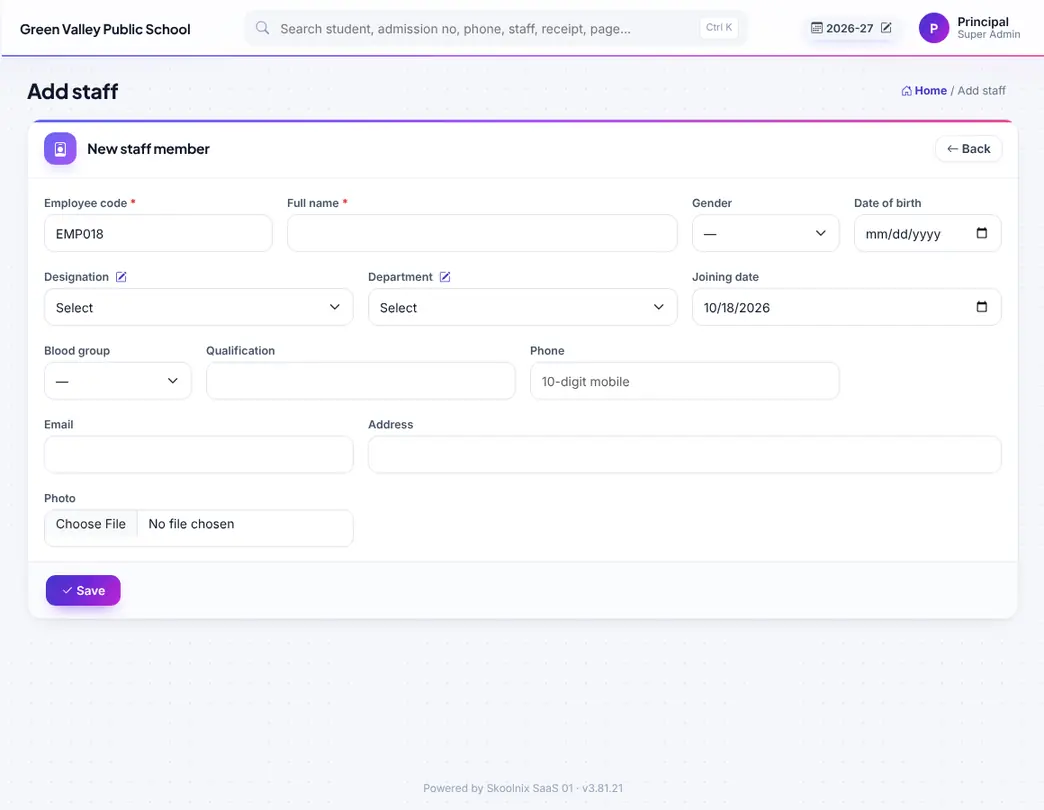
Add a staff member with login, department, designation, salary and documents.
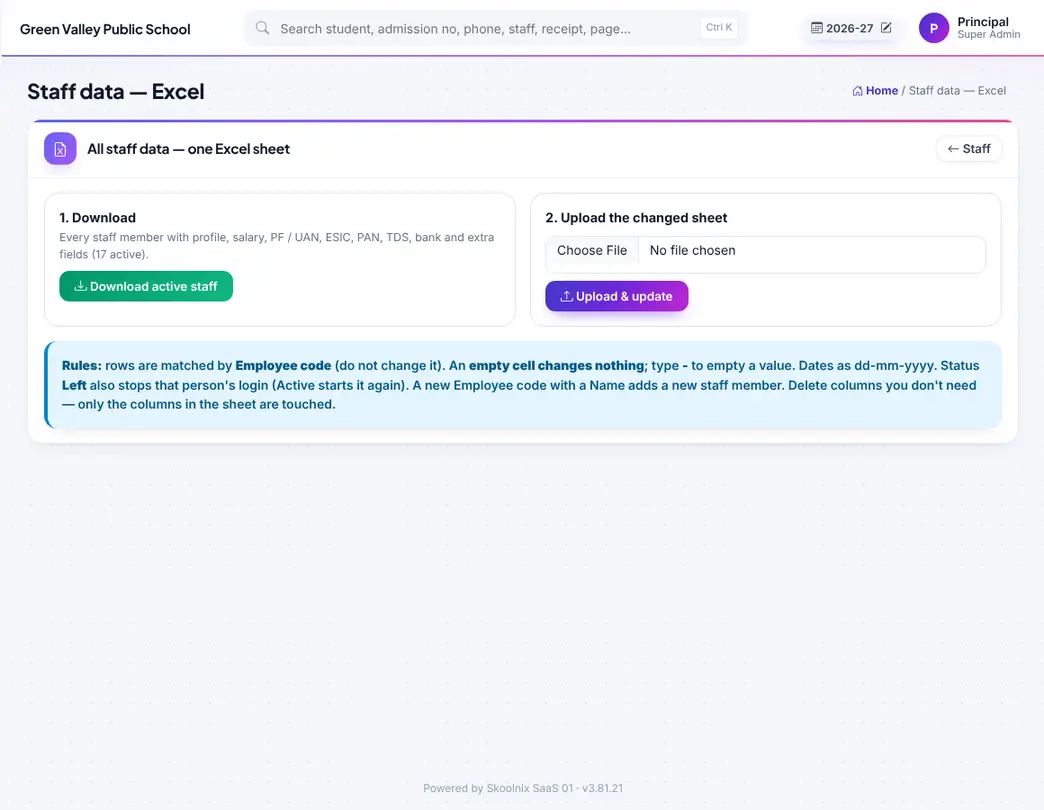
All staff data in one Excel (Super Admin).

Staff who left, with leaving date and note.

Departments.
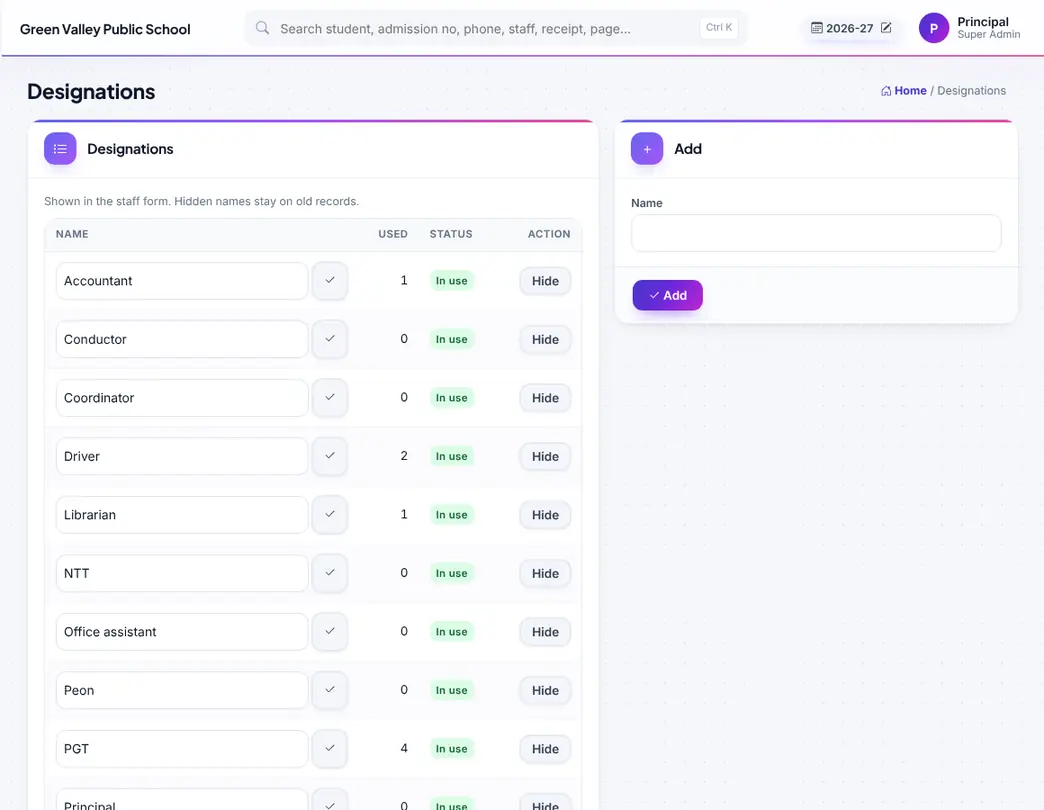
Designations.

Teacher ratings given by students from the portal, after approval.

Subject teachers of each class-section.
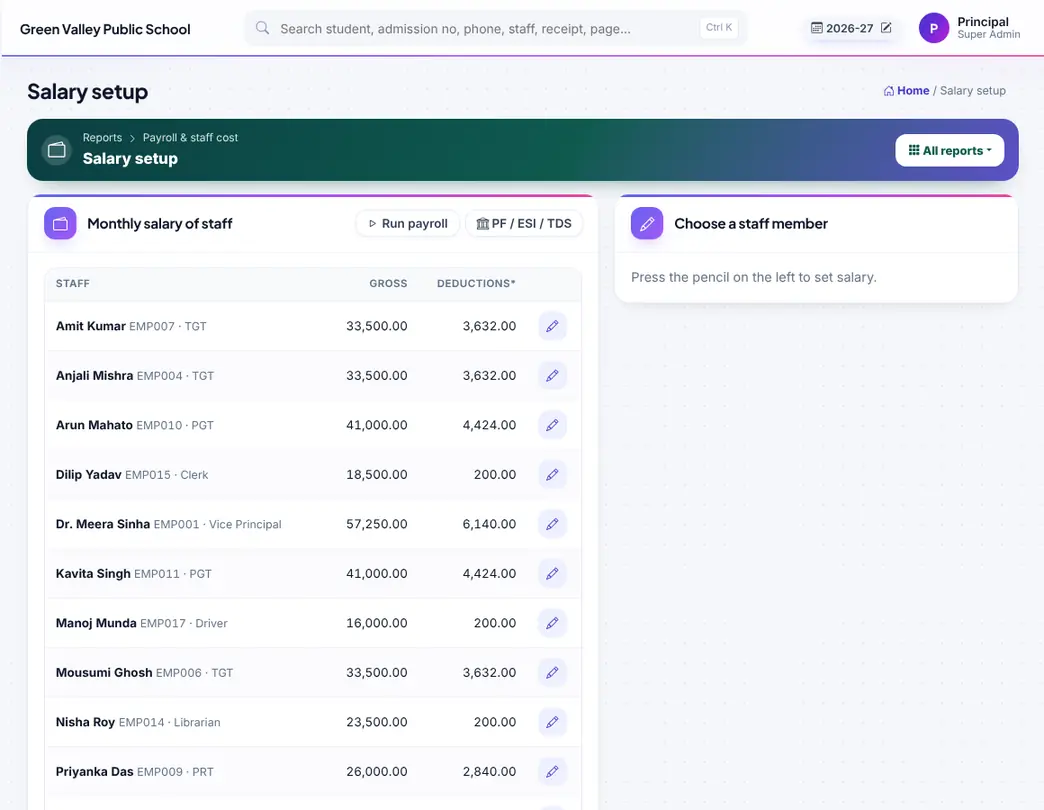
Salary setup of each staff member: basic, allowances, PF, ESI, professional tax.
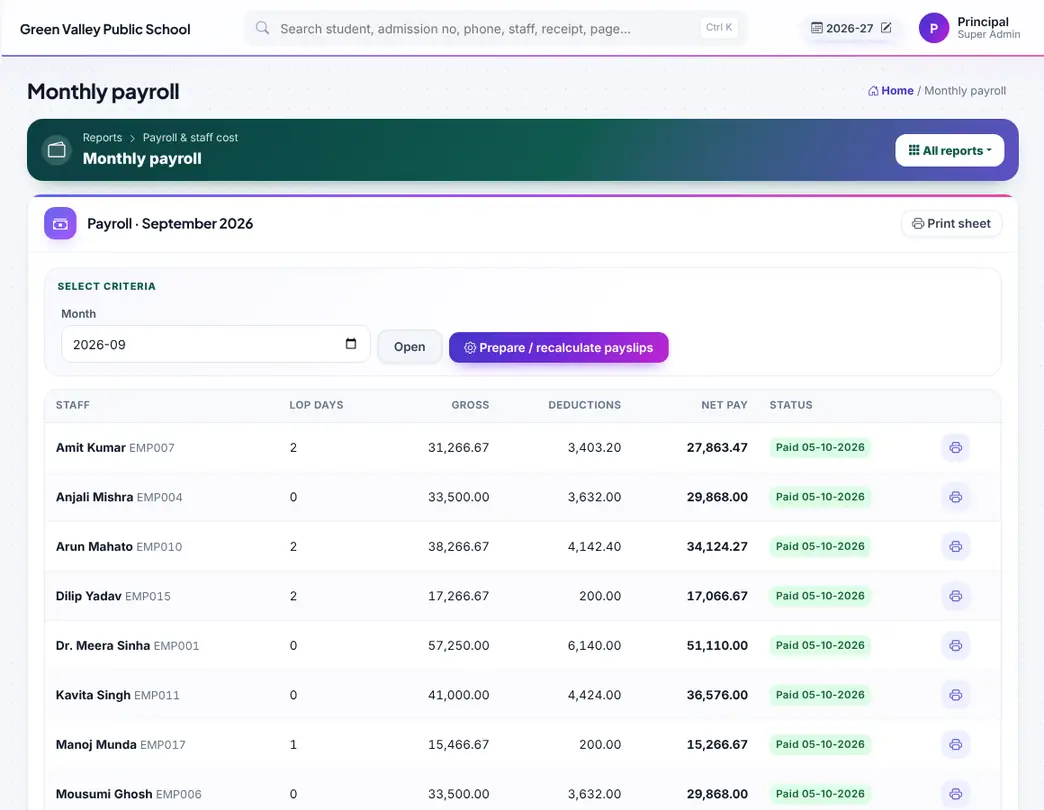
Monthly payroll linked to attendance (absent and LWP days are deducted); mark paid and print salary slips.

PF ECR file, ESIC sheet, professional tax, TDS and yearly salary statement (Form 16 Part B).
Books with barcodes, issue and return, digital library and reports.
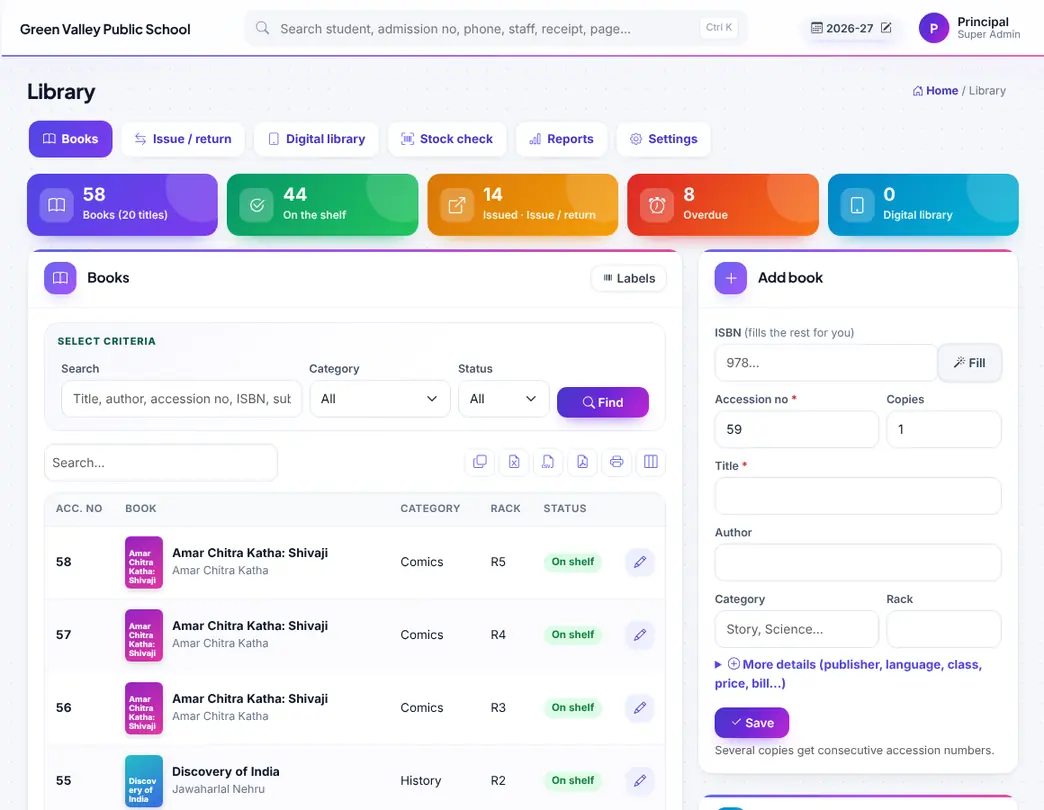
All books with accession no, category, rack and status; barcode labels.
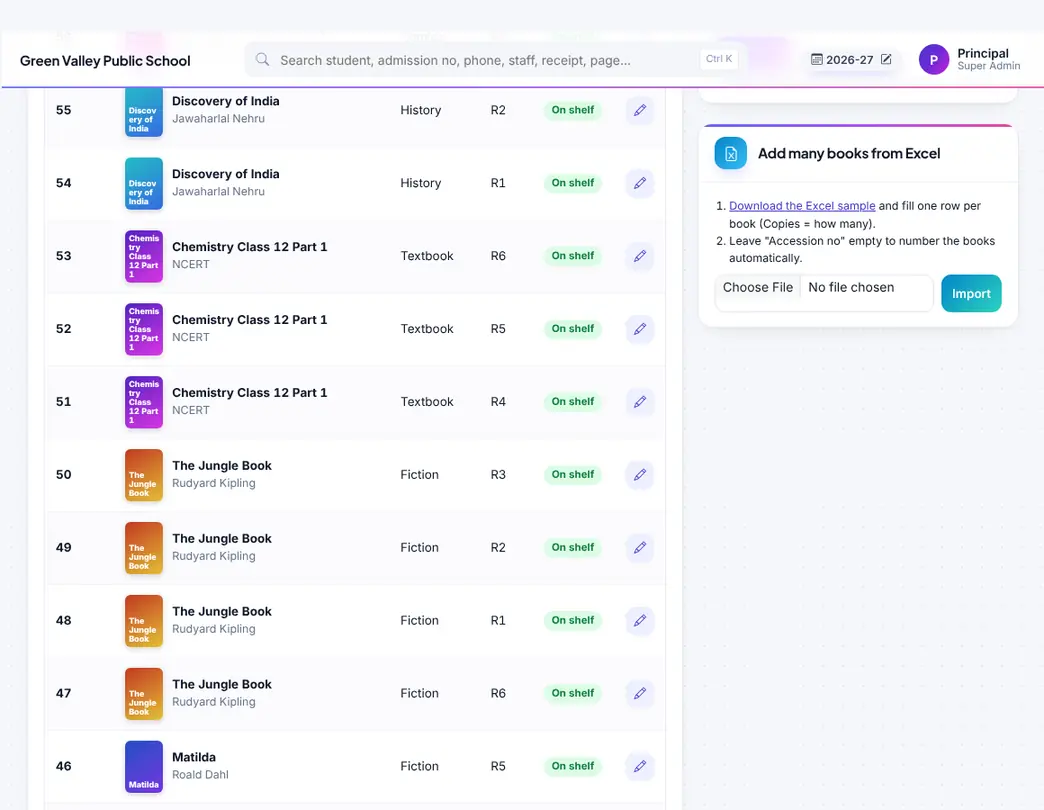
Import books from Excel (on the Books page).
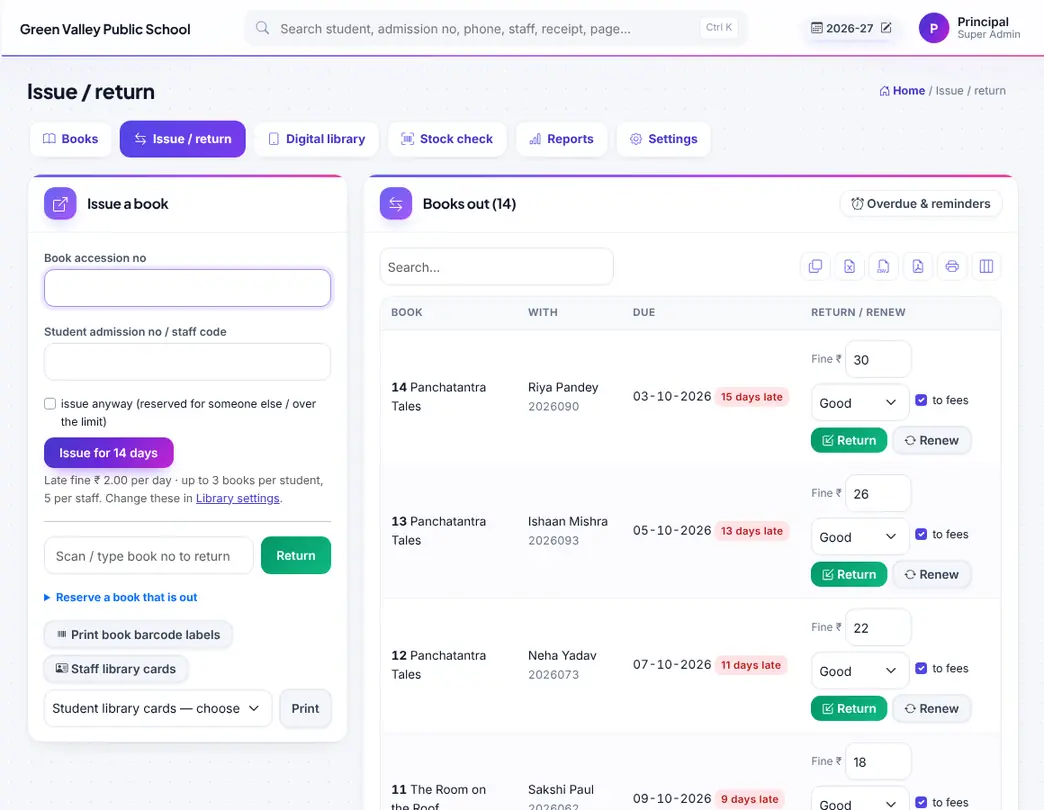
Issue and return books by scanning; fines go to fees.

Digital library: e-books, videos, read-aloud stories and links for students.
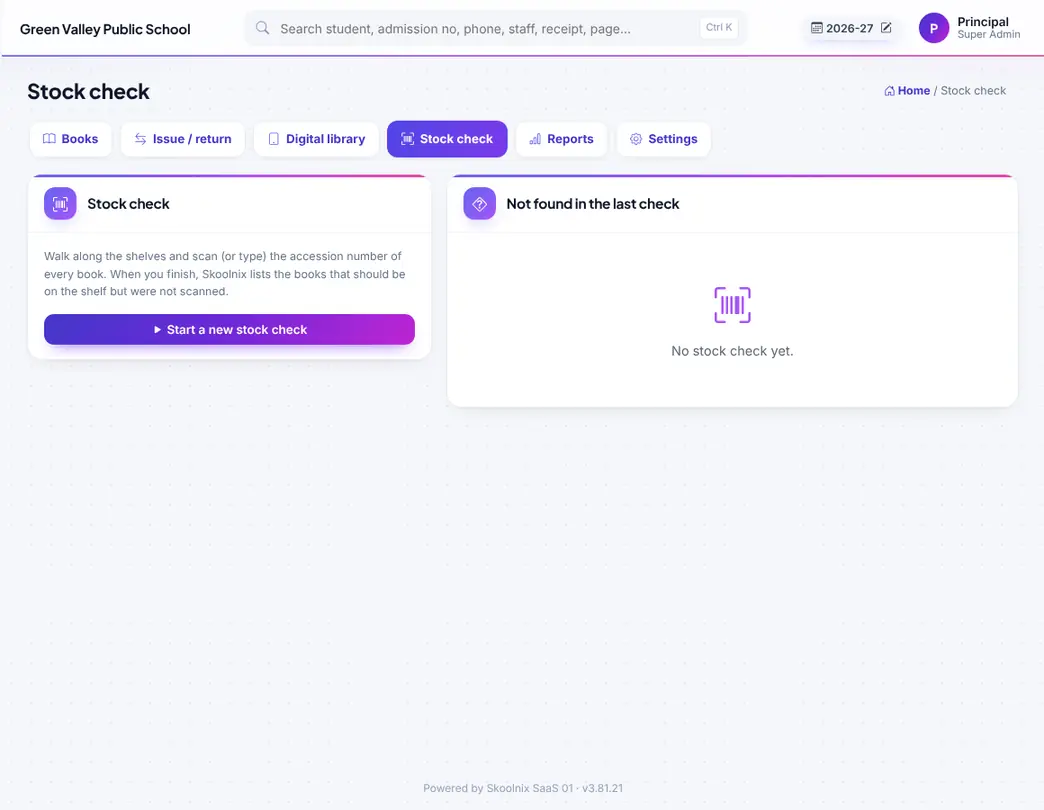
Stock check by scanning every book.
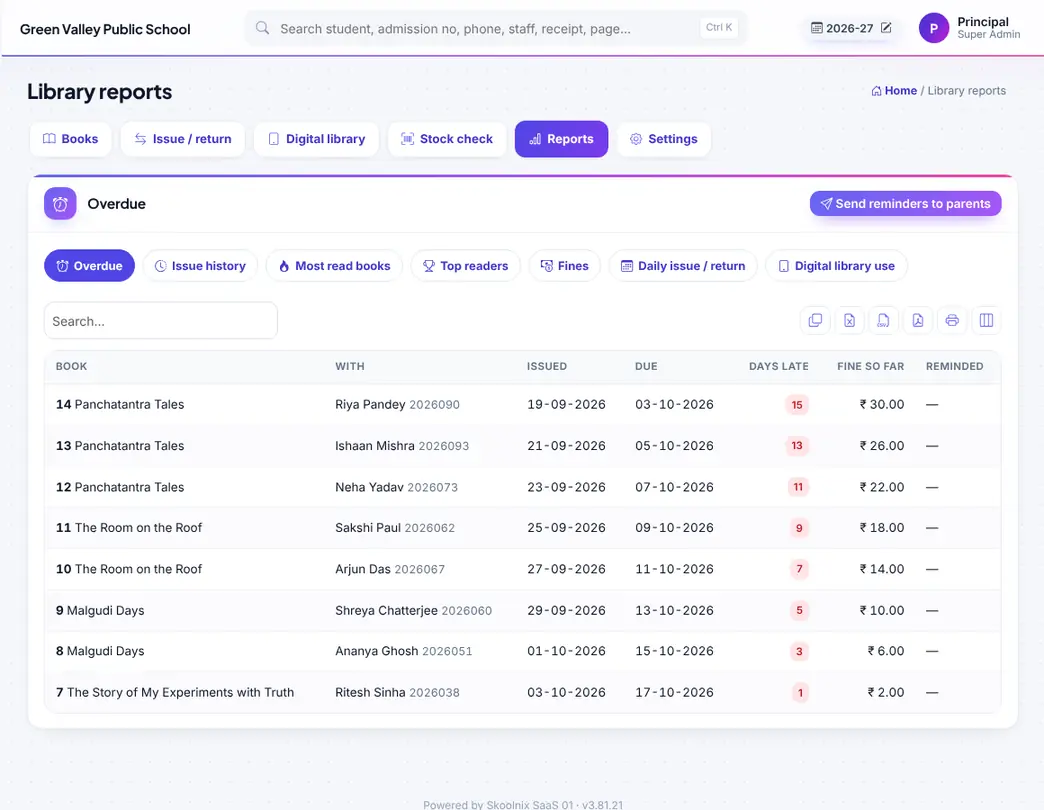
Library reports: issued, overdue, popular books, fines.

Loan days, fine per day and limits.
Rooms, students, night roll call, passes, visitors and mess menu.
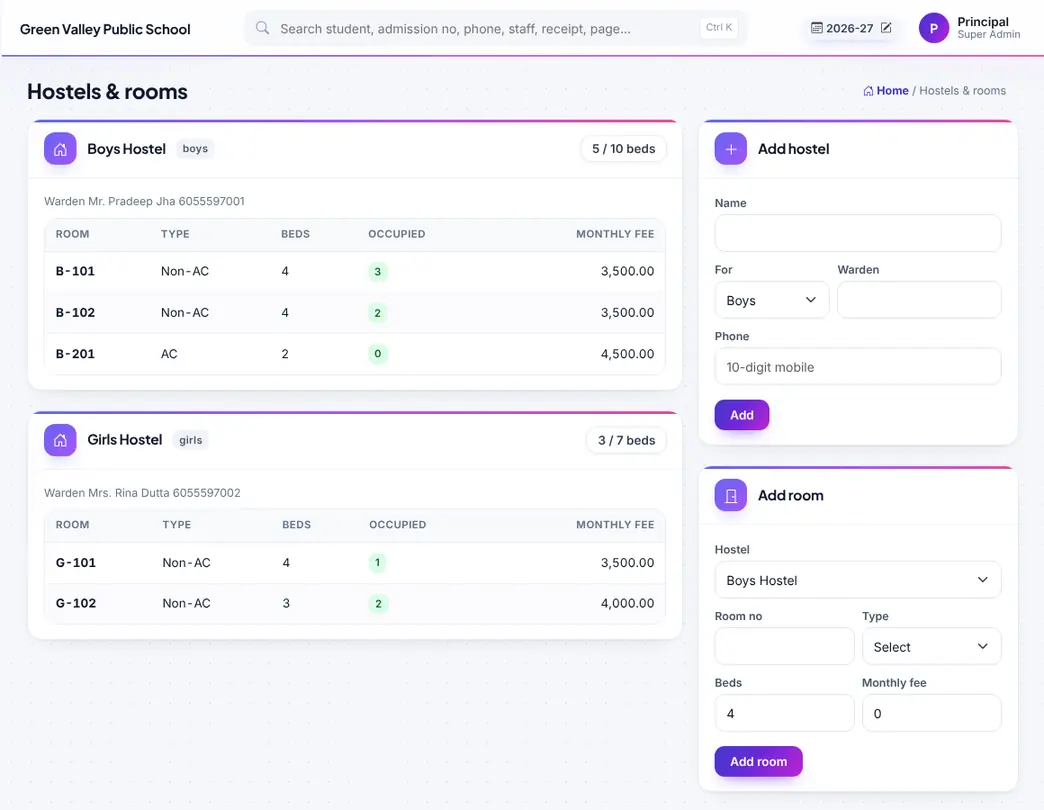
Hostels, rooms and beds; who is in which room.
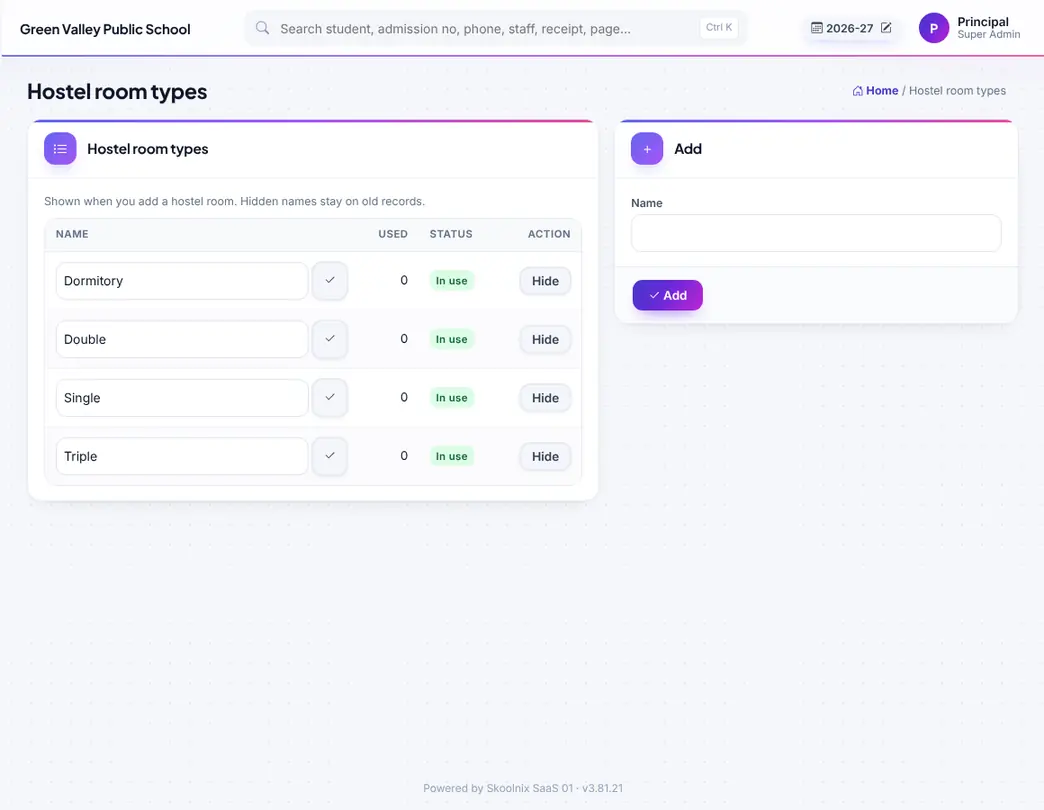
Room types.
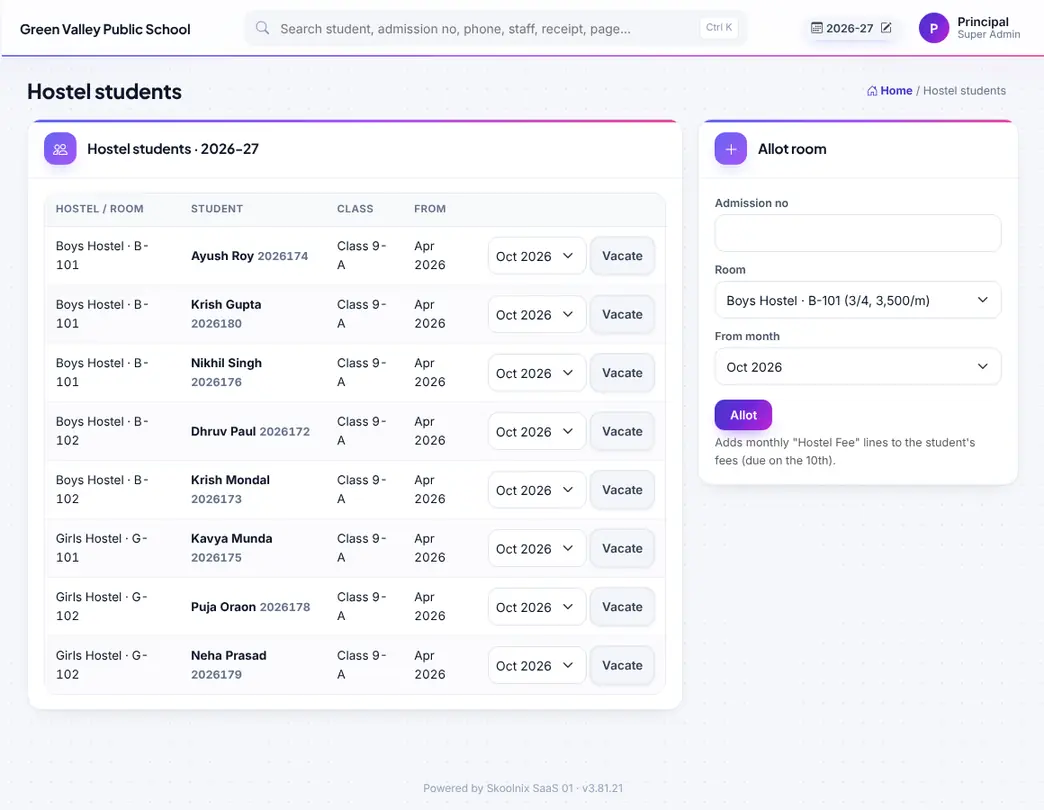
Hostel students with room, warden and fees.

Night roll call; parents are told of an absence.

Gate and leave passes with print and late-return highlight.

Hostel visitors book.
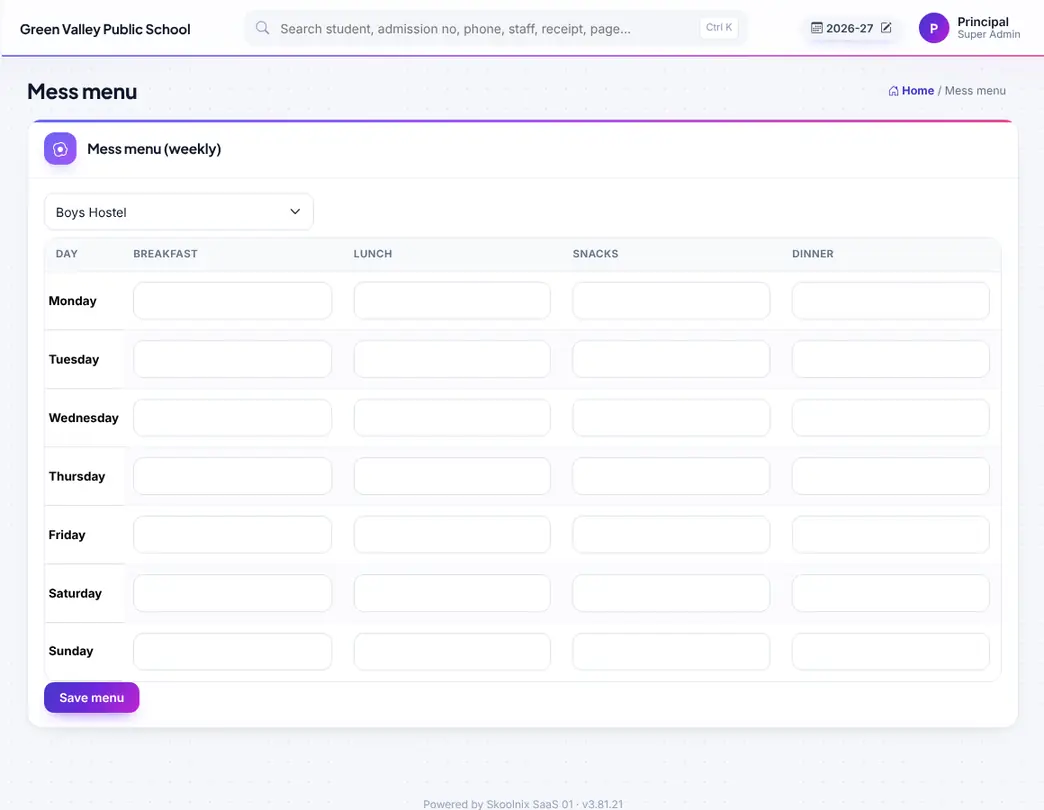
Weekly mess menu; parents see today's menu.
Items, purchases, issues, student kits, assets and stock count.
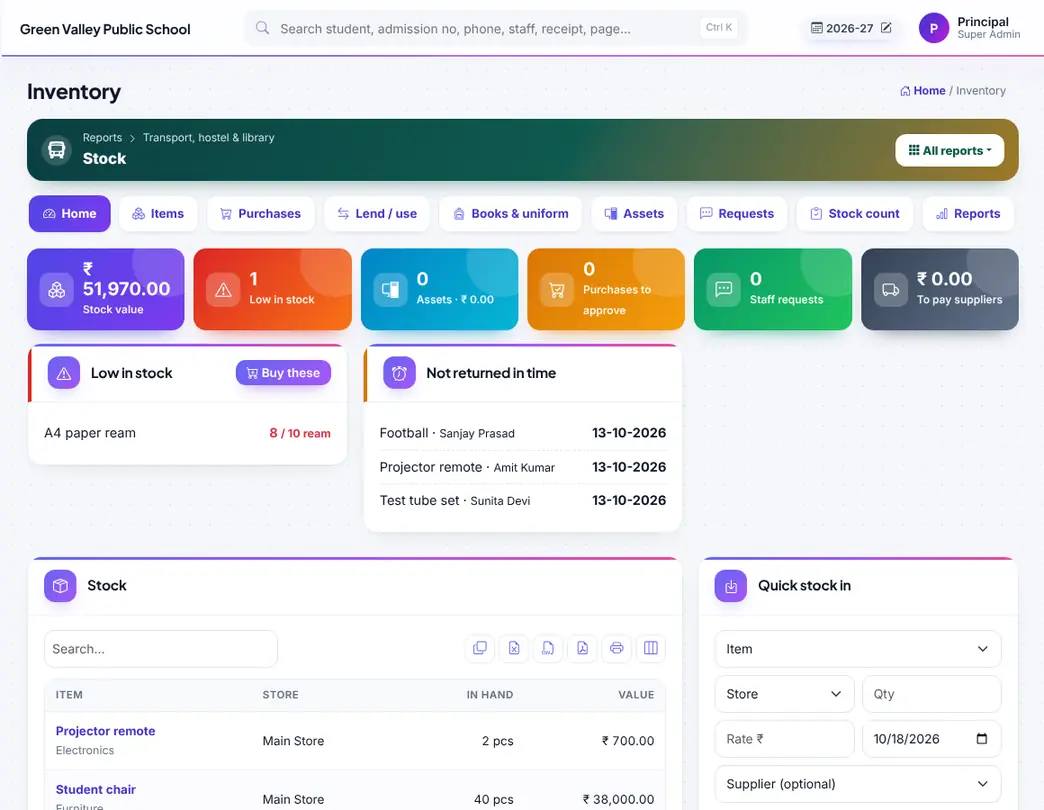
Inventory at a glance: stock value, low stock and pending requests.
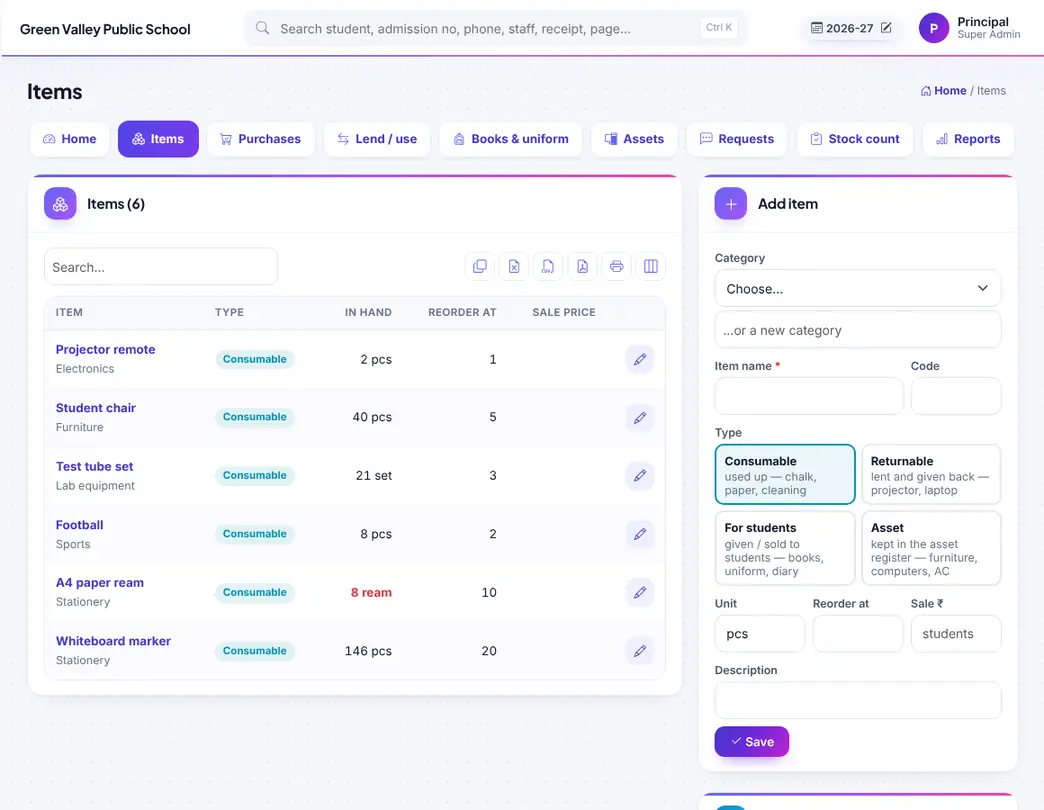
Items with unit, store and reorder level.
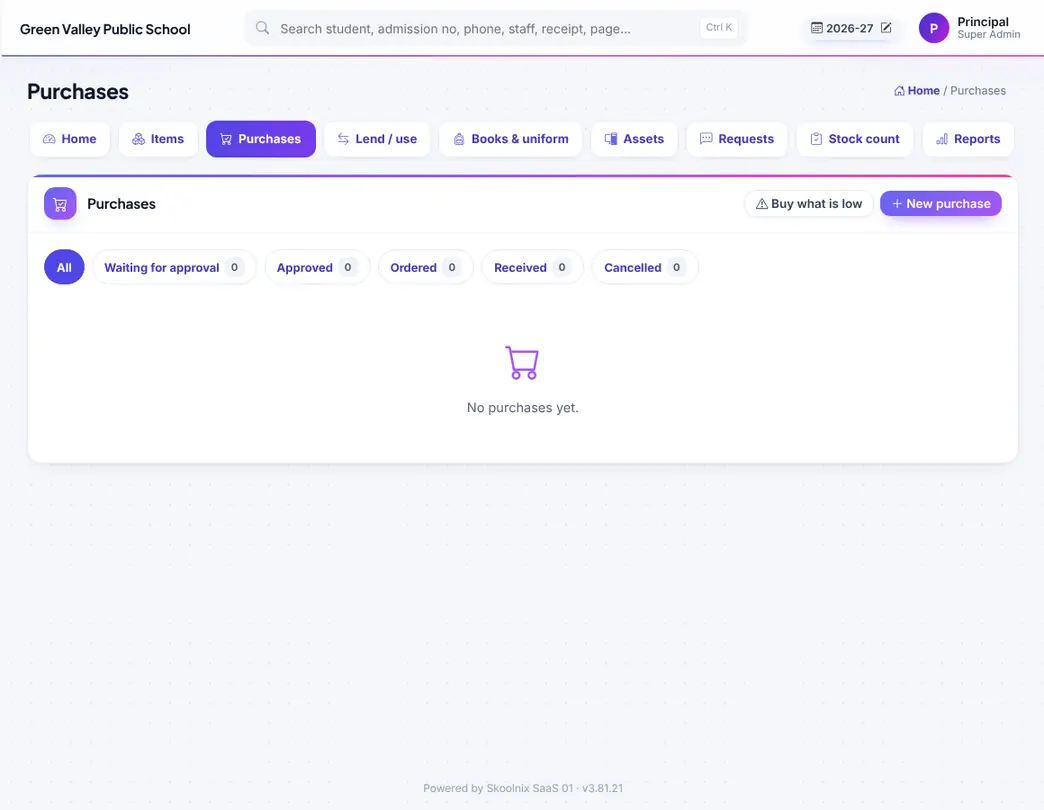
Purchases with approval and supplier payments.

Lend, use and return items.

Books and uniform kits for students, added to their fees.
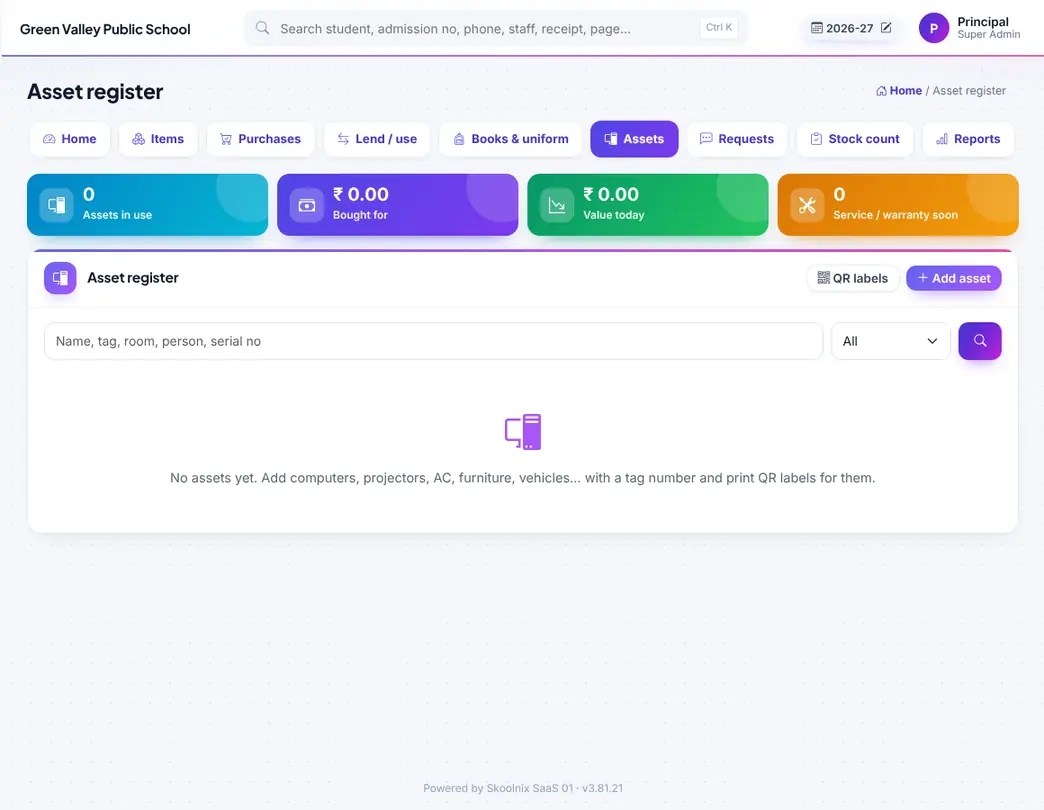
Asset register with QR labels, warranty and service dates.

Requests from staff to the store.
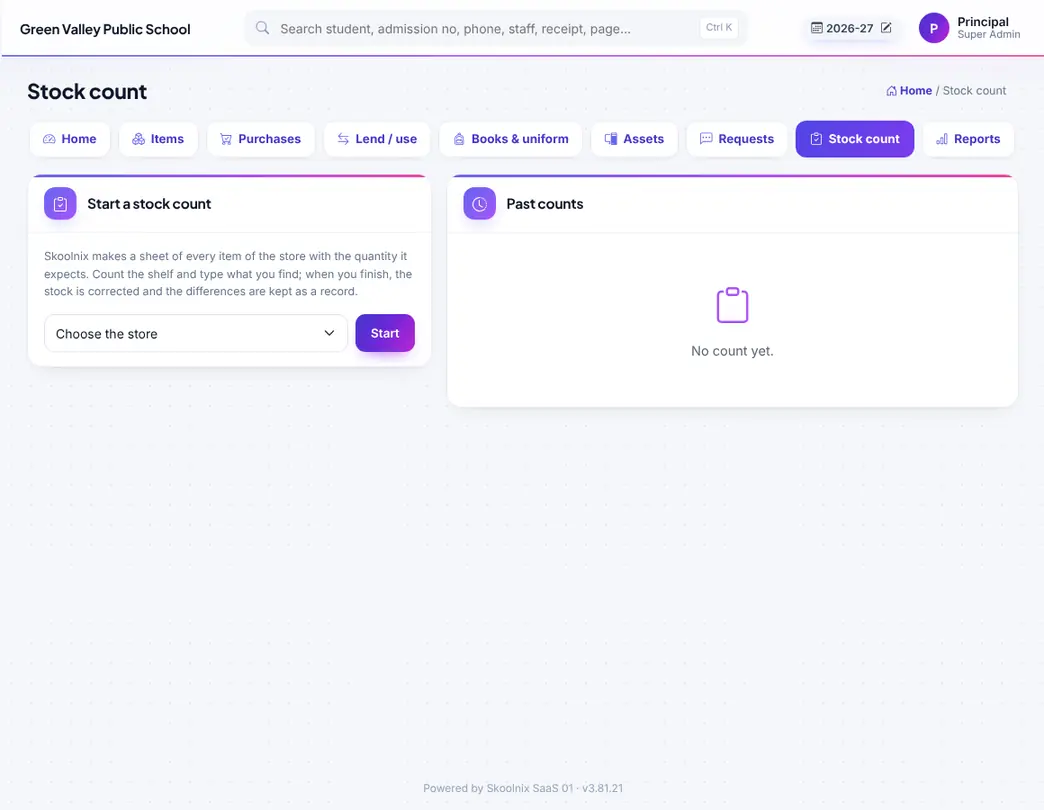
Stock count and adjustment.

Stock, purchase and issue reports.
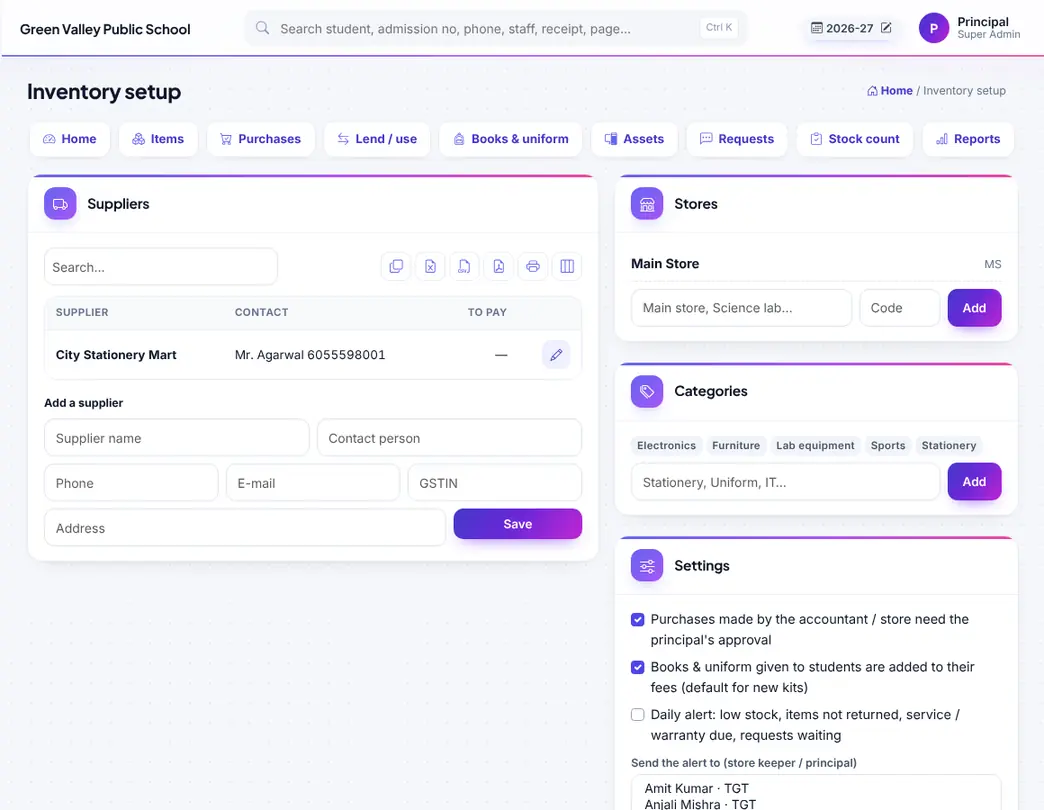
Stores, suppliers and settings.
Promotion to the next class, alumni, carry forward of dues, sessions, classes and subjects.
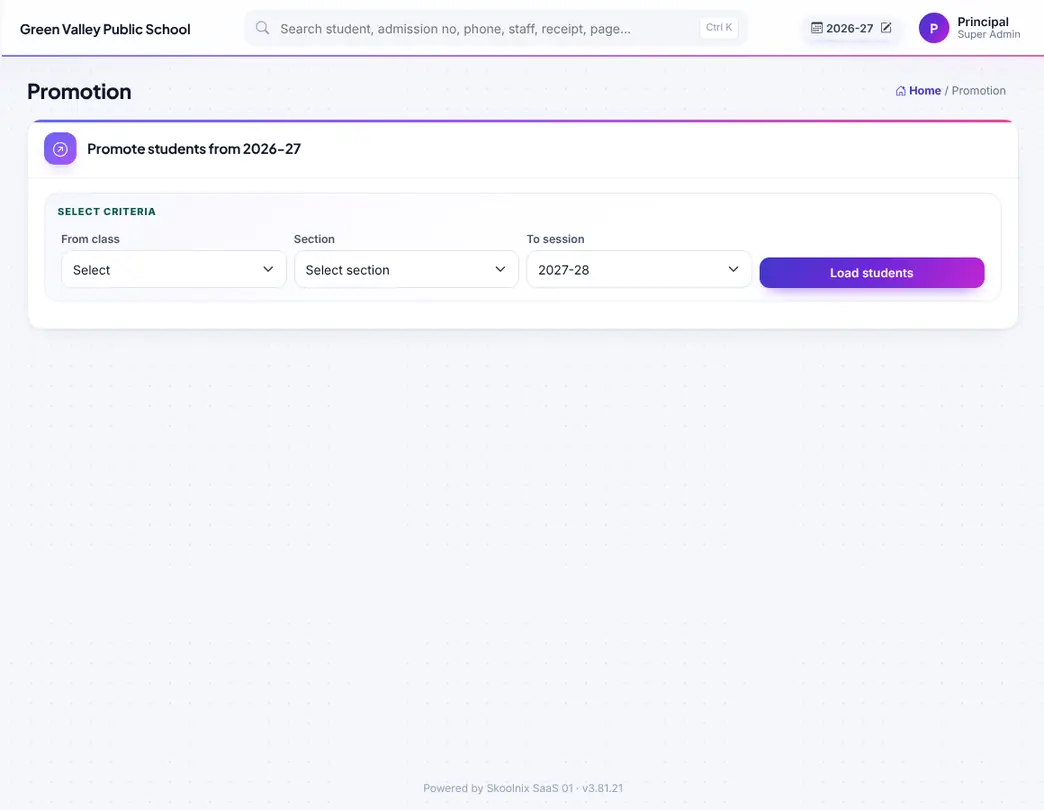
Promote students to the next class in the new session, class by class.

Former students, alumni registration on the website and the proud-alumni wall.

Carry last session's dues to the new session.

Academic sessions; set the current session for the whole school.
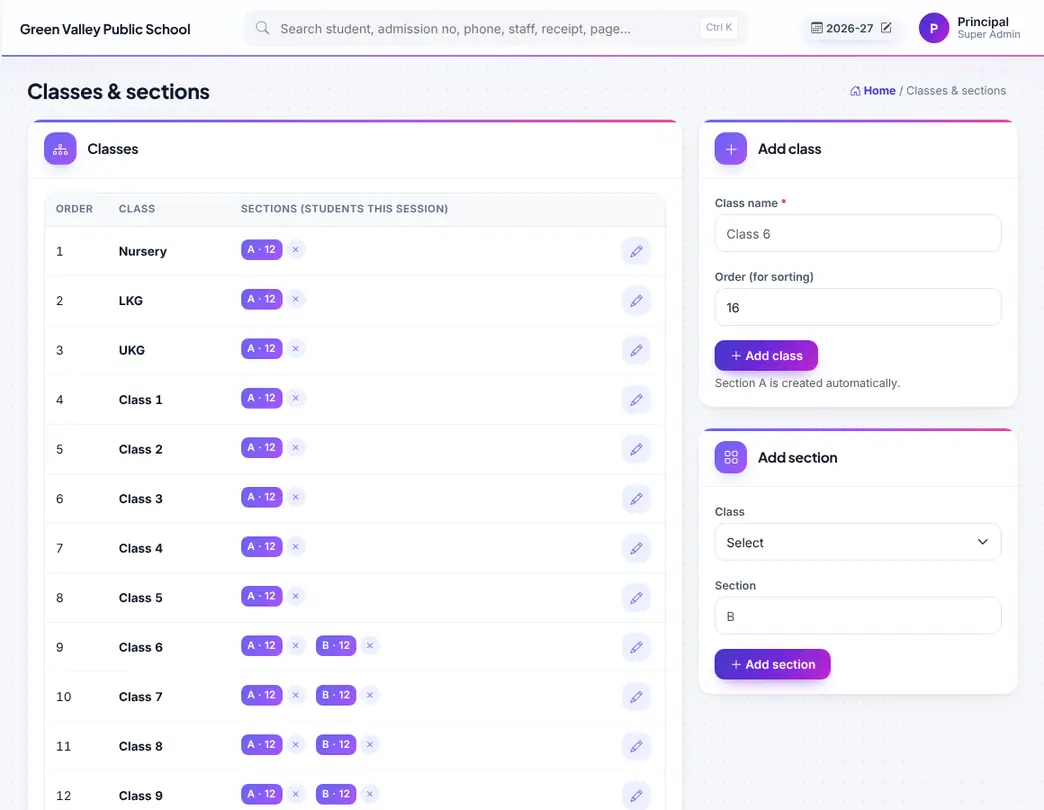
Classes and sections.

Subjects with code and type; a used subject is never deleted.
Your school website: home page, menu, pages, news, events, gallery and the CBSE disclosure page.
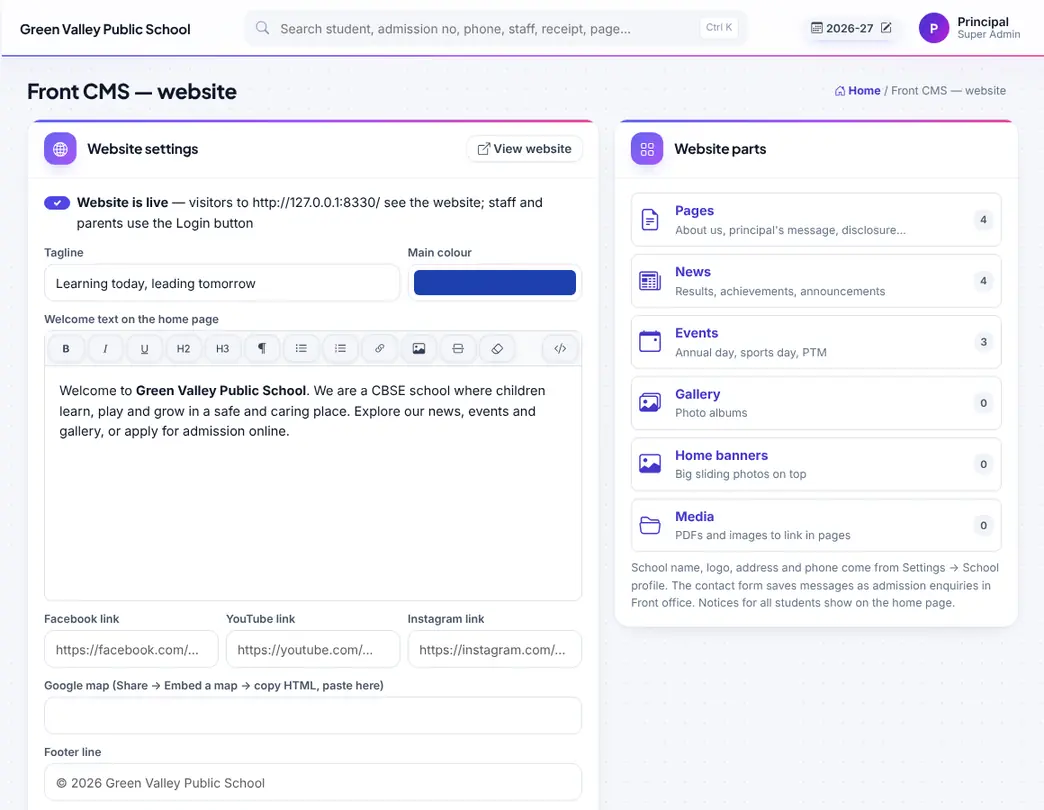
School website settings: on / off, colours, theme, contact and social links.

Home page design: choose and order sections, texts and photos.
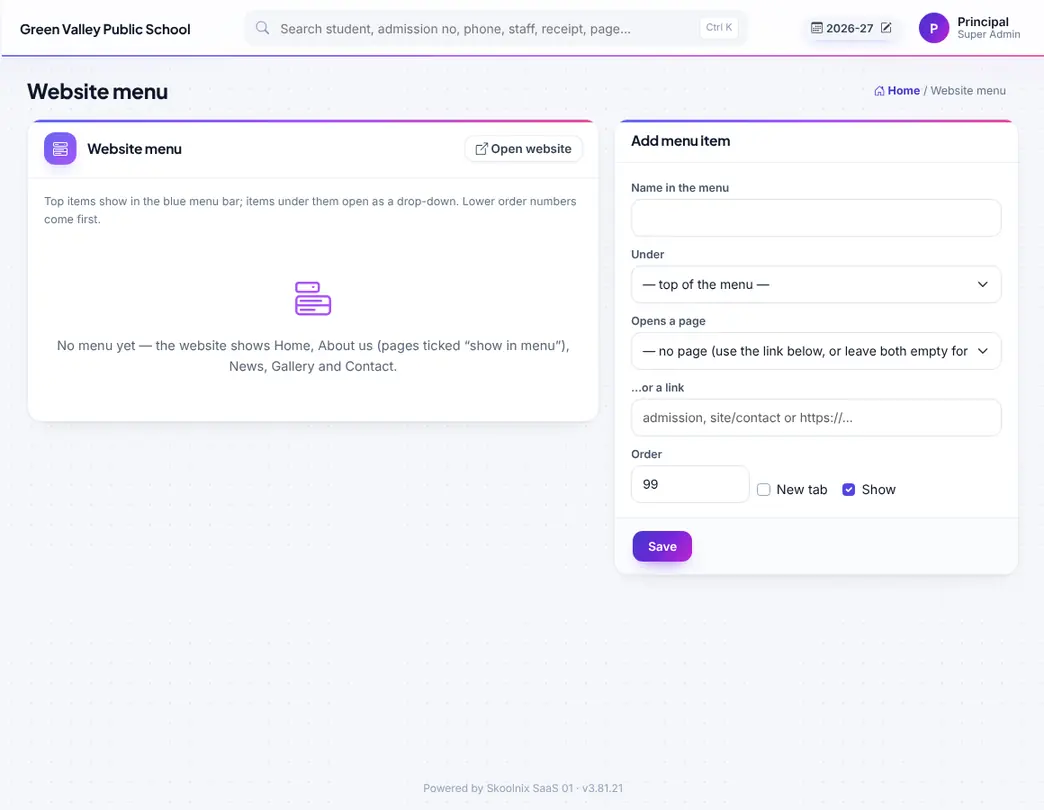
Website menu.

Pages (About, Principal's message…) with a simple editor.

News on the website.

Events on the website.
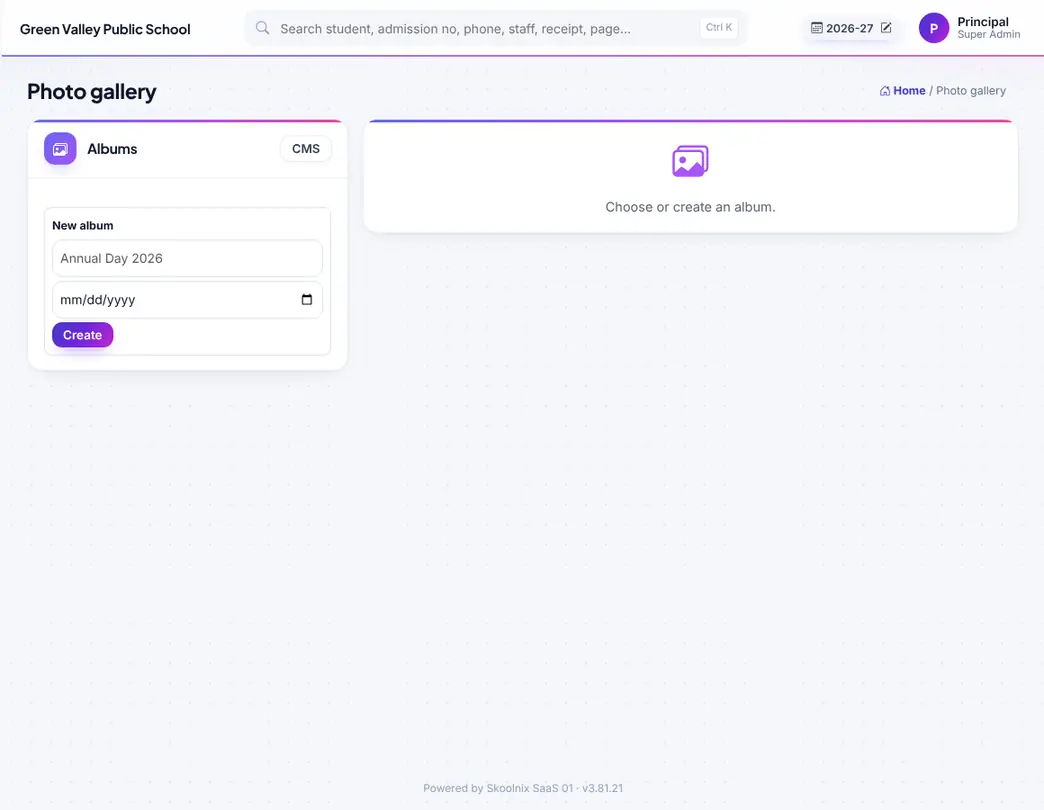
Photo albums with many photos at once.
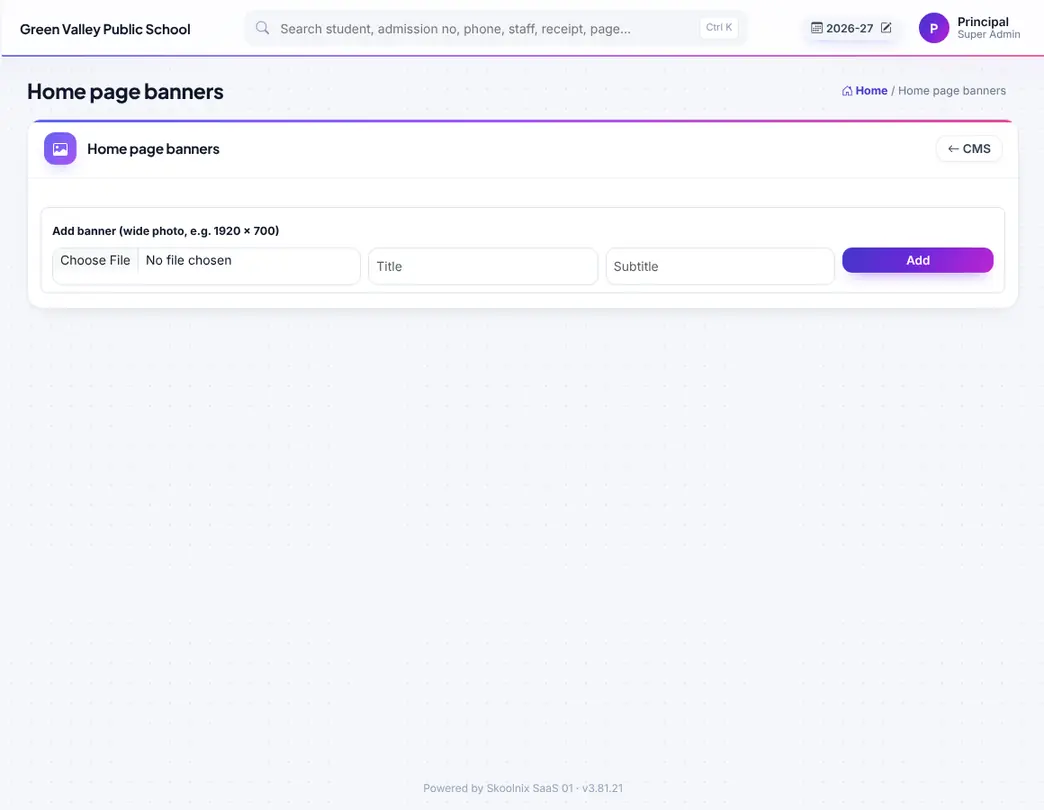
Home page banners.
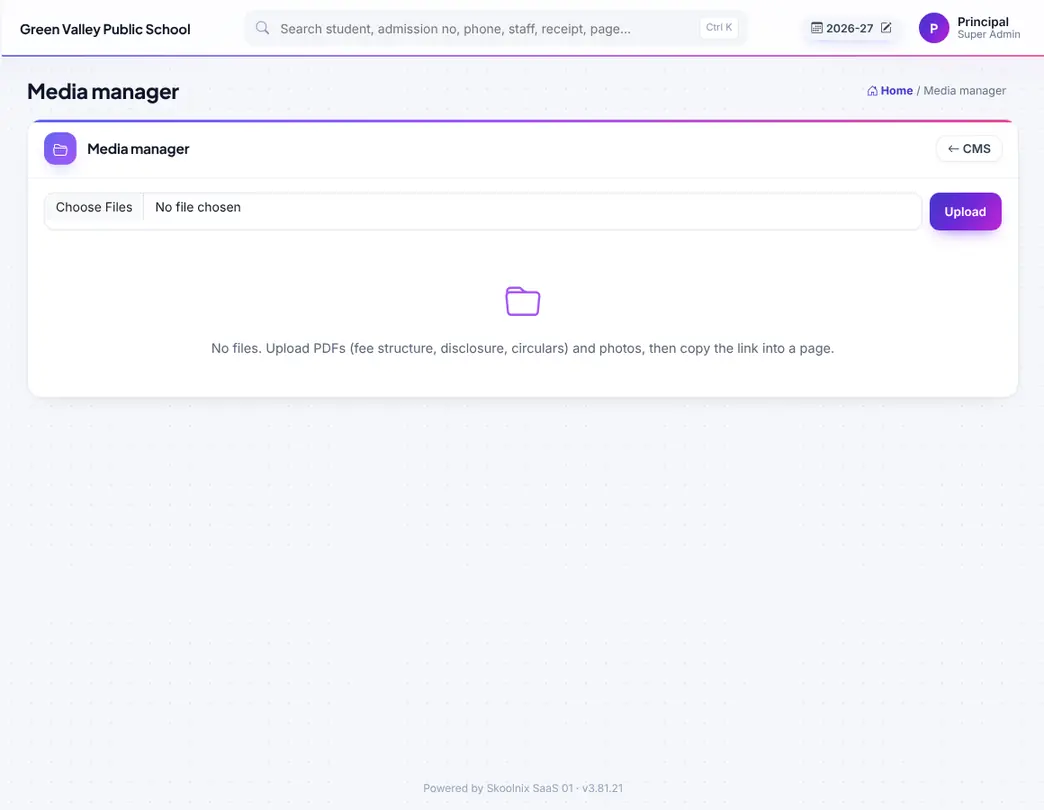
Media manager for PDFs and images with copy link.
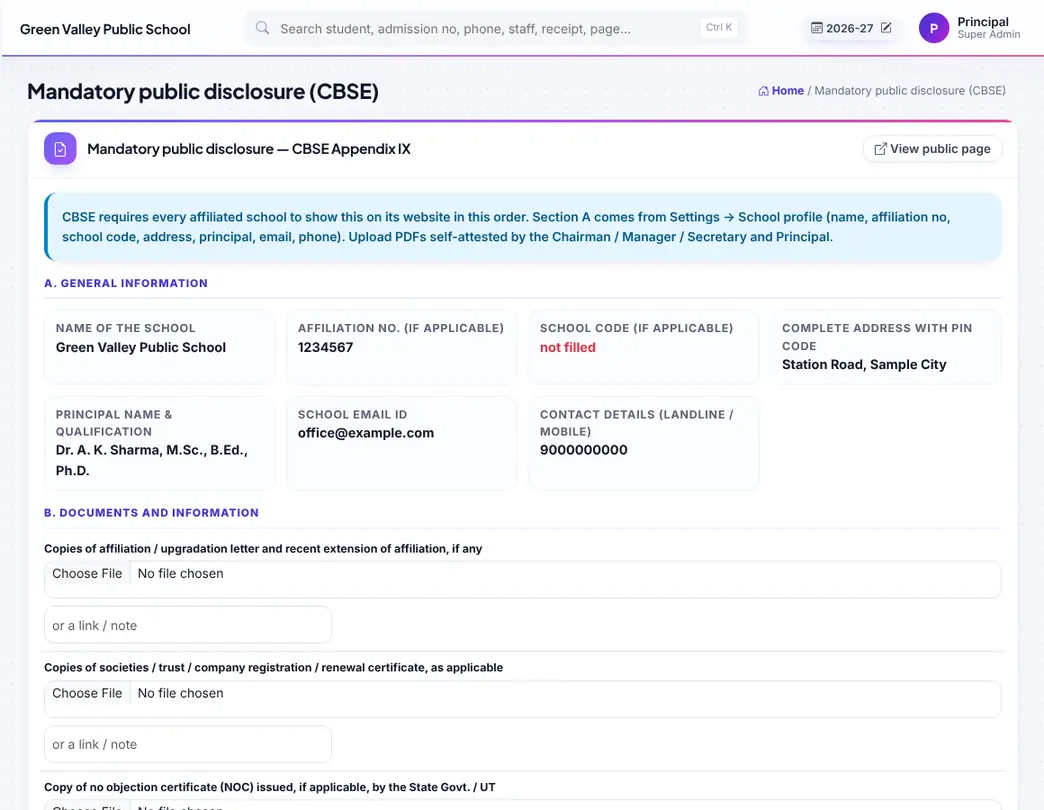
Mandatory public disclosure page in the CBSE format.

Smart tools: question papers, worksheets, lesson plans, notices and remarks.
School profile, integrations, users, roles & permissions, security, print, backup, updates and system health.
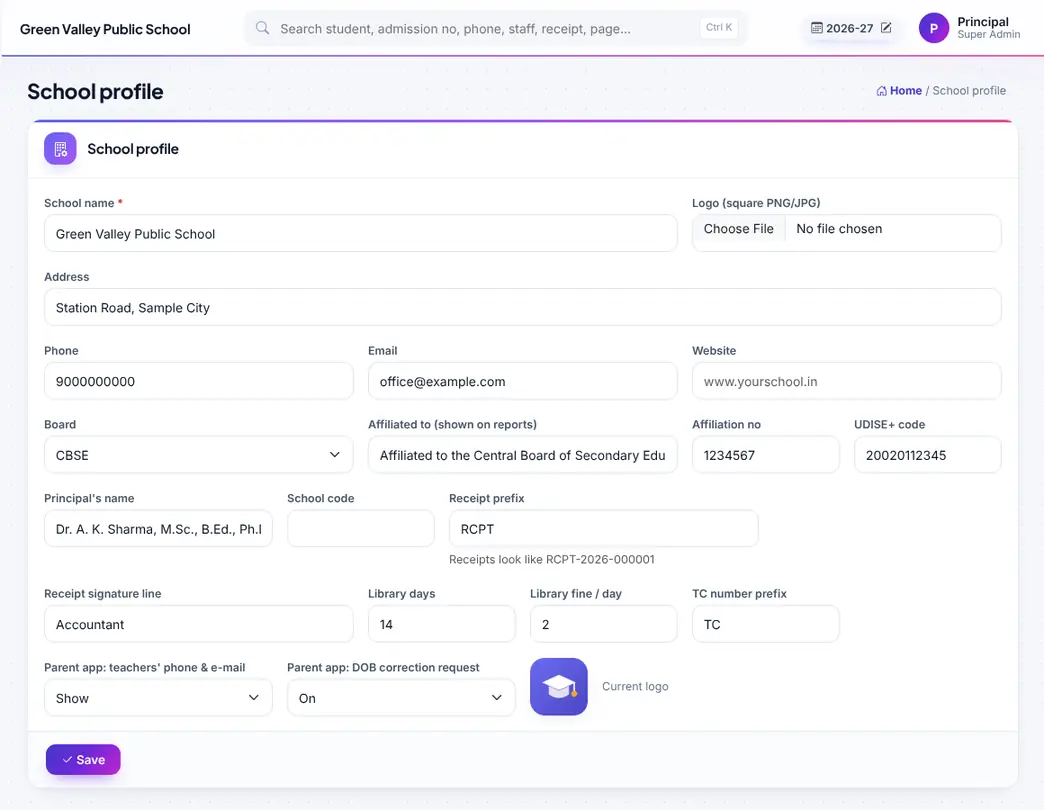
School profile: name, logo, address, phone, affiliation no, school code, UDISE, principal, board.
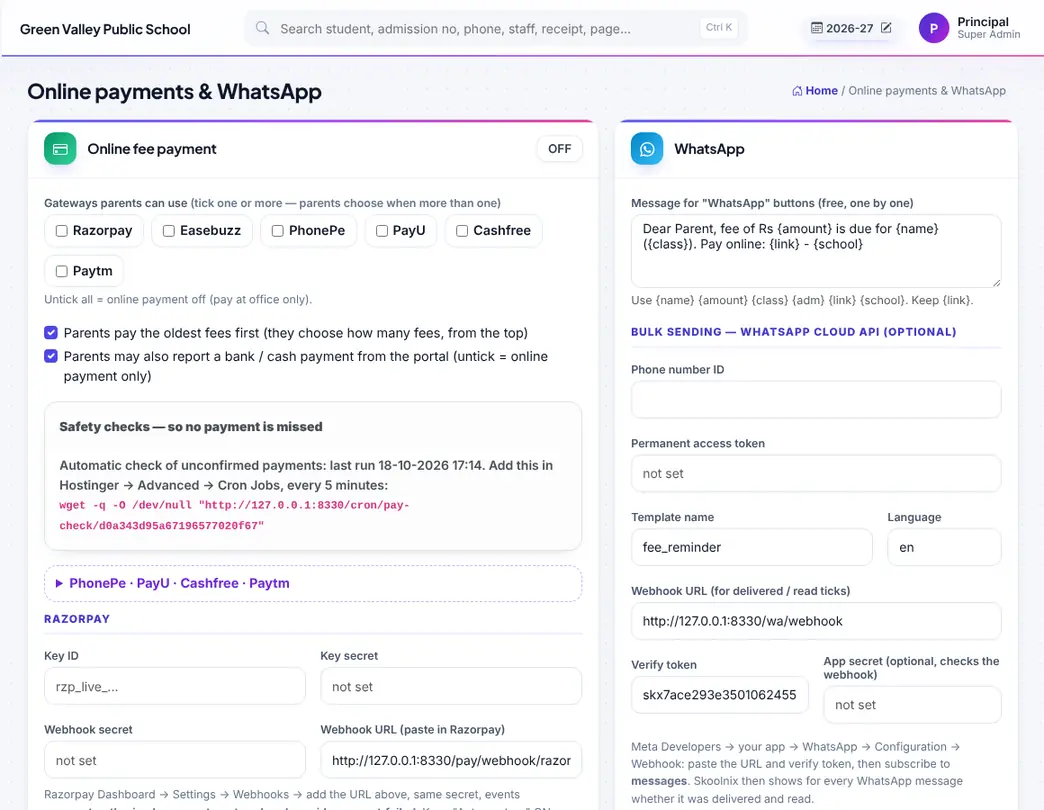
Integrations: payment gateways, WhatsApp, SMS and the smart assistant key.
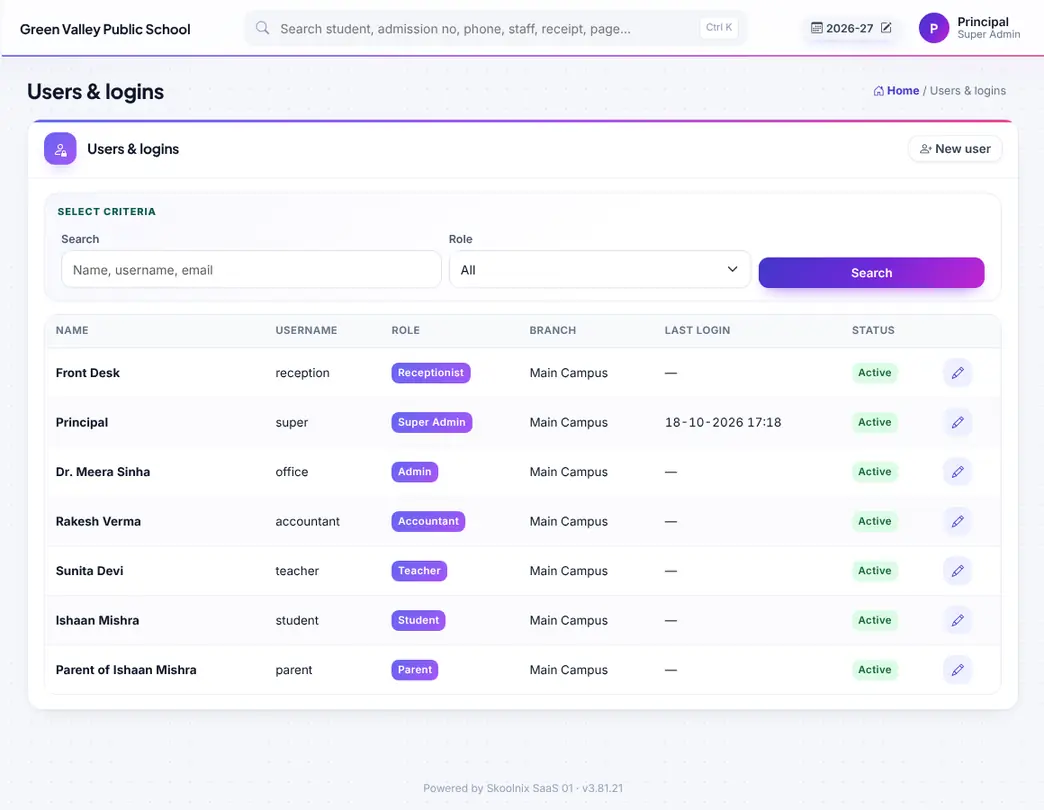
Users and logins of staff, students and parents; reset passwords.
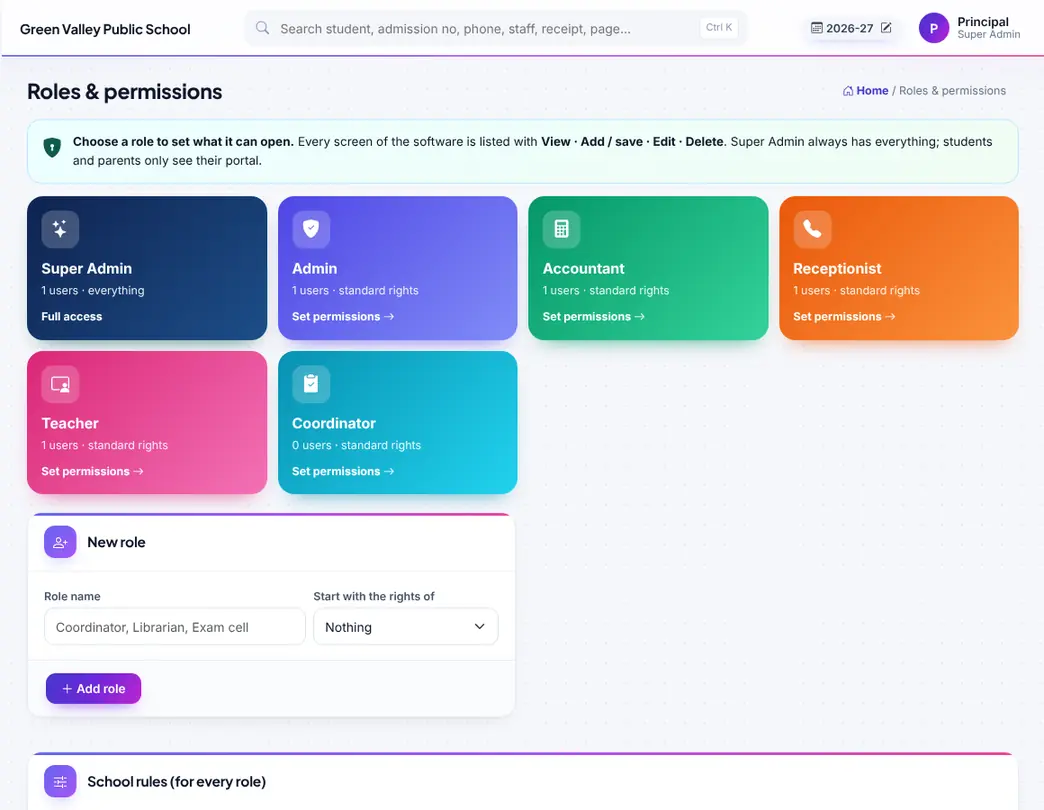
Roles & permissions: which screens and rights each role has (View / Add / Edit / Delete, part payment, late fine, discount…).

Login security: two-step verification, captcha, forgot password by OTP.
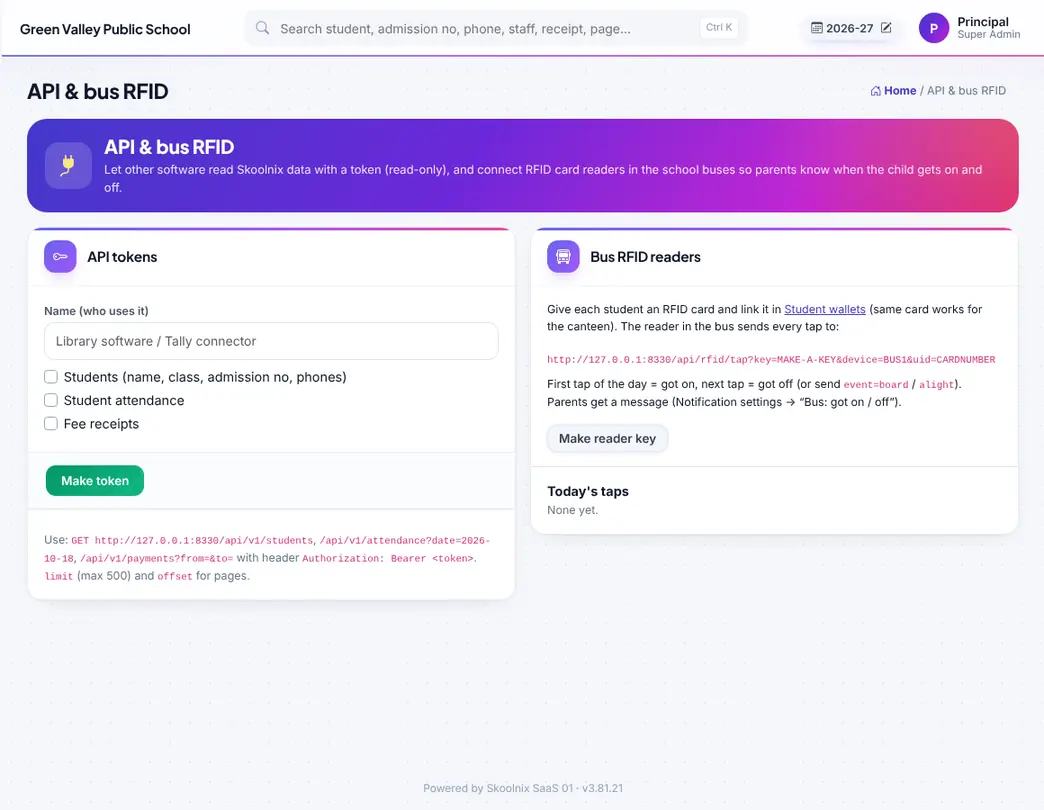
API keys and bus RFID.

Translations of the portal words (English, Hindi, Bengali).
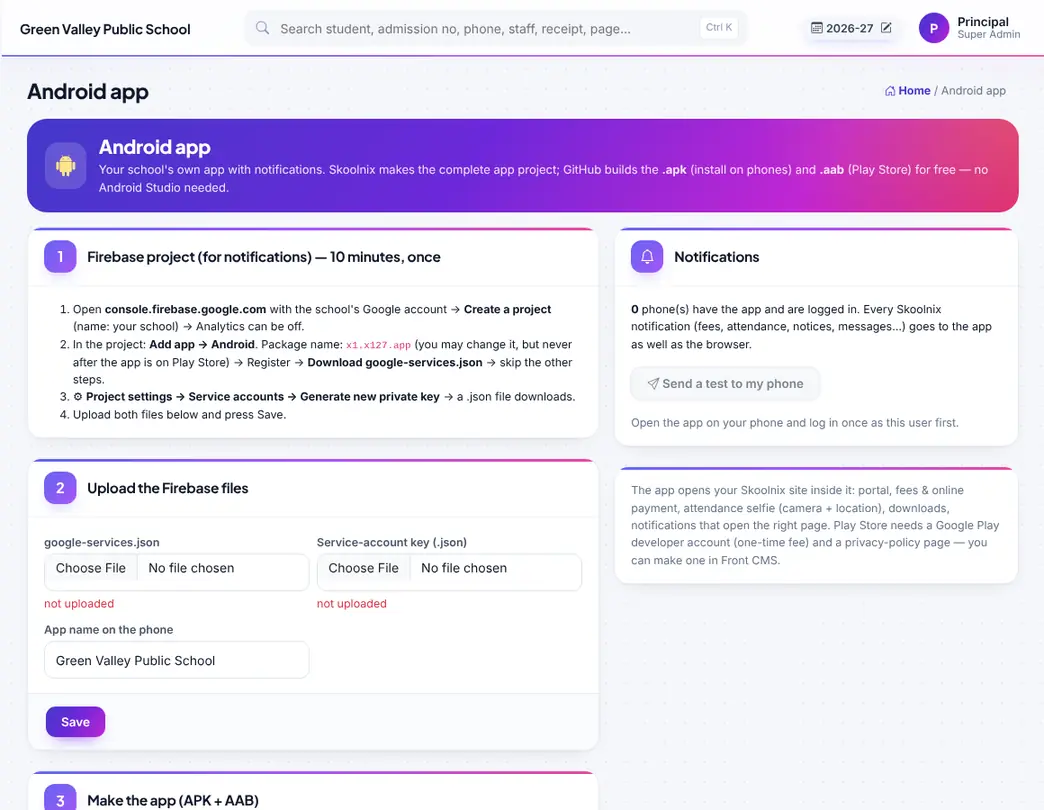
Android app settings.

Your own fields for students and staff.

Print header, receipt size (A5, A4, thermal), report-card and ID-card settings, signatures.
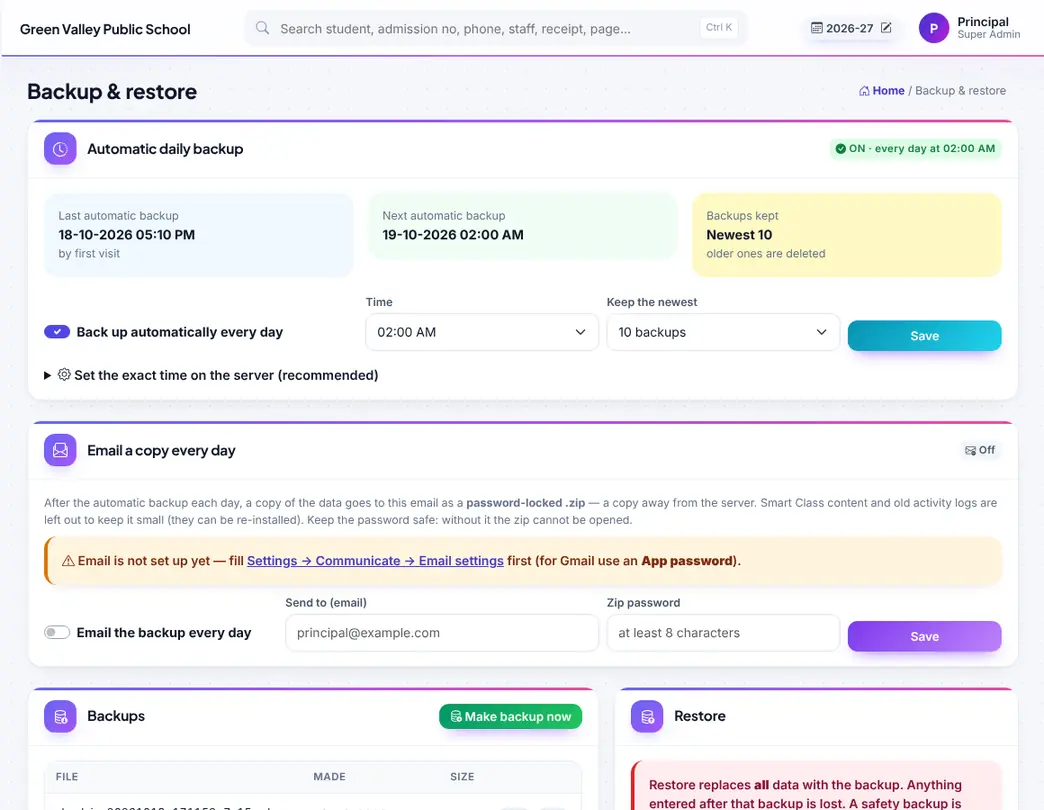
Backup and restore; email a password-locked copy every day.
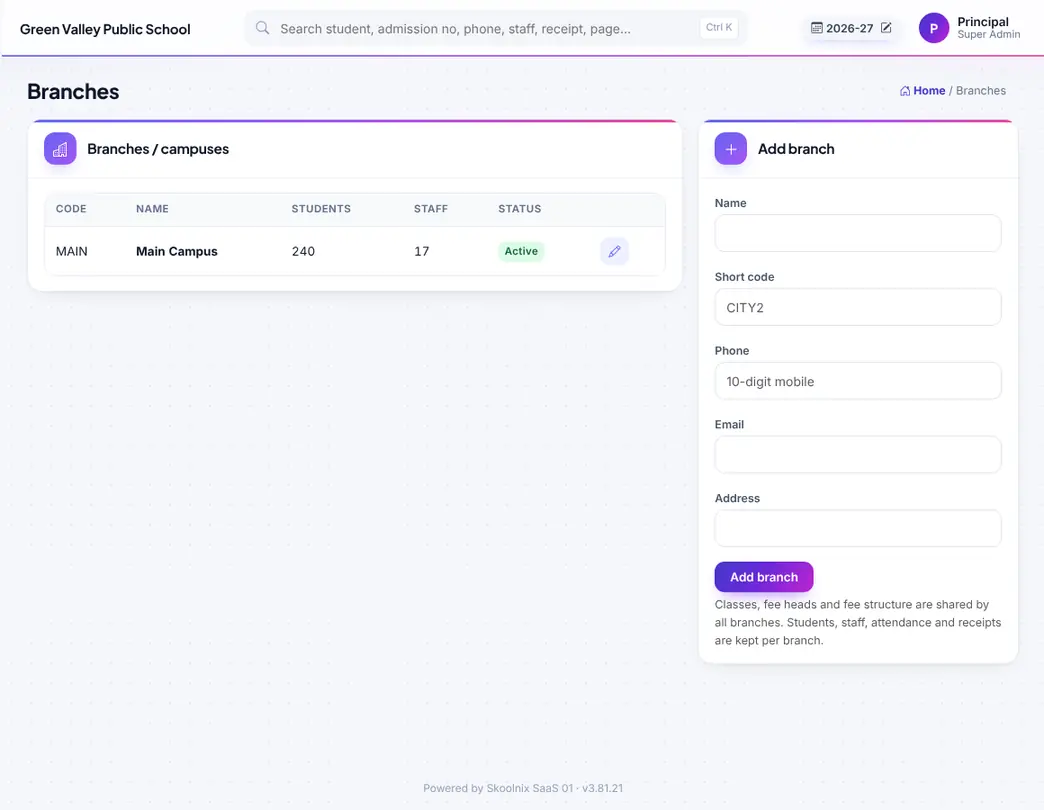
Branches of the school.
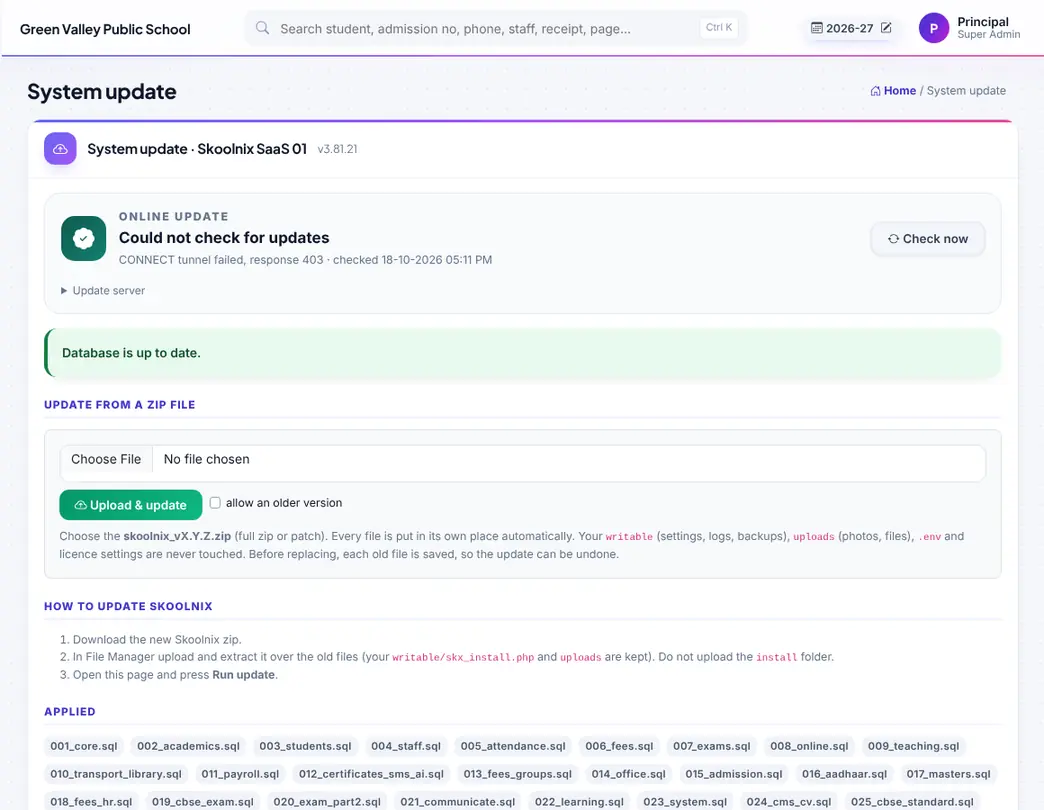
System update: install new versions with one click.
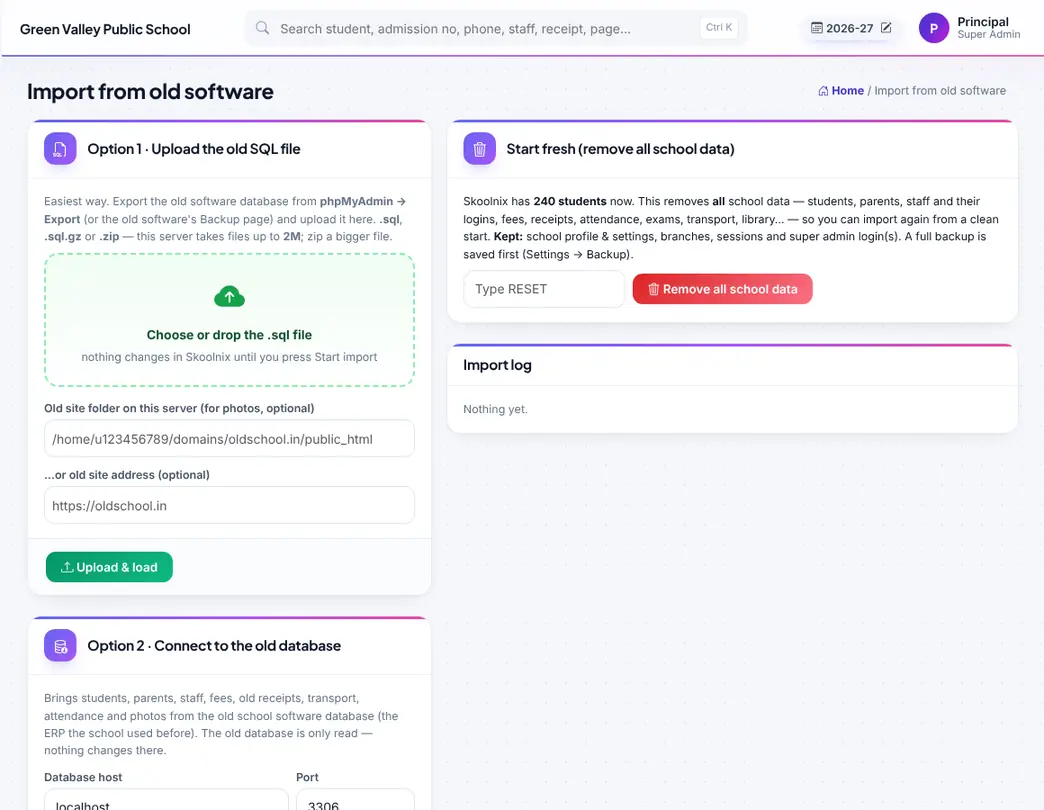
Import from your old school software (SQL file or database).

Import staff, opening dues and old receipts from Excel templates.

Licence key and plan.

Demo data for trying Skoolnix (only on a new, empty installation).
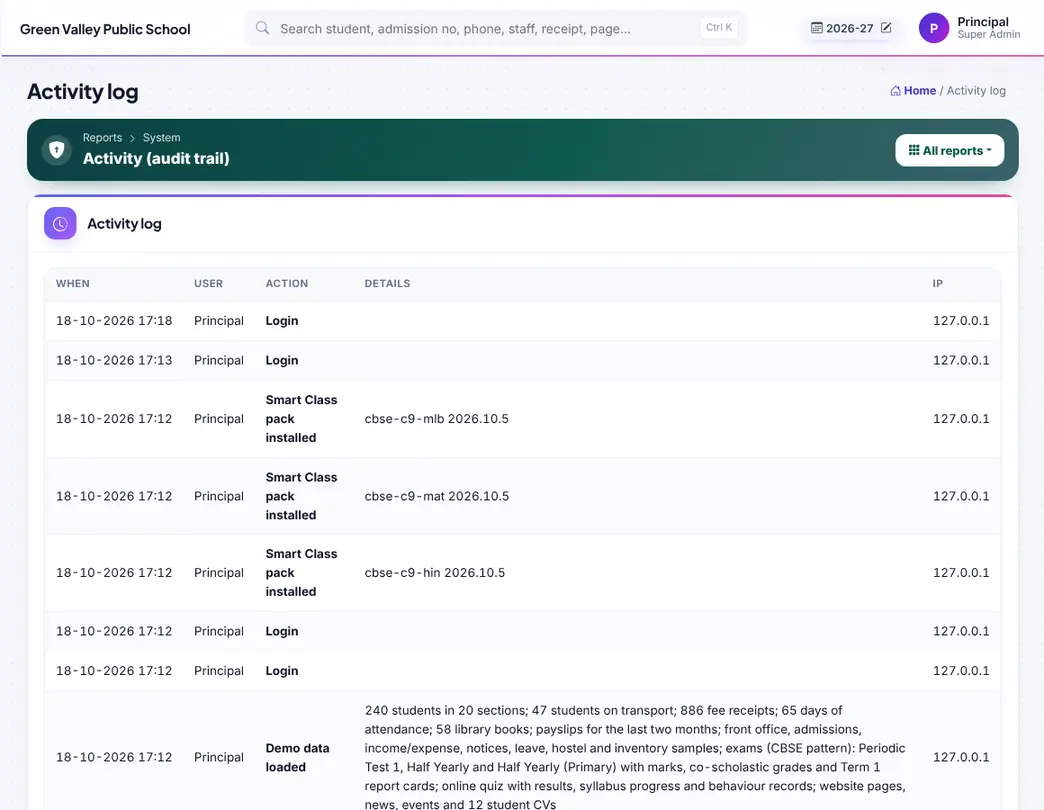
Activity log of users.
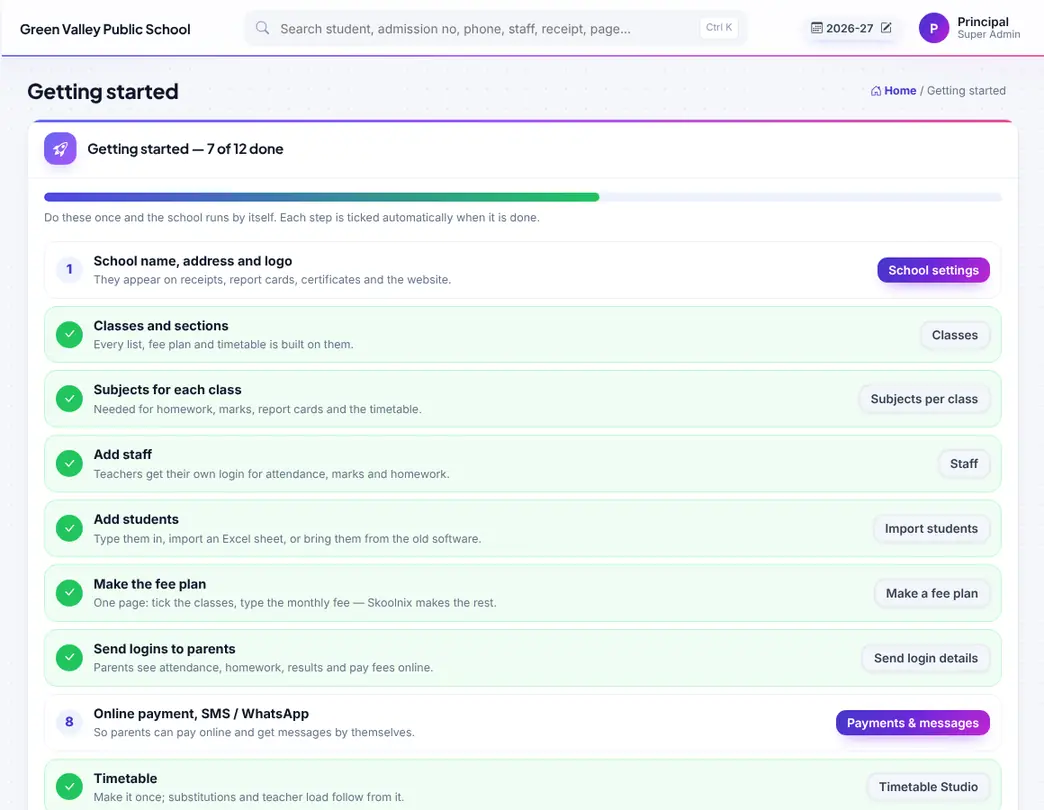
Getting started checklist: 12 steps to set up the school.

Audit trail: who changed what, old and new values.
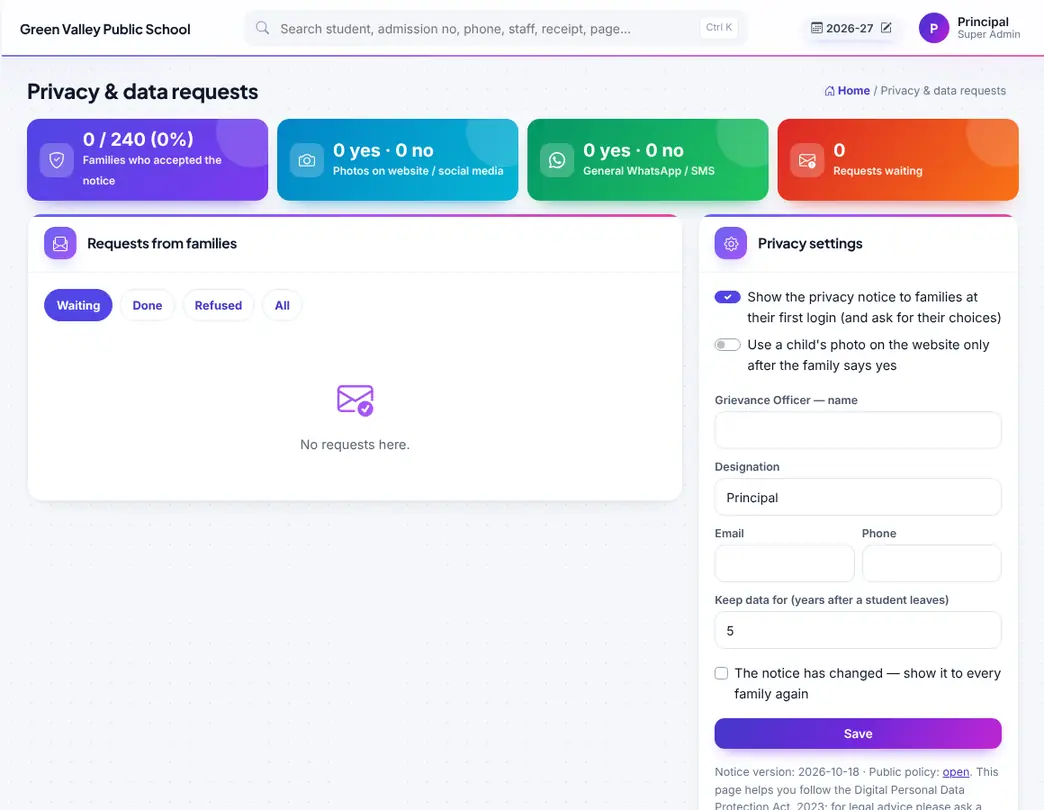
Privacy and data requests (DPDP Act 2023).

System health: backup, cron job, errors, disk space, version — in green, amber or red.

What the robot helper did and for whom.

Robot face and voice.

Your own profile and password.
Live school cameras in the app and short recorded clips.
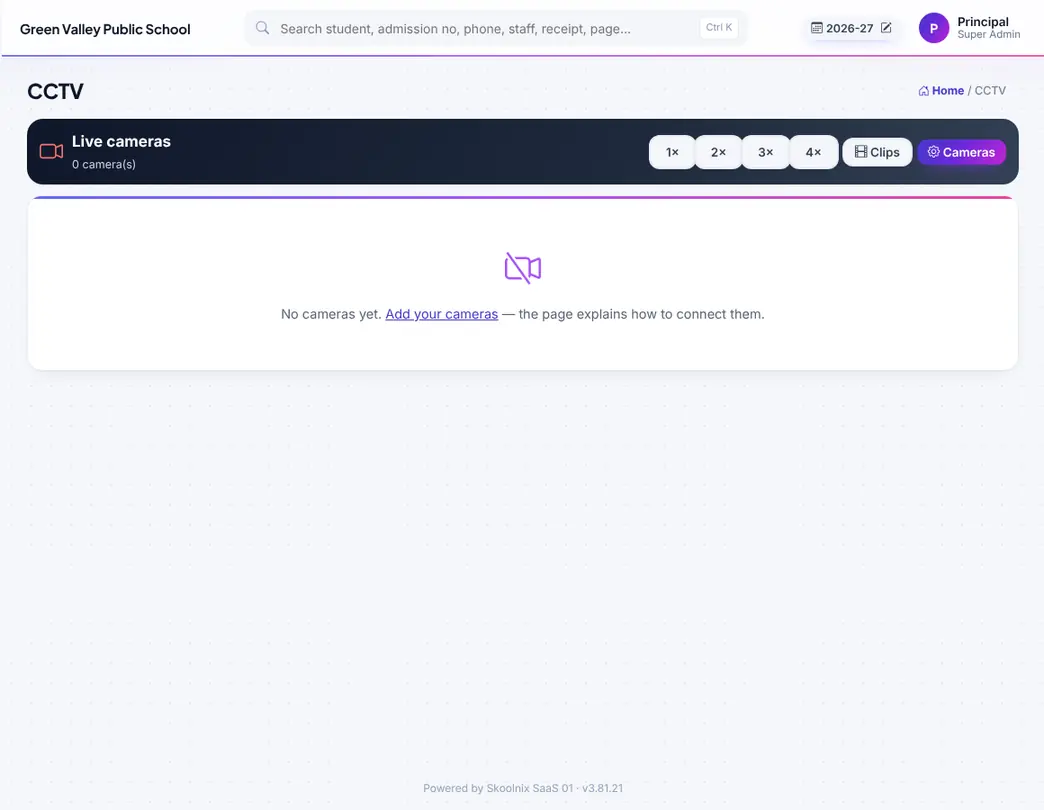
Live cameras in the app; a class teacher sees only their own class.
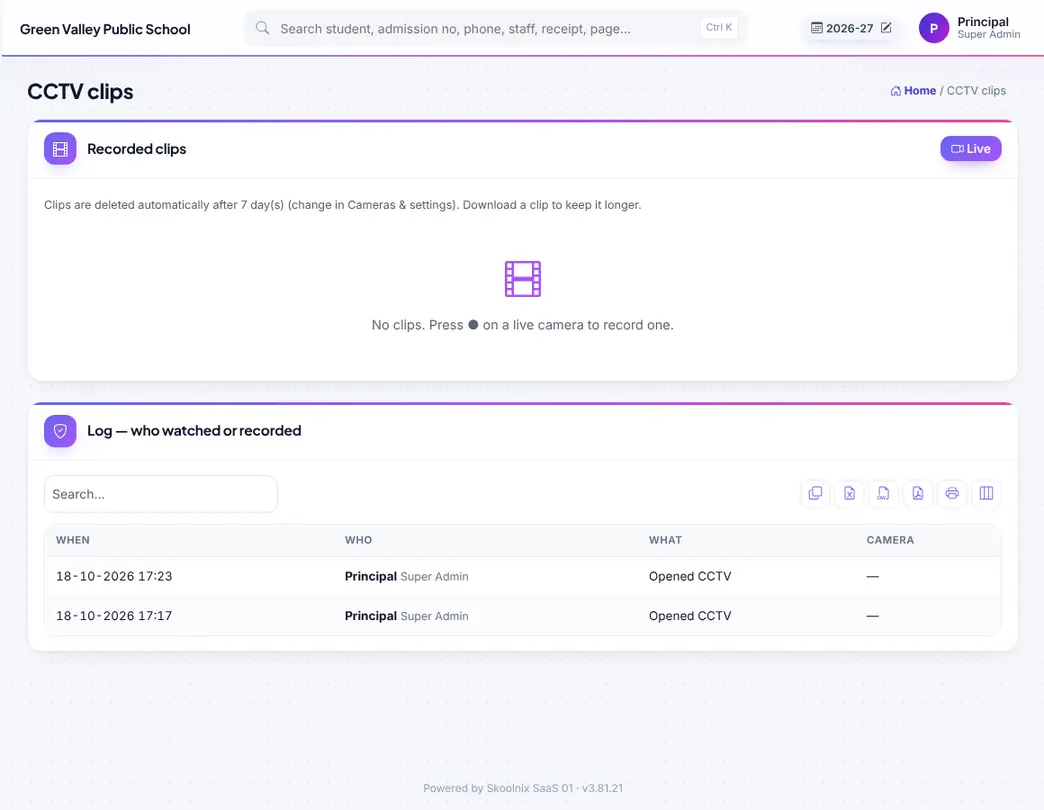
Recorded short clips.
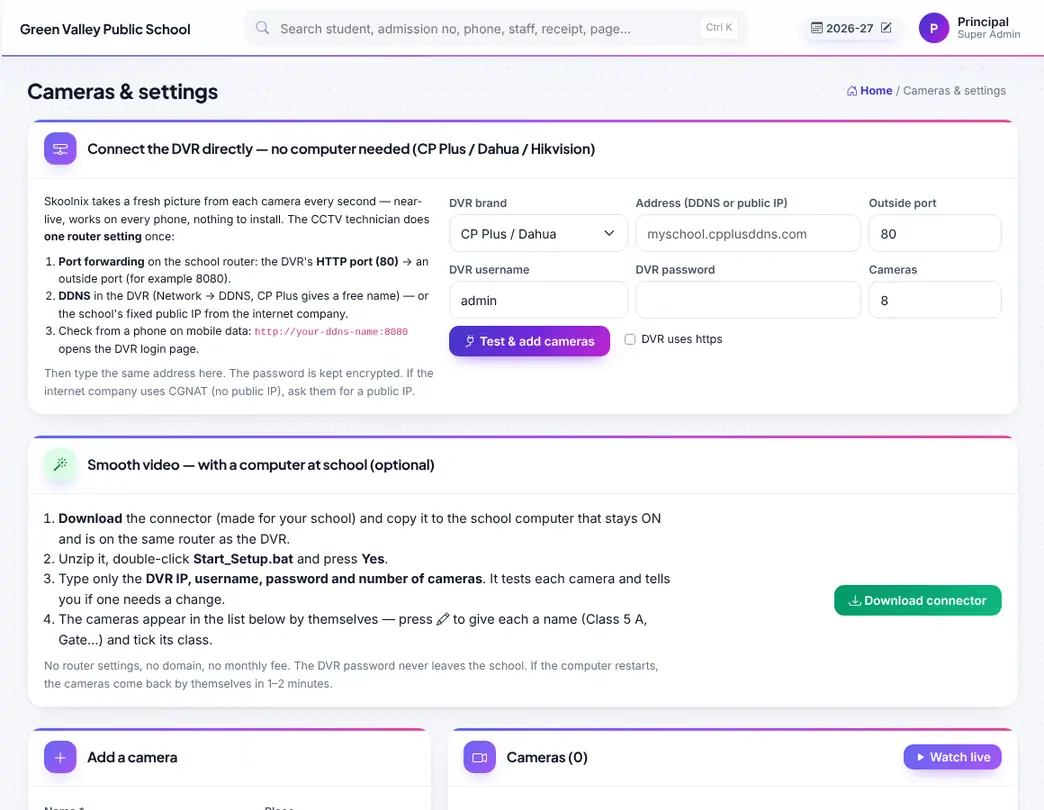
Cameras and settings: easy setup from the DVR (CP Plus / Dahua / Hikvision / Prama).
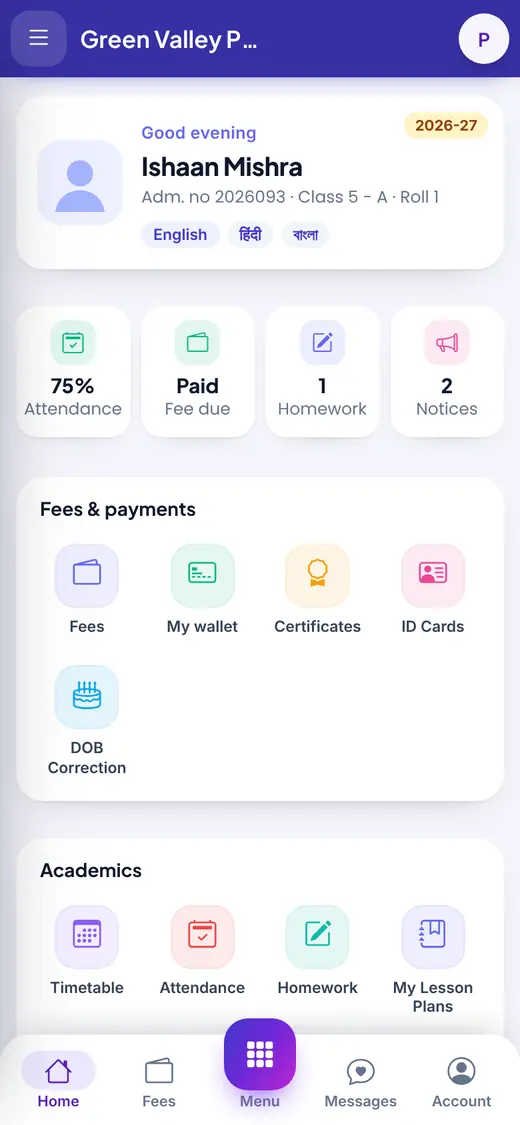
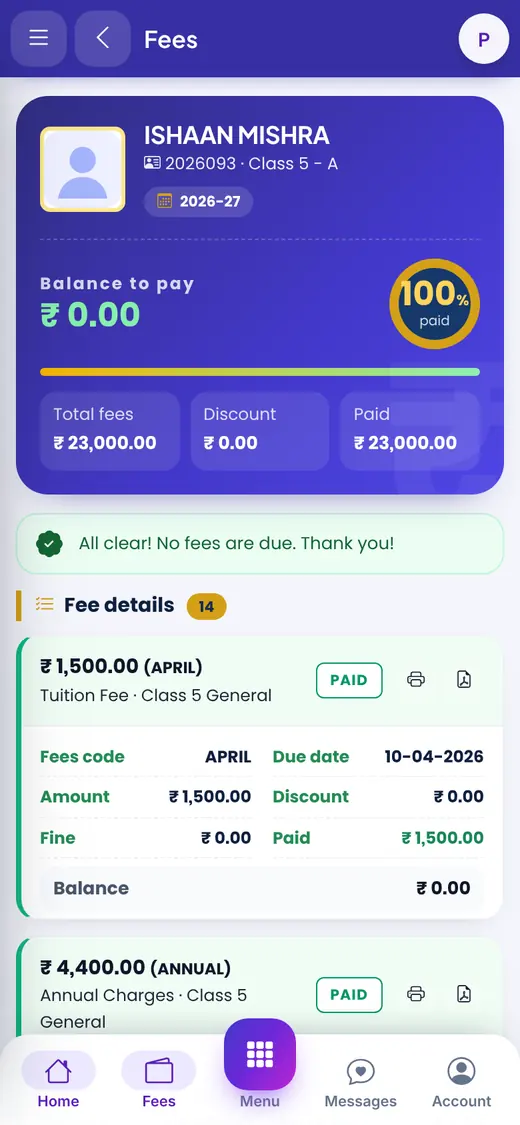
Parents and students use the same Skoolnix address on their phone and can install it as an app. Everything is in English, हिंदी and বাংলা.


No page matches. Try another word.